
Memory#

You work with your assistants every day - and the better they know you, the more useful they become. Memory makes exactly that possible: it remembers who you are, how you work, and what matters most in your projects right now. No endless repetition, no constant need to explain everything from scratch.
Note
Memory is optional. It only works if you have deliberately enabled it for an assistant or workflow.
The two types of memory#
Radio Creator AI-Tools distinguishes between two types of memory - for two different purposes.
User Profile#
The user profile is your personal memory that applies across all assistants and workflows. Any assistant and any workflow for which you have enabled memory can read and add to the profile.
The user profile should contain things that are useful in the long term:
Your name, your email address
Your department and position
Your area of work (e.g. news, social media, advertising)
Your writing style - how formal, how brief, and which tone you prefer
Your frequent tasks and topics
Tip
The more complete your profile is, the less you need to explain. Holly Headline will already know that you like headlines for Instagram - without you having to say it again every time.
Project Memory#
Project memory belongs to a single assistant or workflow. Only that one has access - no other assistant can look inside.
It is ideal for anything that is only relevant within the context of that one project:
Ongoing topics and open tasks
Content that has already been processed (so nothing gets done twice)
Project-specific settings and preferences
Interim progress that should continue in the next run
Example
A workflow scans sources on a topic every day. In project memory, it keeps track of which items it has already processed - and automatically skips them the next time it runs.
Enable memory#
Memory is turned off by default. You enable it separately for each assistant or workflow:
Open the assistant or workflow you want to edit.
Scroll down below the tool selection.
Enable the Use memory toggle.
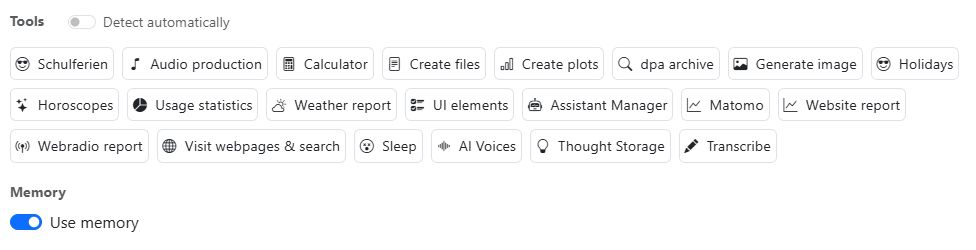
As soon as the toggle is active, the assistant can read your memory and store new information in it.
Important
If the toggle is disabled, the assistant has no access at all to stored data - it starts every conversation without any memory.
Temporarily disable memory (Incognito)#
Sometimes you want to have a conversation without anything being stored - without permanently disabling memory. That is what incognito mode is for.
How to enable it:
Open a chat with an assistant.
Click the three-dot menu at the bottom.
Enable the Memory off toggle.
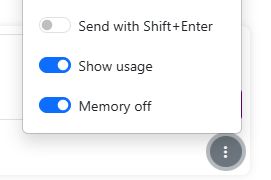
As long as incognito mode is active, the send button turns purple. That is your visual signal: this chat is running without memory.
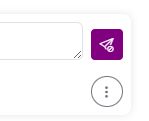
If you disable the toggle again, the button turns blue - and everything works as usual.
Tip
The purple button is not an error, but a deliberate visual cue. It lets you see at a glance when you are accidentally in incognito mode - and wondering why the assistant no longer knows you.
Button color |
Meaning |
|---|---|
🔵 Blue |
Memory active (if enabled) |
🟣 Purple |
Incognito - no access to memory |
Manage memory: the Profile Manager#

In the Marketplace, you will find a special assistant: the Profile Manager. It is your personal point of contact for everything related to your profile memory.
What the Profile Manager can do:
Guide you to a complete profile through targeted questions
Show you what is currently stored in your profile
Edit or delete individual entries on your request
You do not have to type anything yourself or fill out a form - the Profile Manager handles it conveniently in the chat.
Example prompts for the Profile Manager
“Show me what you have stored about me.”
“Update my position: I am now Head of Digital.”
“Delete my stored email address.”
“Create a new profile for me - ask me all the necessary questions.”
Note
Other assistants can also add to your profile memory when they learn something new about you during a conversation. The Profile Manager is the most convenient way to maintain your profile in a targeted way.
What belongs in memory?#
Memory is not a document archive. It is meant for the essentials - compact information that makes an assistant permanently more helpful.
Correct:
“I prefer short, direct sentences without filler words.”
“My station is called HIT RADIO FFH, target audience 25-49 years old.”
“Article about the Frankfurt city council election on 03 July already processed.”
Not suitable:
Entire articles, PDFs, or transcripts
Large datasets or tables
Content that changes daily
Tip
Think of memory as a good note - not a hard drive. Short, precise, and to the point.
Entries that have not been used for more than 200 days are automatically deleted by the system. What is no longer needed is forgotten - keeping memory up to date and tidy at all times.
Practical examples#
Assistant knows your style#
You work with Holly Headline every day. Instead of explaining each time which channel you are writing for and what your station sounds like, you store that information in your profile once.
Save once:
“Remember this: I write headlines for HIT RADIO FFH, target audience 25-49 years old, style relaxed and direct, no technical terms, maximum 10 words per headline.”
From now on, this is enough:
“Write five headlines for me about the summer heat in Frankfurt.”
Holly already knows the rest.
Workflow remembers processed topics#
You have a workflow that scans sources on a topic every day and creates content. Without memory, it would keep processing the same content over and over again.
With project memory, this is how it works:
The workflow processes an item.
It stores the title or URL in project memory.
On the next run, it first checks: “Do I already have this?”
It automatically skips content that has already been processed.
Prompt you can give to the workflow:
“Before processing an item, check your project memory. If the item is already listed there, skip it. After processing, store the title and date in project memory.”
Assistant manages an ongoing project#
You are working with an assistant on a multi-part series - for example, a five-part podcast series. The assistant keeps track of the current status in project memory.
“We are working on a five-part podcast series about AI on the radio. Episodes 1 and 2 are finished. Remember that and remind me next time where we stand.”
In the next chat:
“Where do we stand with the podcast series?”
The assistant replies right away - without needing to be briefed again.
View and edit memory#
You can manage your memory at any time in the chat - directly with the assistant that uses the memory.
View profile:
“Show me everything you have stored about me.”
Correct an entry:
“My department has changed. I am now in the digital editorial team. Please update that.”
Delete an entry:
“Forget what you have stored about my writing style - I want to start fresh.”
Reset project memory:
“Delete your entire project memory.”
To-do list#
The to-do list is a special storage area within project memory. You can ask the assistant at any time to add tasks, remove them, or show you the current status.
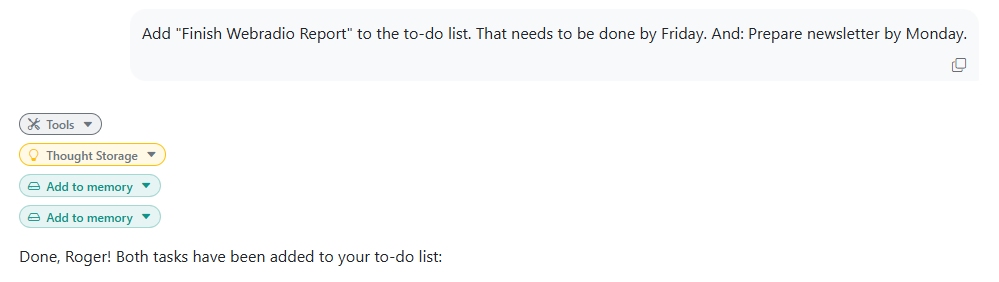
The assistant knows the contents of the to-do list as soon as you open it. A simple “What is still left to do?” gives you the current status of the tasks.
IMPORTANT: Each assistant maintains its own to-do list.
Monitor memory activity#
Whenever an assistant accesses memory, you can see it in the chat. The small green pills indicate that the assistant is currently storing something in memory or reading from it. You can expand these memory pills.
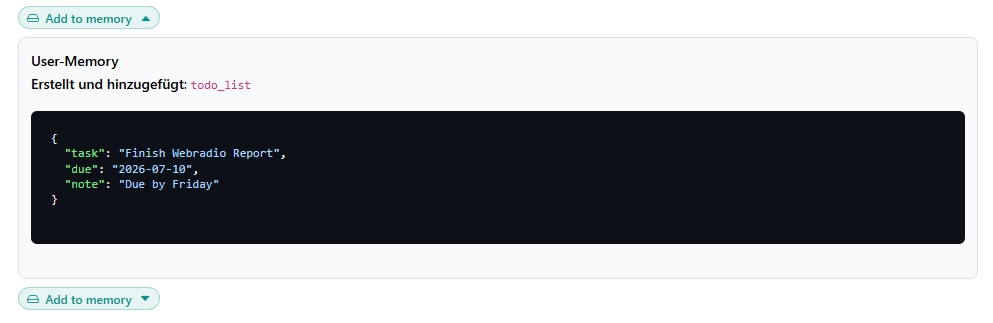
Summarize chat#
It is good practice to always start with a new chat rather than reopening and continuing long chats from the history. The advantage: short chats are faster and deliver better results. You can store important information in project memory and retrieve it again in a new chat whenever needed.
Sometimes, however, you need more context from a long chat in order to continue it in a new chat. That is what the Summarize chat function is for.
You can ask the assistant to do this for you. For example: Summarize our chat and save it for next time.
Or you can click the Summarize button below the chat window.
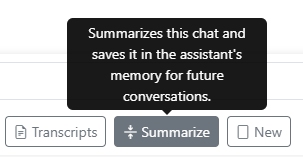
The summary is automatically stored in the assistant’s project memory. The next time you start the assistant with an empty chat, it will already find the summary in its system prompt and know about the previous content.
Once the summary has been passed to the assistant, it is automatically deleted from project memory, keeping it tidy at all times.
Migrate data from ChatGPT and Claude#
Many users already work with ChatGPT or Claude and have built up a personal profile there over time - preferences, instructions, and recurring facts about themselves. You do not need to re-enter this data manually. In just two short steps, the Profile Manager can take care of it for you.
Tip
The process is always the same, no matter which service you are migrating from:
Export your profile there using a pre-written prompt.
Paste the output into a chat with the Profile Manager.
The Profile Manager automatically handles the structuring.
Step 1: Export your profile#
ChatGPT
Open a new chat in ChatGPT and paste in the following prompt:
Export all of my stored memories and any context you've learned
about me from past conversations.
Preserve my words verbatim where possible, especially for
instructions and preferences.

## Categories (output in this order):
1. Instructions: Rules I've explicitly asked you to follow -
 tone, format, style, "always do X", "never do Y".
 Only include rules from stored memories, not from conversations.
2. Identity: Name, age, location, education, family, relationships,
 languages, personal interests.
3. Career: Current and past roles, companies, skill areas.
4. Projects: Projects I meaningfully built or committed to.
 ONE entry per project. Include what it does, current status,
 key decisions.
5. Preferences: Opinions, tastes, working-style preferences.

Format: Use section headers. One entry per line, sorted by oldest
date first. Format: [YYYY-MM-DD] - Entry content.
If no date known, use [unknown].

Output: Wrap everything in a single code block.
After the code block: state whether this is the complete set
or if more remain.
ChatGPT will then return everything it has stored in five neatly organized categories: Instructions, Identity, Career, Projects, and Preferences. Copy the complete output.
Claude
Note
Since June 2026, Claude has offered an official import/export feature for Memories. Alternatively, you can also export them easily with a prompt directly in the chat.
Open a chat in Claude and paste in the following prompt:
You are now exporting my full memory profile for import into
another AI system.
Output only a single, well-structured JSON object containing:
- full_name (optional)
- preferred_language
- writing_style (tone, formality, length, emoji usage, etc.)
- recurring_facts (key personal/professional information)
- custom_instructions (any persistent rules I gave you)
- important_preferences (formatting, verbosity, avoidance topics)

Do NOT add explanations or markdown. Return pure JSON only.
Here as well, copy the complete output.
Step 2: Transfer the data to the Profile Manager#
Open a new chat with the Profile Manager, paste in the copied output, and add the import prompt:
“Here is my exported ChatGPT data. Please transfer everything relevant to my profile.”
If the output comes from Claude, adjust the prompt accordingly:
“Here is my exported Claude data. Please transfer everything relevant to my profile.”
The Profile Manager reads the pasted data, assigns it to the appropriate profile fields, and stores it in your memory. Afterwards, you can check as usual what has been imported:
“Show me what you have just added to my profile.”
Important
Briefly review the imported data - especially if the exported text was very extensive. This ensures that only truly relevant and up-to-date information ends up in your profile.
Privacy & Security#
Your memory belongs to you - and only to you.
No colleague and no manager in your organization can view your memory.
The data is stored on secure servers at OVH in Limburg, Hesse - in Germany, GDPR-compliant.
Entries that have not been used for 200 days are automatically deleted.
You can view, edit, and completely delete your memory yourself at any time.
Important
Radio Creator AI-Tools uses your stored data exclusively to make your assistants more helpful. No AI model training, no sharing with third parties.