

Export Templates#
Create reports, proposals, or analyses as PDF files using your company’s letterhead.

For every AI result in the Assistants or Workflows modules, you’ll see a context menu that lets you download the results in various file formats.
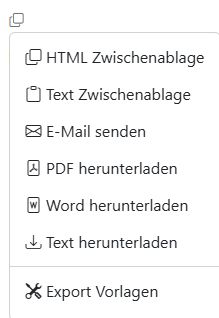
This also includes exporting as a PDF. In the context menu, you can open the template selection and choose which template you want to use for the export.

You can create and edit these PDF export templates in the Export Templates section. To do this, click the three-dot menu in the top right and select Export Templates.
Template Format#
A template can consist of a single page. In that case, this template is used as the background for all pages. Or you can upload a two-page PDF file as a template. Then the first page is used as the background for the first exported page, while the second page is used as the template for all following pages.
For example, the first page could contain a letterhead, while the following pages only show the company logo.
Add Template#
To create a new template, click the green plus icon or drag and drop a PDF template file into the browser window. The template settings window will open. You can now configure the template:
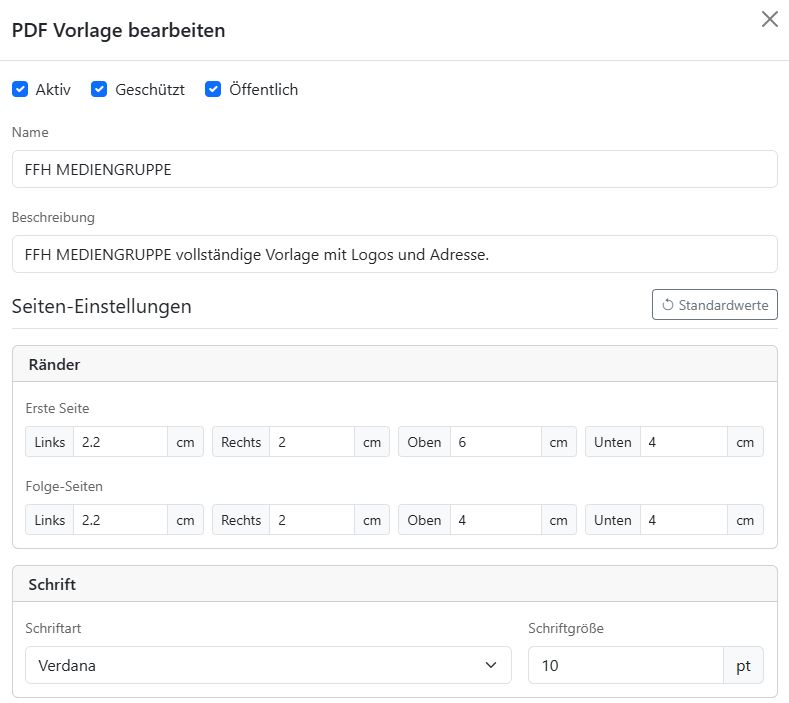
Switches#
Active: Use this to turn the template on or off.
Protected: Only users in the ai-tools-protected permission group can edit this template.
Public: If this box is checked, everyone in your company can use the template. Otherwise, only you can use it.
Page Description#
Name: This name is shown in the context menu. Give your template a short name that everyone will understand.
Description: Describe your template, for example: “FFH MEDIENGRUPPE two-page - logos only”. Note: The name and description are also used by the AI to find a suitable template.
Page Settings#
Defaults: This button resets all page margins to their default values.
Margins: Define the page margins (left, right, top, bottom) for the first page and all following pages.
Font: Choose the font family and font size.
Header and Footer: You can format the header and footer using HTML. For page numbers, you can use
pageNumberandtotalPagesas placeholders.Template File: If you haven’t already done so via drag and drop, upload the PDF template file here.
Header and Footer#
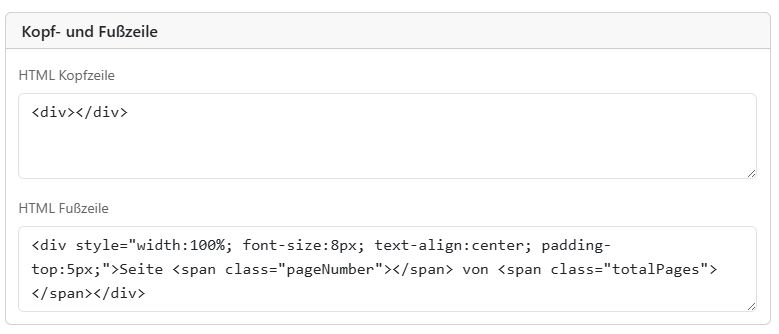
You can format the header and footer using HTML. You can insert page numbers with the pageNumber and totalPages classes in an HTML <span> element.
Example of the current page number:
<span class="pageNumber"></span>
Example of a footer:
<div style="width:100%; font-size:8px; text-align:center; padding-top:5px;">
Page <span class="pageNumber"></span> of <span class="totalPages"></span>
</div>
Edit or Delete a Template#
In the overview, you’ll find a list of all templates currently available. The icons show the status of each template:
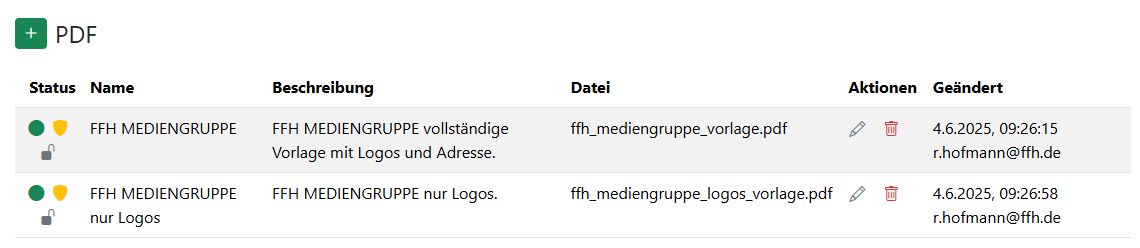
Gray: inactive, green: active
Yellow shield: protected
Open padlock: public
In the Actions column, you’ll find the icons for editing and deleting a template.
Warning: Be careful when editing or deleting public templates. Someone else may need them.