
Module: Voices#
This powerful tool gives you a fantastic AI voice playground. Choose from dozens of voices. Create scripts and have them spoken by multiple voices with assigned roles. Then add music to your production.
The AI voice module is divided into several sections. Work through them from top to bottom to use its full functionality.
The great strength of the AI voice module: everything is in one place. From research, script writing, voice selection, and role assignment to pronunciation rules and final production with imaging elements.
Tip
What you can do with it:
Create podcasts with a single prompt and your favorite voice.
Produce a commercial with multiple speakers and music beds.
Generate news, weather, and traffic reports and control pronunciation with a large dictionary.
Create an audio segment from a script.
Create a radio play with many roles and music.
Experiment, try out many voices, and develop new audio formats.
Select voices#
Dozens of AI voices are available to you. You can use voices from your AI voice provider accounts or the voices included in the AI-Tools. You can filter the many voices by different criteria, such as provider or gender.
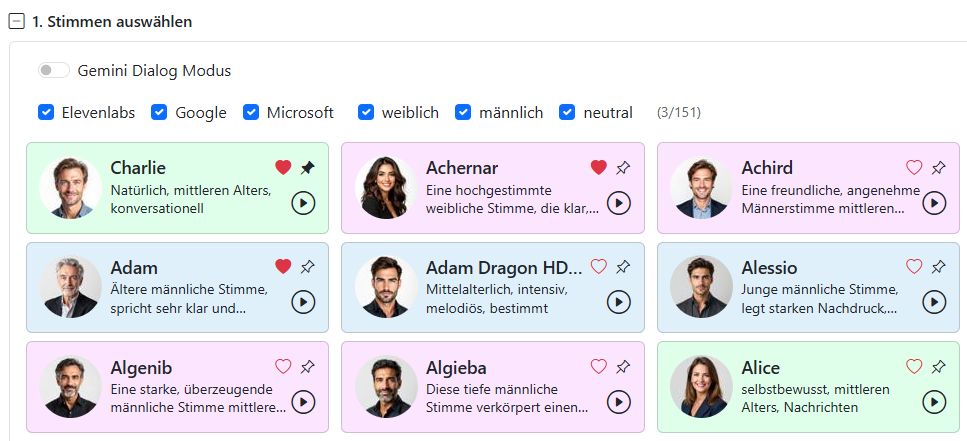
For each voice, you will see a card with a short description and a profile image. The Play button plays a short audio sample.
Use the pin to pin voices you use more often to the top. The next time the page loads, they will be available right away. Use the heart to mark the voices you want to use for your current production.
Click on the profile image to get more information about the voice:
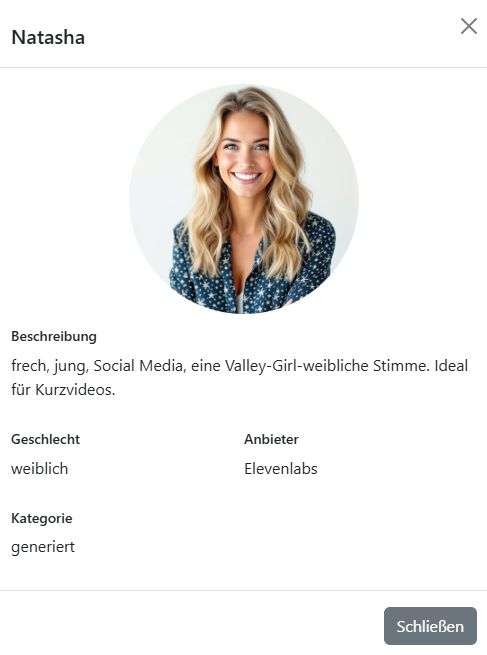
Description: Information about possible use cases.
Gender: male, female, or neutral.
Provider: For example, ElevenLabs or Microsoft.
Category: Professional voice actor, standard voice, or generated voice.
Deprecation period: Some voice actors reserve the right to withdraw their voice. After announcing this, the voice remains available for a limited time.
Cost factor: For premium voices, the number of characters used is multiplied by this factor. Generating the voice therefore costs more.
Voice Changer#
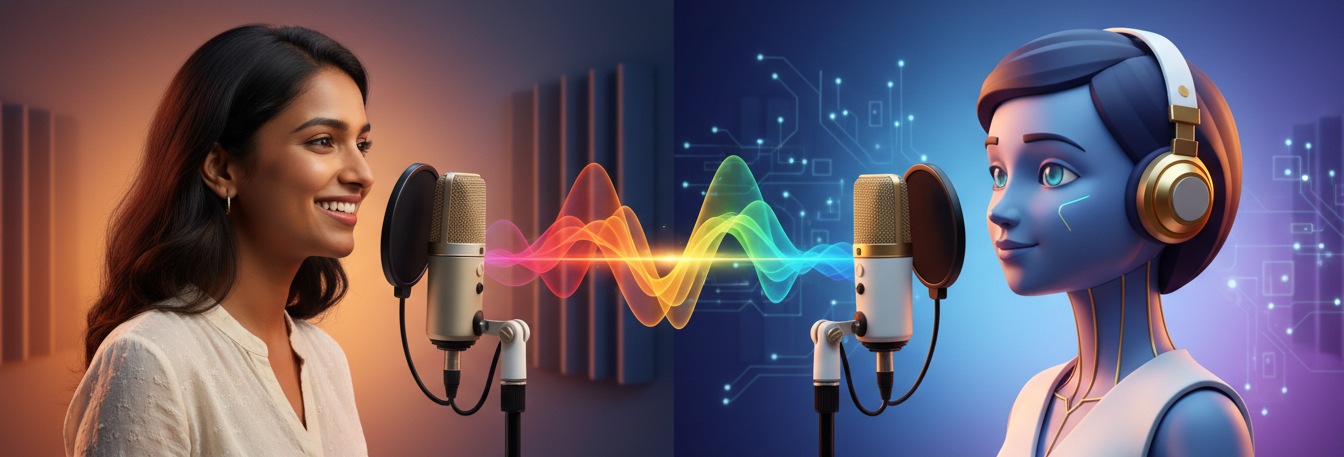
You can modify any voice with the Voice Changer. Your voice controls the AI voice, giving you full control over timing, emphasis, and emotion. Upload a recording of your voice or use the voice recorder.
The Voice Changer works only with ElevenLabs voices. Select exactly one of these voices.
Example: Fenrir (Gemini voice) explains how it works.
Result: Using the Voice Changer, Ramona (ElevenLabs voice) speaks the same text with Fenrir’s emphasis and timing.
Generate text#
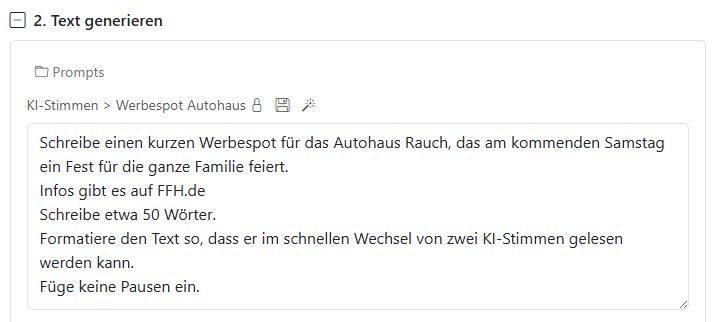
You can use the prompt collection to generate texts. Specify how many voices should speak the text and whether pauses should be inserted at appropriate points. The AI uses the voices you marked with a heart.
Edit text & generate voices#
The generated text is displayed in this box. You can edit it to optimize it.
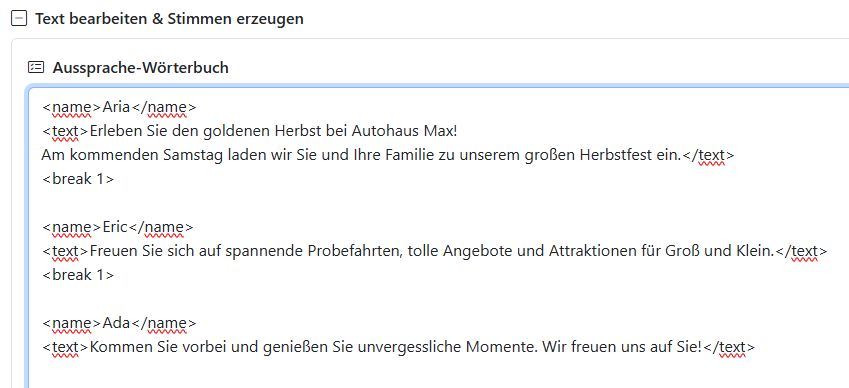
We use tags to control the voices. <name> is the name of the voice, <break 2> inserts a two-second pause, and <text> is the text that will be spoken.
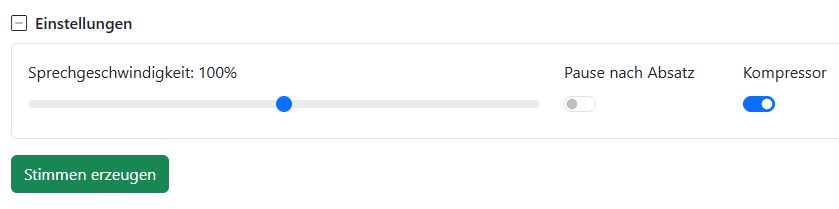
In Settings, you can control the speed of the voices and specify whether there should be short pauses after paragraphs. The compressor ensures that the voice volume is consistent. Click Generate Voices to create the voices. This may take a moment.
Gemini dialogue voices#
Google Gemini voices sound especially natural and are ideal for dialogues and podcasts. What makes them special is that you can provide directing instructions. For example, you can describe the atmosphere of a scene, whether it is a relaxed podcast or an exciting commercial production.
You can also control the speakers’ emotions or make them laugh.
To do this, enable Gemini dialogue mode.
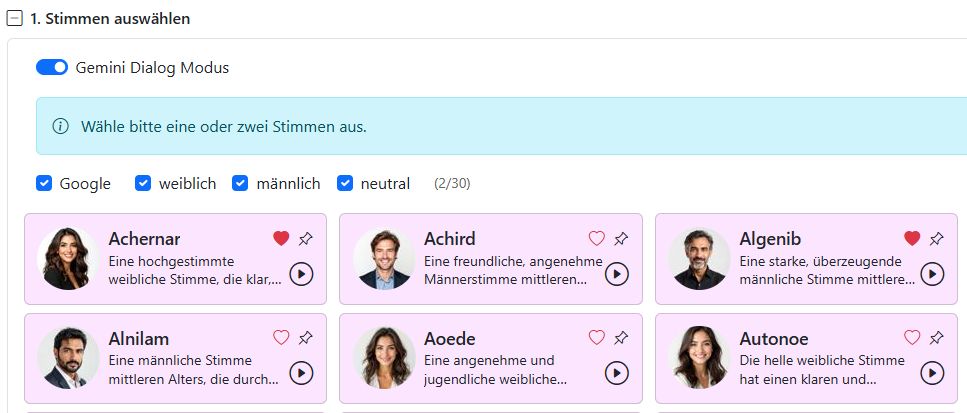
Select one or two voices. Only then will all dialogue features be available.
In the prompt, you can specify the directing instructions. At the beginning, describe the scene in detail. For example:
A relaxed, motivating commercial for a children’s festival with two speakers. A woman and a man invite families to join in.
The AI then writes everything in the correct format for the AI voice generator, including emphasis instructions within the text. The AI voices respond best to instructions in English.
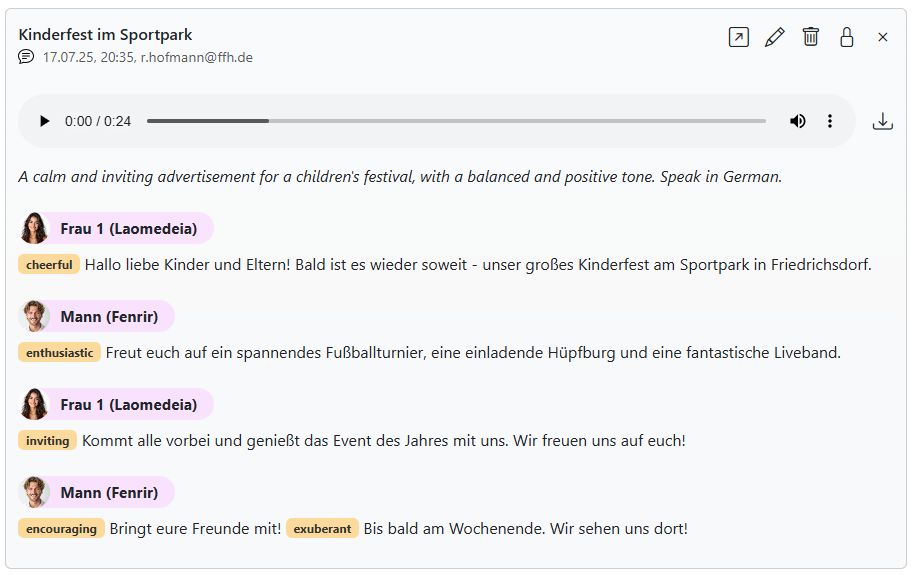
Directing instructions#
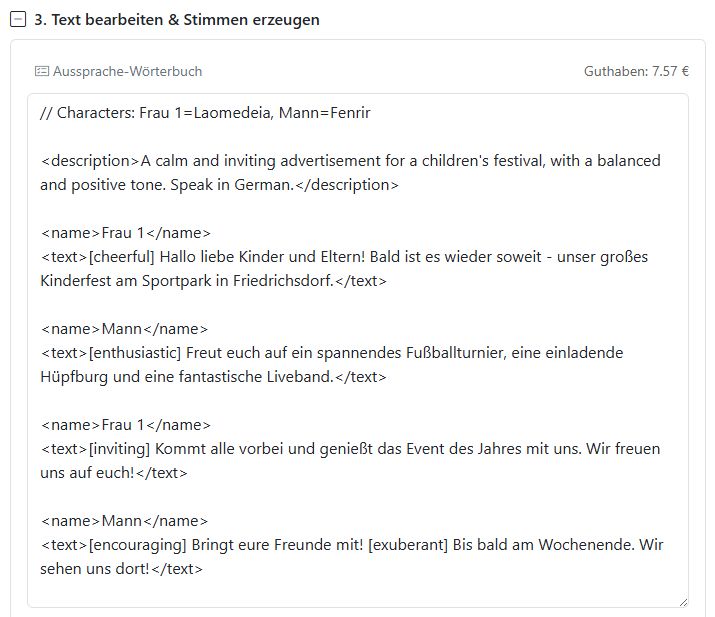
Description
Wrap the scene description in the tags <description></description>. Specify the situation the speakers are in and who takes on which role. All directing instructions work best in English. Here is an example:
Characters
You can assign the corresponding AI voices to individual speakers. Do this right at the beginning using the line //Characters:
//Characters: Anna=Laomedeia, Tom=Fenrir
In this example, the female speaker is called Anna and speaks with the voice Laomedeia. The speaker Tom speaks with the voice Fenrir.
Emotions
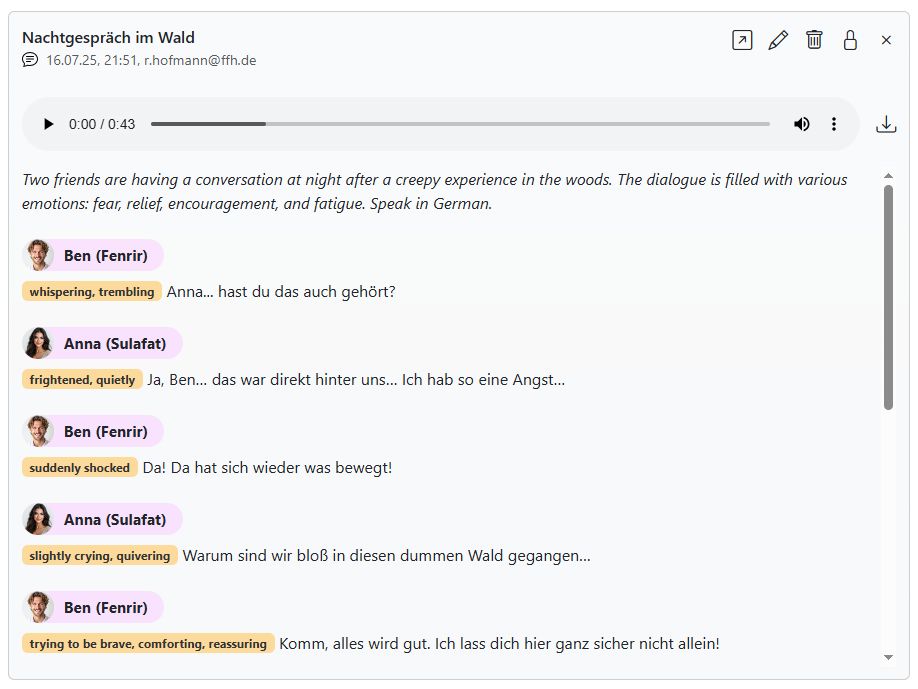
Emotions and emphasis instructions go in square brackets. For example, [happy] for cheerful delivery, or [laughs] to make the voice laugh.
There is no predefined list of allowed words here. It is best to experiment a little.
Gemini audio examples#
How versatile are the Gemini voices? We have put together a few examples for you. In the following video, you can hear the AI voices Aoede and Algenib in these situations: news, podcast, commercial, radio play, and speaking with an accent.
Pronunciation dictionary#
Sometimes the AI mispronounces words. With the pronunciation dictionary, you can control how words are pronounced. Open the dictionary and add words that the AI pronounces incorrectly.
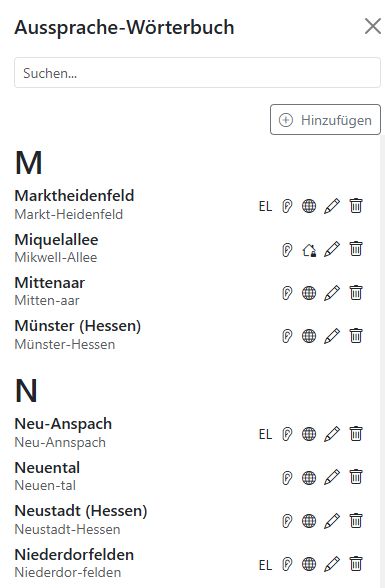
The icons show which voice providers the rule applies to: EL: ElevenLabs, MS: Microsoft. If no abbreviation is shown, the rule applies to all providers.
Ear icon: The rule is written in the international phoneme script. This does not currently work with German ElevenLabs voices.
Globe icon: The rule applies to all organizations using the AI-Tools. If the rule only applies to your organization, a house icon is shown instead.
Pencil icon: You can edit the rule.
Trash icon: You can delete the rule.
Edit pronunciation rules#
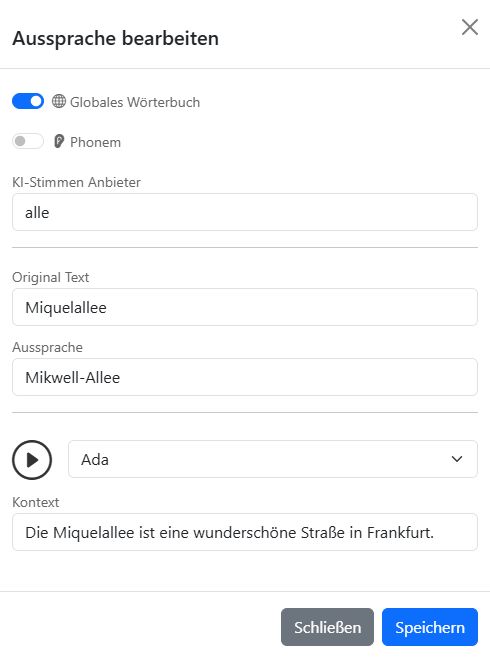
Use the phoneme switch (ear icon) to write the rule in the international phoneme script. If the switch is off, you can formulate the rule phonetically.
AI voice provider: Choose whether the rule should apply only to ElevenLabs, only to Microsoft, or to all providers.
Original text: This is the original text for which the AI needs a pronunciation rule.
Pronunciation: Enter the correct pronunciation of the word here.
Play button: Choose which voice should play the pronunciation and listen to the result.
Context: So you do not have to check just a single word, you can enter a full sentence here. Or leave the field blank and the AI will generate a suitable sentence.
Play production#
The finished spoken text is displayed in this area. In the dropdown menu,you can access your previous productions. If you want to edit an existing text, click the pencil icon. This copies the text into the Edit text & generate voices window.
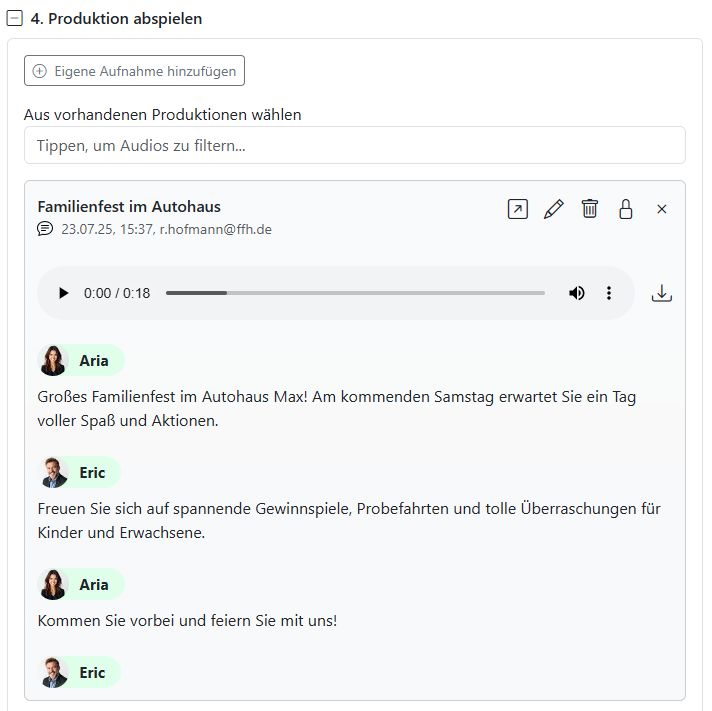
Add your own recording
You can also add your own audio recording. For example, if you want to add music to your own spoken text. To do this, click the Add your own recording button. When uploaded, the recording is automatically transcribed and labeled.
Produce with imaging#
Now you can add a music bed underneath the voices. In the Produce section, mark one of the music beds with a heart or upload a new bed using Add.
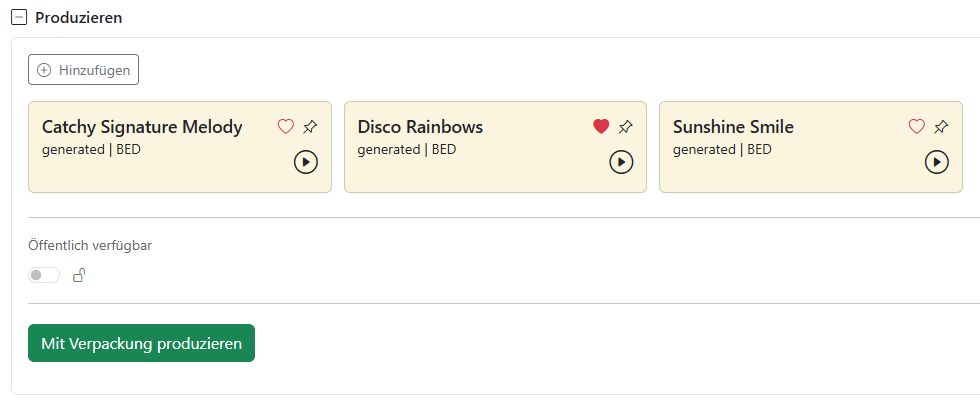
Click on one of the music beds to open the audio editor. Here you can set the volume and define the mix points.
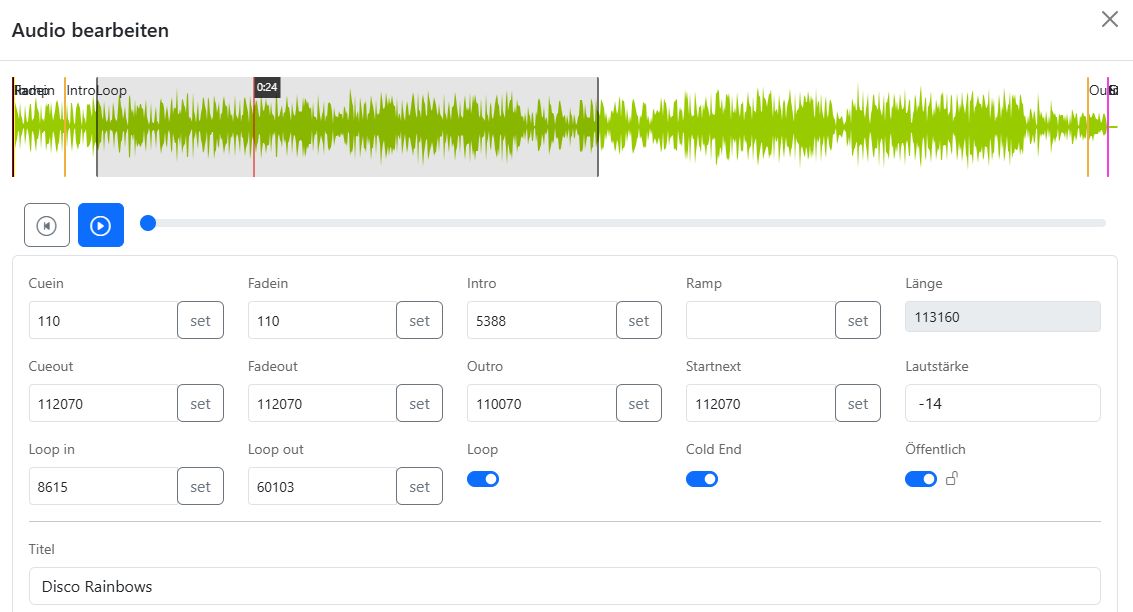
The following settings are currently supported:
Cue in: Start point of the music bed.
Cue out: End point of the music bed.
Intro: Length of the intro. The text starts only from this point onward.
Loop in: Start point of the loop.
Loop out: End point of the loop.
Outro: The outro begins at this point.
Volume: Volume of the music bed in dB.
Automatic length#
The AI-Tools automatically adjust the length of the music bed to match the length of the text. If the text is shorter than the music bed, the bed is trimmed accordingly. If Cold End is enabled, it is trimmed in such a way that the outro will definitely still be heard.
If the bed is shorter than the text, it is extended so that it fits the text exactly.
Tip
Using loop and outro:
Loop is a powerful feature that automatically extends the music bed so that it fits your voice production exactly.
Proceed as follows:
In the audio editor, enable the loop switch and set the Loop in and Loop out mix points. Click in the loop area at the top of the waveform to play it repeatedly. This lets you check whether the loop is seamless.
Enable the Cold End switch and set the outro point. The music bed will then be adjusted so that the outro plays after the text ends.
Do not forget to save!
Click Produce with imaging to start the production. The system always mixes the first text production in the Play production area with the music bed you marked with a heart.
You can repeat this process multiple times with other music beds or different volume settings. You will then find the finished production in the Choose from existing productions list in the Play production area.
Costs#
Costs
You can store your voice provider accounts. In that case, the costs for using the voices are charged directly to your account. Or you can use the voices without your own account. Then the costs are deducted from your AI-Tools credit. You can see your current credit in the top right of the Edit text & generate voices section. If your credit runs out, you can top it up again by sending an email to info@radio-creator.com.
For Microsoft and ElevenLabs, the cost of using voices is based on the number of characters used. Before the voices are generated, the text is automatically revised and matched against the dictionary to achieve optimal pronunciation. This adds extra characters. As a result, the billed character count is slightly higher than the number of characters originally entered. Some ElevenLabs voices also have a cost factor that increases the character count even further.
1,000 characters with ElevenLabs cost 43.2 cents.
1,000 characters with Microsoft cost 5.391 cents.
Gemini voices
Google charges for Gemini voices based on input and output tokens. Token prices vary depending on the model used. We are currently using the gemini-2.5-flash-tts model:
1 million input tokens cost 1 euro.
1 million output tokens cost 20 euros.
Per-minute prices:
The per-minute prices for AI voices can only be estimated. They depend on the speaking speed of the AI voices and the number of additional characters/tokens needed for directing instructions.
1 minute with ElevenLabs costs about 45.9 cents.
1 minute with Microsoft costs about 5.7 cents.
1 minute with Google Gemini costs about 3.9 cents.