
Audio Production#
With Audrey Audio, you have a specialized AI assistant by your side for all audio productions. Whether it’s a commercial, podcast, radio segment, or interview edit, Audrey supports you from the first draft to the finished audio file. Simply describe what you want to produce, and she will select the right tools and carry out the steps automatically.
Audrey Audio#
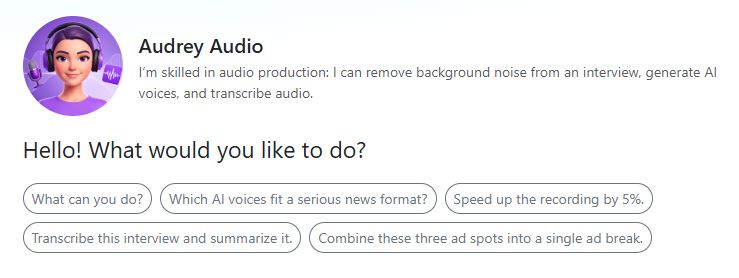
You can access Audrey Audio in the assistant section of the AI-Tools. You don’t need any prior experience in audio production—just tell Audrey what you want to do, and she will take care of the rest.
Audrey can help you with:
🎙️ Commercials - write copy, have it voiced, and mix it with music
🎧 Podcasts - produce podcast-style dialogues with two AI voices
✂️ Audio editing - extract quotes, shorten segments, split interviews
🔊 Quality check - technical analysis of audio files
🧹 Audio Enhancer - remove noise and improve sound quality
📝 Transcription - convert speech to text and identify speakers
🎭 Voice Changer - convert recordings into other AI voices
🎤 Audio segments - combine actuality clips with AI voice tracks into finished radio segments
Tip
Not sure where to start? Just ask Audrey: What can you do for me? She will introduce herself and all of her capabilities with concrete examples.
AI Voices#
With the AI voices tool, you can turn any text into spoken language. Three providers are available: ElevenLabs, Google, and Microsoft—each with different voices and sound characteristics. If you like, Audrey can recommend a suitable voice for you: young or mature, male or female, serious or relaxed.
Typical use cases:
Have commercials and jingles voiced
Produce podcast dialogues with two different voices
Create audio dramas and dialogues with multiple characters
Tip
Try these prompts:
Voice the following text using a friendly female voice.
Produce a podcast dialogue between two people on this topic. Use one male and one female voice.
Which voices are suitable for a commercial that should sound young and dynamic?
Mix speech with a music bed#
You can mix a voiced AI track directly with a music bed. Upload the music, describe the desired volume balance to Audrey, and she will produce the finished mix.
Practical example: You have a 30-second commercial script and a matching music bed. Audrey voices the text, mixes it with the music, and delivers the finished spot as an MP3 or WAV file.
Tip
Try these prompts:
Voice the following commercial using a friendly female voice and mix it with the uploaded music bed.
Normalize the finished spot to -9 dB.
Voice Changer#
With the Voice Changer (ElevenLabs), you can convert an existing recording into an AI voice. Upload your recording and describe to Audrey how the target voice should sound.
Practical example: You have your own recording in which you emphasize the individual passages correctly. The Voice Changer converts your voice into a professional AI voice.
Tip
Try these prompts:
Convert the uploaded recording into a professional female AI voice.
Convert my voice into a deeper, calmer voice.
Audio Tools#
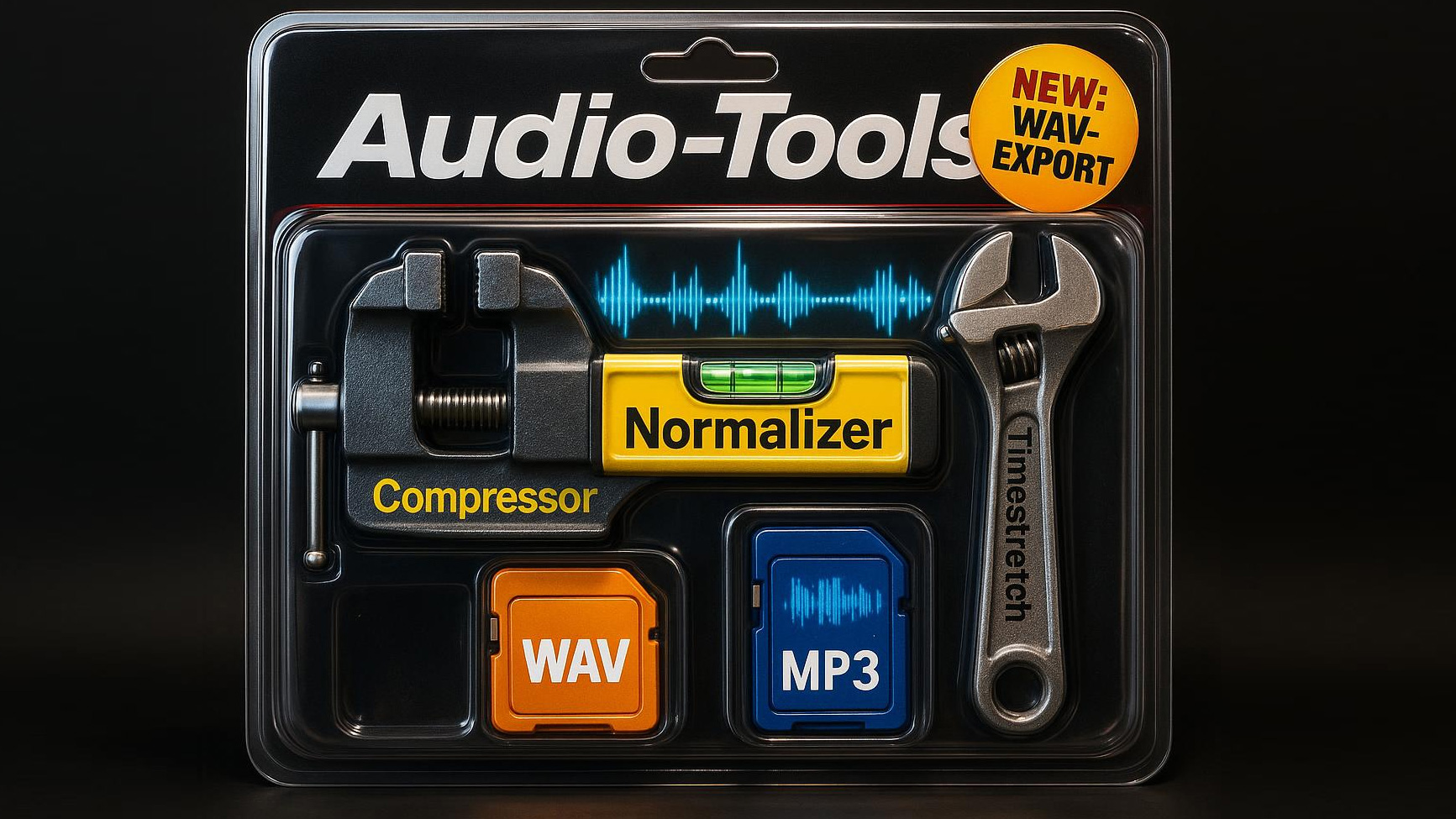
With this toolbox, Audrey can help you produce and edit audio content. You can mix, combine, normalize, compress, stretch, and analyze audio files.
Combine#
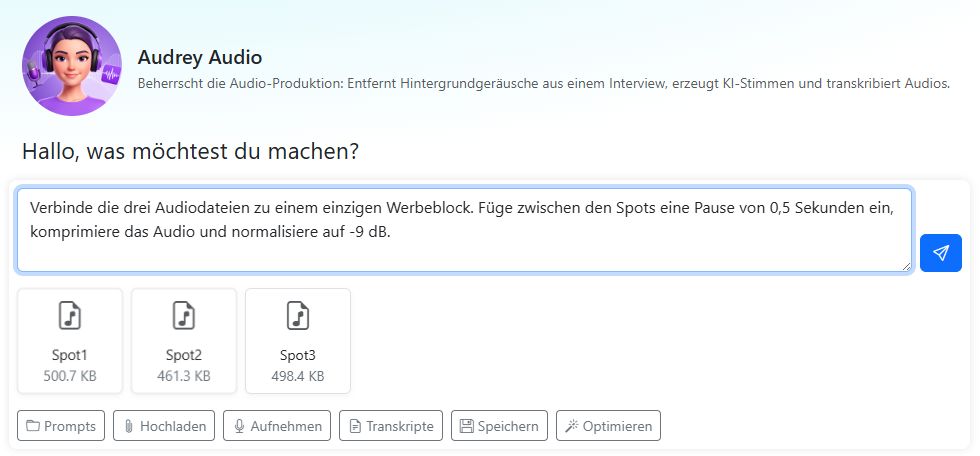
Upload multiple audio files and arrange them in the desired order using drag and drop. Audrey combines them into a single file, with optional pauses between the individual parts.
Practical example: You have three finished commercials and want to turn them into an ad break for the next hour of programming. Audrey combines the spots in the desired order, inserts pauses, and delivers the finished block.
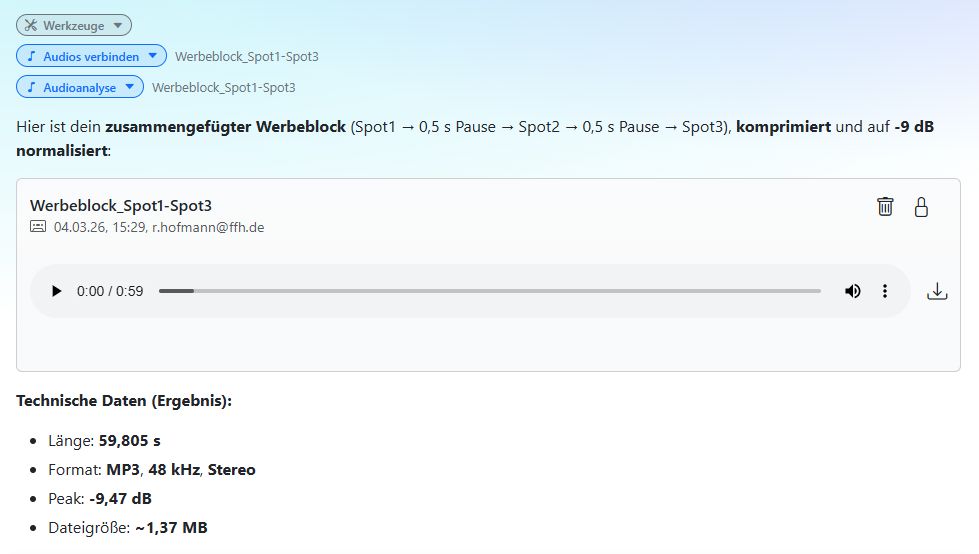
Choose which file format (WAV or MP3) you want for the finished audio file.
Normalize, Compress, and Time Stretch#
Normalize: Adjust the volume to a target dB value (default: -9 dB). Normalize individual tracks or the full mix, depending on what you need.
Compress: Reduce the audio’s dynamic range for a more even sound.
Time stretch: Extend or shorten an audio file to a desired length (factor 0.8-1.2). Useful when a spot needs to be brought to exactly 30 seconds.
Practical example: Your commercial is 32 seconds long, but you need it to be 30 seconds. Audrey calculates the time-stretch factor, shortens the audio, and then normalizes it.
Tip
Try these prompts:
Normalize the audio file to -10 dB and export it as WAV.
Combine the three audio files into a single file. Insert a 0.5-second pause between the individual files and compress the audio.
Stretch the audio file to a length of 30 seconds. Compress it and export it as MP3.
Make the audio 5% faster.
Combine the two audio files and normalize them individually.
Combine the audio files and then normalize the entire audio to -9 dB.
Analyze#
Audrey analyzes audio files both technically and in terms of content. The audio tools determine the following: length, format, sample rate, channels, file size, peak amplitude, RMS level, dynamic range, loudness (LUFS), and crest factor. This allows you to quickly assess the quality of an audio file before you broadcast it or process it further.
Tip
Try these prompts:
How long is the audio file, and what is its content?
Analyze the commercial technically and in terms of content. Write a comprehensive report.
Does the audio loudness comply with the EBU R128 standard?
Audio Enhancer#
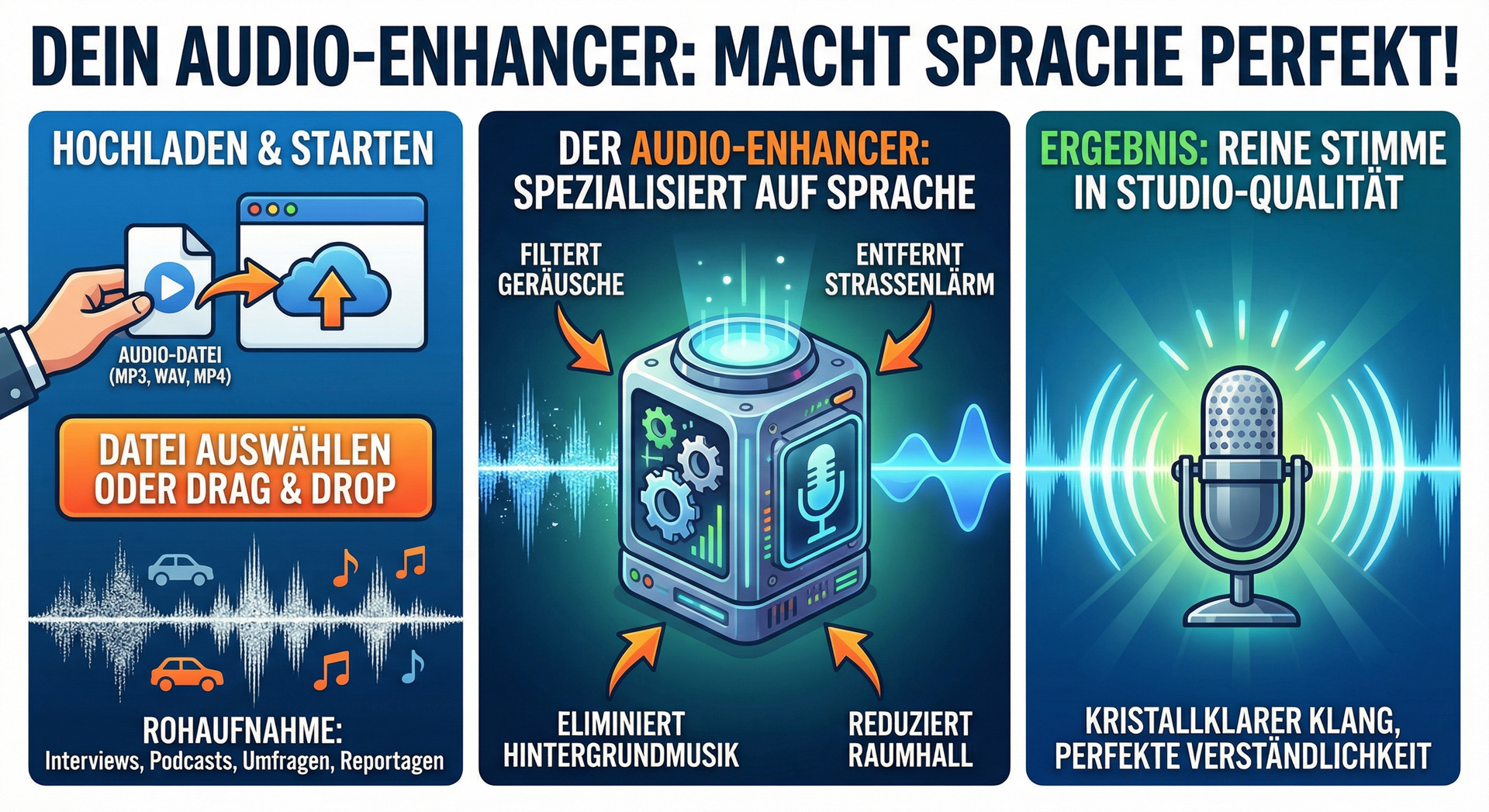
Podcasts, interviews, surveys, reports, and other voice recordings can sometimes suffer from background noise or room reverb. Background music or street noise may have been unavoidable during the recording.
This is where the Audio Enhancer can help. It can remove background noise, improve speech intelligibility, and optimize the sound. The tool can’t perform miracles, but it often delivers surprisingly good results.
Using it is very easy:
Upload the audio file or drag and drop it into the browser.
Give Audrey the command: Improve the voice recording.
Tip
If you want to transcribe and enhance a recording, use the Audio Enhancer first and transcribe it afterward. This will give you a more accurate transcript.
Audio Editing#
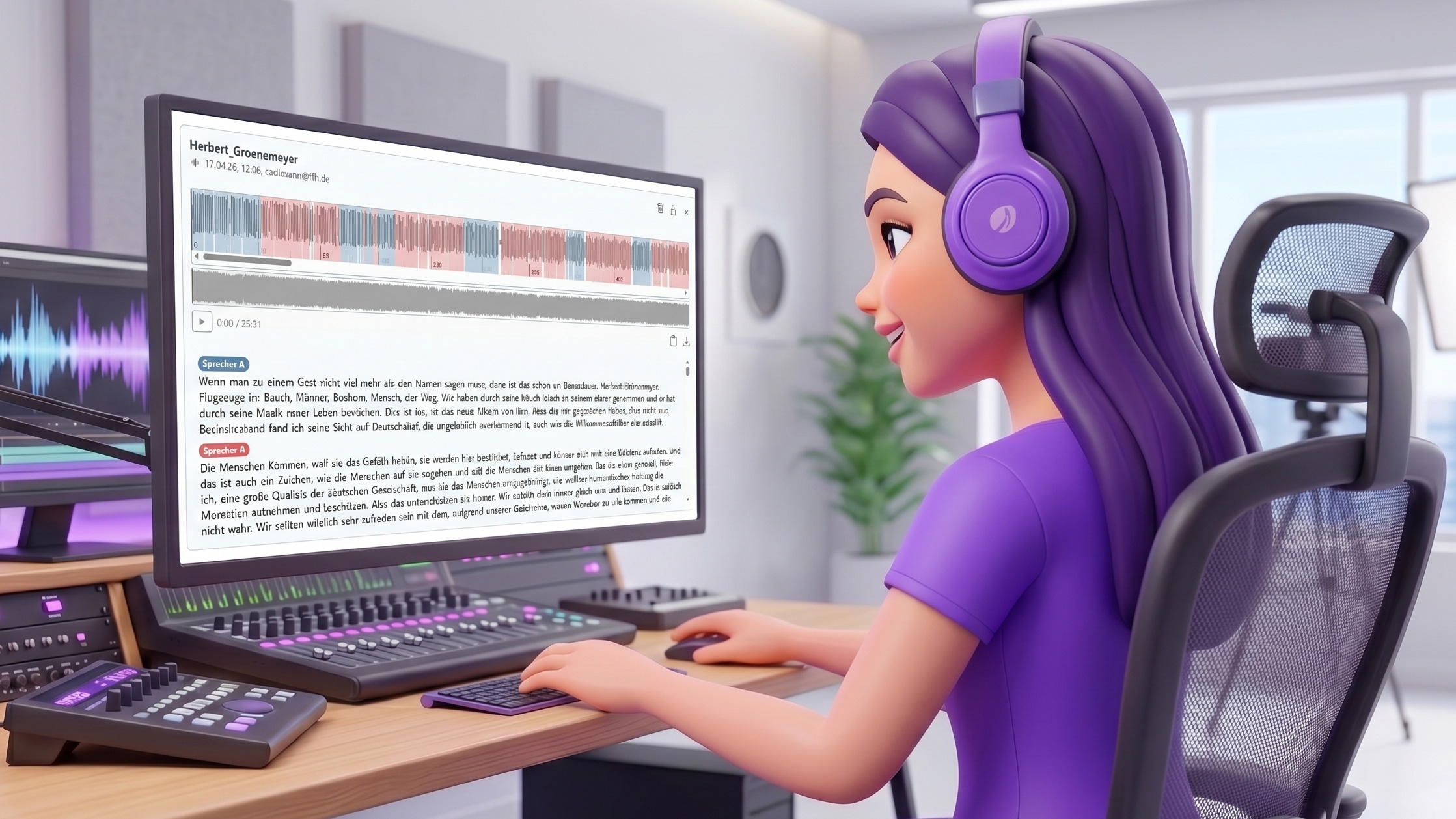
Automatic audio editing is one of Audrey’s most powerful features. Based on a transcript, Audrey can edit an audio file with precision: extract clips, shorten segments, split interviews—fully automatically and in seconds.
This is especially useful in day-to-day radio and media work, where long recordings need to be structured quickly, interviews need to be cut to broadcast length, or the best quotes need to be selected.
How automatic editing works#
The editing workflow runs in three steps:
Transcribe: Audrey transcribes the audio file with precise segment timestamps. For editing, Audrey automatically selects the provider Mistral or AssemblyAI—both provide the precise timestamps needed.
Create an edit plan: Audrey reads the transcript carefully and creates an edit plan—deciding which segments to keep and which to remove. She pays attention to meaning and complete sentences. You can define the plan yourself or let Audrey suggest one.
Edit and listen: Audrey edits the audio automatically and provides the result in an audio player. In the player, you can click on the text and jump directly to the corresponding point in the audio.
Note
For automatic editing, the audio must be transcribed with Mistral or AssemblyAI. These providers deliver the precise segment timestamps required for reliable editing. If an OpenAI transcript already exists, Audrey can automatically transcribe the file again on request.
Extract clips#
Have you recorded a long interview and want to extract the best quotes as individual clip files? Audrey reads the transcript, identifies the relevant sections, and cuts out each clip as a separate file.
Typical workflow:
Upload the interview.
Tell Audrey what kind of content you’re looking for, or let her suggest the best sections herself.
Audrey transcribes the audio, identifies the quotes, and cuts them out.
Each clip appears as its own audio player, ready for listening and downloading.
Practical example: You recorded a 20-minute interview with the mayor. You only need the statements about urban development. Audrey finds all relevant sections, cuts them out, and delivers each clip as a separate file.
Tip
Try these prompts:
Extract all of the mayor’s statements about urban development as individual clips.
Find the three most memorable quotes from the interview and cut them out as separate files.
Where does the interviewee talk about his childhood? Cut out that section.
Which statements work best as clips for a 2-minute segment?
Shorten a segment or interview#
Is an interview 12 minutes long, but only 3 minutes are allocated for the broadcast? Audrey shortens the segment to the desired length in a way that preserves the meaning and doesn’t break sentences apart.
You can specify which topics should remain, or let Audrey make a suggestion. The result appears immediately in an audio player so you can listen to it.
Practical example: Your reporter recorded an 8-minute interview with an expert. A maximum of 90 seconds is available for the broadcast. You define the most important topics for Audrey, and she shortens the interview and delivers the finished version.
Tip
Try these prompts:
Shorten the interview to around 3 minutes. Keep the statements about climate protection.
Remove all sections where the speaker repeats themselves.
Reduce the segment to the essentials—maximum 90 seconds.
Remove the introduction and cut in directly with the first relevant clip.
Shorten the interview to 2 minutes. The conclusion at the end must definitely remain.
Split an interview#
Would you like to divide a long interview into several thematic sections—for example, for a multi-part podcast series or for use in different programs? Audrey reads the transcript, structures the conversation into meaningful sections, and cuts each part out as its own file.
Practical example: A 45-minute expert interview is to be divided into three topic blocks that will run in different programs. Audrey analyzes the content, suggests a structure, and delivers three separate audio files.
Tip
Try these prompts:
Split the interview into thematic sections and create a separate audio file for each section.
Separate the interviewee’s answers from the host’s questions and create two separate files.
Remove slips of the tongue and filler words#
Sometimes a recording contains slips of the tongue or filler words such as “um” or “uh”. Or the speaker repeats the beginning of a sentence. Audrey Audio can automatically detect and remove these sections.
Note
For Audrey to detect slips of the tongue and filler words, she needs a verbatim transcript. Normally, filler words and slips of the tongue are not included in transcripts so that you get a clean text.
Word-for-word transcription with all slips of the tongue, stumbles, and filler words is a special feature of AssemblyAI. If you instruct Audrey Audio to cut out slips of the tongue and filler words, she will automatically transcribe the file with AssemblyAI using the verbatim setting in order to obtain the required timestamps.
Please note: The transcript does not always capture all filler words and slips of the tongue correctly. How reliably Audrey can detect and remove these sections depends on that.
It’s best to use the Audio Enhancer first to remove background noise from the recording before having the filler words cut out. That way, the places where edits were made will be less noticeable.
Tip
Try this prompt:
Remove background noise and cut out filler words.
Create an audio segment from clips#
Do you have several clips from interviews or reports and want to turn them into a finished radio segment? Audrey handles the entire production process—from the concept to the finished audio file.
A classic radio segment alternates between voice tracks and clips. The voice tracks guide the listener through the segment and provide context—they should neither give away nor retell the content of the clips.
How production works:
Transcribe: Audrey transcribes all uploaded clips and reviews the content.
Create the concept: Audrey structures the segment and writes the connecting voice tracks.
Voice the script: Audrey has each voice track spoken by a suitable AI voice—as a separate file for each section.
Assemble the segment: All audio files—AI voice tracks and clips—are combined in the correct order into one finished file.
Practical example: You have three clips from an interview about a new urban development project. Audrey transcribes the clips, writes a segment script, voices the host tracks with a suitable AI voice, and delivers the finished 2-minute segment.
Tip
Try these prompts:
I have uploaded three clips from an interview about the new city park. Create a finished 2-minute radio segment from them.
Build a segment from the uploaded interviews. Use a friendly female voice for the host tracks.
Create a radio segment from the clips. The segment should begin with a clip, not with a voice track.