
Voice Recording & Transcription#
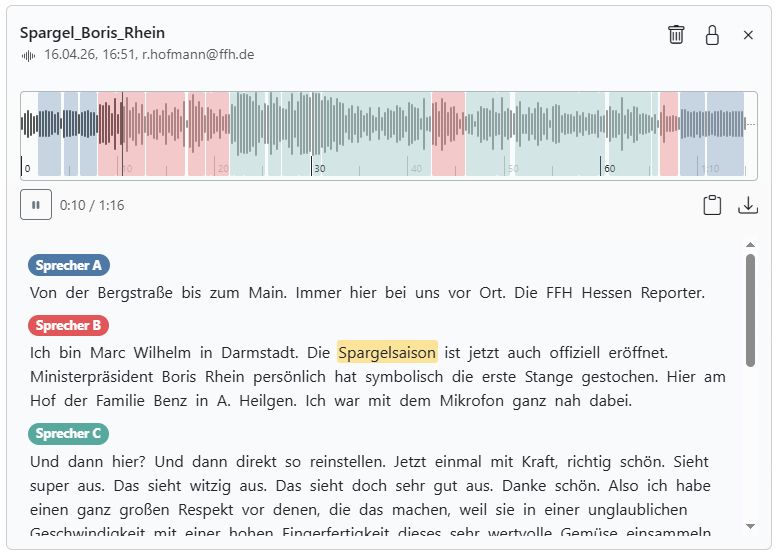
With assistants or workflows, you can create transcripts from audio files. The transcript shows the individual speakers and the timestamps.
There are two ways to do this: voice recording or transcription of uploaded audio files.
Voice Recording#
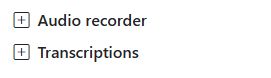
Expand the voice recording section by clicking the plus icon next to it. You can now use the AI-Tools like a дикtafon.
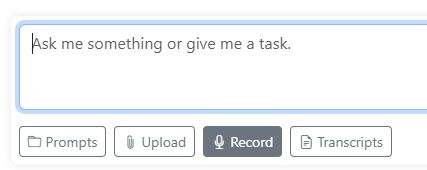
In the assistant chat: Click the Record button.
Tip
What you can do with it:
Instead of typing, simply dictate the prompt.
Record a voice memo and correct the spelling.
Dictate a research log and have it automatically formatted clearly.
Dictate a letter or an email. A mail icon appears next to the result. You can use it to copy the text into your email program.
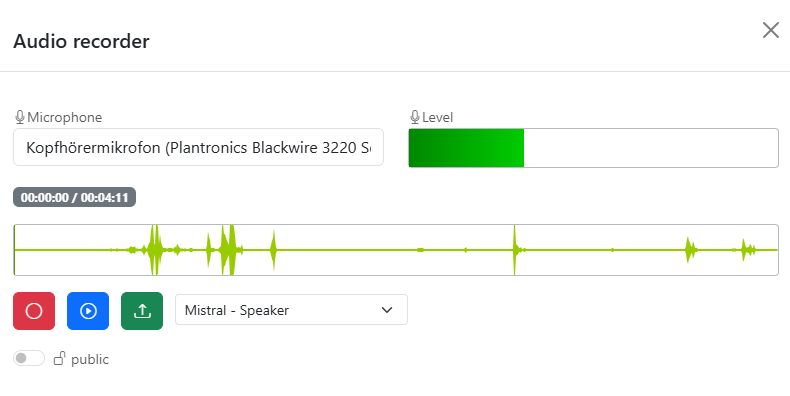
When the recording is finished, you can listen to it again.
Choose a provider for transcription: Mistral, OpenAI, or AssemblyAI. OpenAI is the fastest, Mistral the most accurate. Mistral and AssemblyAI can also distinguish between speakers, OpenAI cannot.
Use the toggle to specify whether the transcript is for you only or whether it should be public so everyone is allowed to use the text.
Finally, you can send your recording for transcription using the green button.
Practical: If you dictate information as a reporter and make it public, others can build on it, create an article from it, or apply a prompt to it. They can listen to and download the audio.
Transcription#
Expand the transcription section by clicking the plus icon next to it. For assistants, this is the Transcripts button. You can now upload any audio or video files and have them transcribed. Especially useful: When you transcribe videos, the audio track is automatically separated from the video. You can then download the audio track from the AI-Tools and continue using it.
Here too, there is a private/public toggle that determines who can see the transcripts. You can start the transcription using the green button.
Providers#
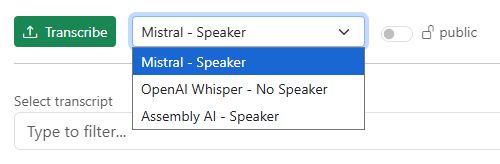
You can choose between different providers for transcription:
Mistral: The most accurate and with speaker recognition. Processes audio recordings up to three hours long. Supports 13 languages: German, English, Chinese, Hindi, Spanish, Arabic, French, Portuguese, Russian, Japanese, Korean, Italian, and Dutch. Servers in Europe.
OpenAI: The fastest, without speaker recognition. Recordings may be up to 50 minutes long. 99 languages. Servers in the USA.
AssemblyAI: Accurate, with speaker recognition, but slower than the other two services. Transcribes recordings up to 10 hours long. 99 languages. Servers in Europe.
Audio Formats#
The following audio formats are supported: .mp3, .mp2, .wav, .mp4, .mov, .m4a, .opus, .ogg
WhatsApp stores voice recordings in the “opus” or “ogg” format. You can use the AI-Tools to transcribe a voice recording from WhatsApp.
Select from Existing Transcripts#
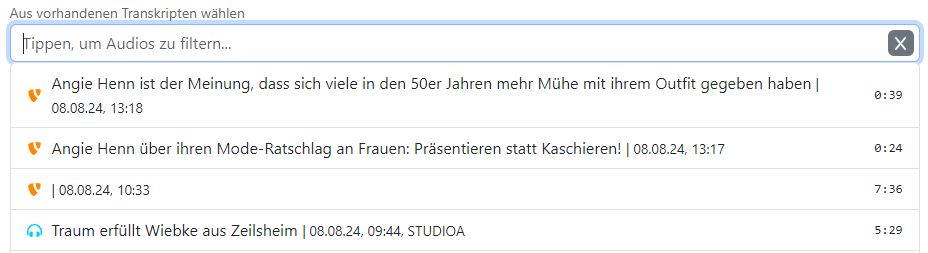
Click on “Type to filter audio…” and enter a search term. The list of all available transcripts will be filtered. Select a transcript to edit or use it.
Transcript Cards#
Whenever you select or create a transcript, a card with the most important information is displayed.
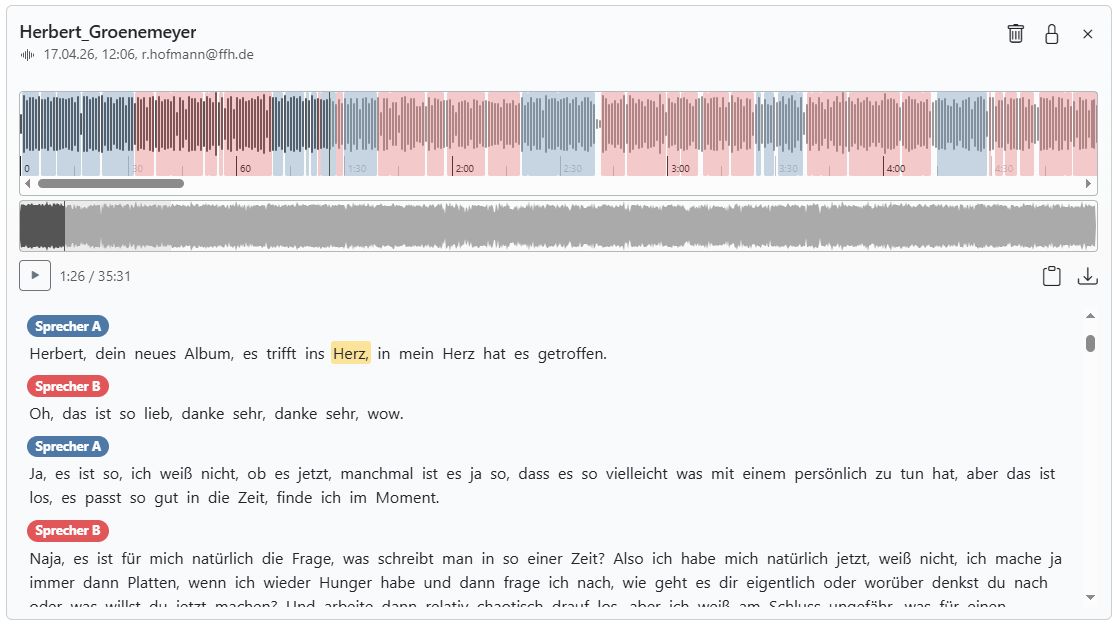
Let’s take a look at the individual buttons:
Lock icon: Use this to switch the transcript from public to private. Private transcripts can only be seen and used by you.
Trash icon: Use this to delete the transcript completely from the server. Caution: This is permanent and cannot be undone.
Download icon: Use this to download the audio file.
Clipboard icon: Use this to copy the transcript text to the clipboard and use it in other tools.
Storage Duration and File Sizes#
A file that you upload for transcription is stored on the server for a maximum of 14 days. The file may be no larger than 600 MB.
Note: Video files are very large. The 600 MB upload limit is already reached at around 5 minutes.
The maximum recording length allowed for transcription depends on the selected provider. Mistral allows up to 3 hours, AssemblyAI up to 10 hours, and OpenAI up to 50 minutes.
If your recordings are longer, it will still work. The AI-Tools automatically split the recordings into several parts and transcribe them one after another. However, the transcription may then be inaccurate at the split points because the AI may no longer be able to capture the context correctly.
Your organization can store a total of 50 hours of audio. If the storage limit is reached, the oldest files are deleted. On the server, we store the files in MP3 format to save storage space.