

Changelog 2024#
Update on 27/11/2024#
AI Voices#
Create podcasts, commercials, news bulletins, radio plays, audio features and more with AI voices. The new module supports you all the way from research to production. Choose from dozens of voices, create scripts, and have them spoken by multiple voices with assigned roles. Finally, add music to your production.
With this powerful tool, you get a fantastic AI voice playground. In the dictionary, you can define rules and control pronunciation.
For larger productions, the AI Voices module automatically extends your music beds so they fit the script exactly.
The best way is to watch the video and see how easy it is. You can read about all features in the manual.
Chat#
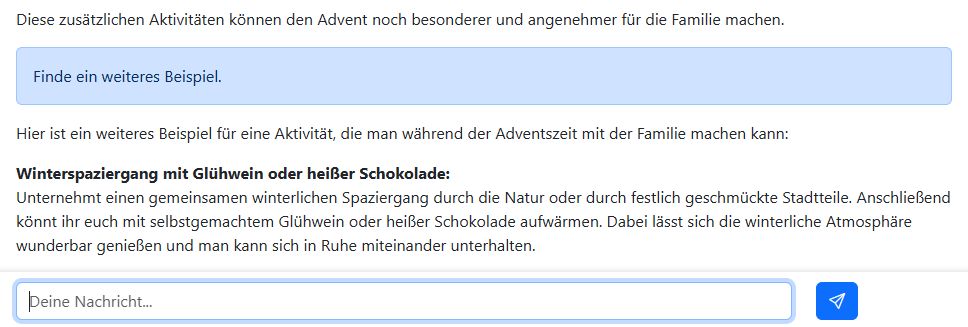
The Prompt Assistant now includes a chat feature. As soon as you run a prompt, the chat input appears at the bottom of the screen. You can then chat directly with the AI and ask for additional information.
This is especially useful if you are dealing with a complex topic and the AI did not understand all the information right away.
Download result#

You could already copy the result to the clipboard or send it by email. Now there is also a download button. It downloads the result as a text file to your computer. If the AI visited websites, all sources are also saved as links in the file so you can review and verify them.
Update on 11/11/2024#

Widescreen format for images#
Our German startup Black Forest Labs has just released the new FLUX.1.1 pro Ultra model for image generation. It lets you create images in very high resolution. You can also choose from several aspect ratios: 1:1, 16:9, 4:3, 9:4, 21:9…
FLUX.1.1 pro Ultra is now available in the image generator of the AI-Tools. Take a look at all options here: Guide to generating images
Claude 3.5 Haiku#
AI provider Anthropic has also released a new model: Claude 3.5 Haiku. It is very fast and powerful - comparable to GPT-4 Omni mini.
All AI-Tools models at a glance: Available language models
Update on 05/11/2024#

You now get support with prompting: the magic wand improves your prompts or even writes the right prompt for your task. Also in this update: you can now use the prompt collection in the Article Assistant as well.
Magical prompts#
The prompt is crucial for what you can get out of the AI. So why not let the AI write the prompt itself? That is exactly what the new magic wand icon right above the prompt input field is for:
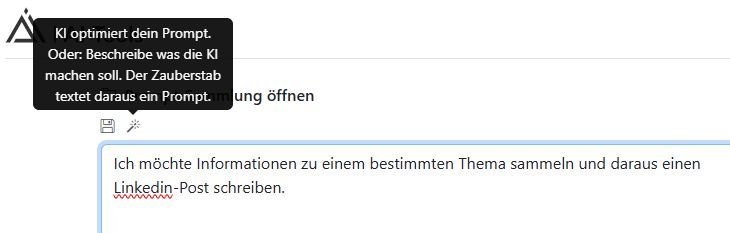
OpenAI has published instructions for writing optimal prompts. The new magic wand uses this technique. Describe the task you want to solve.
For example: “I want to gather information on a specific topic and use it to write a LinkedIn post.” The magic wand turns this into a structured prompt with examples and precise instructions for the AI.
You can also use an existing prompt and have it improved by the magic wand.
Source comparison#
The Article Assistant summarizes the sources you provide and writes an article from them. Errors can happen in this process. That is why we have now introduced a check that compares the finished article text with your sources once again. In the Source comparison section - directly below the article - you can see any differences. AI checks AI.
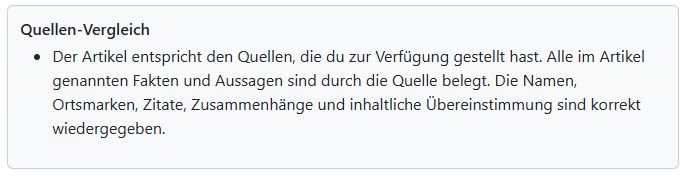
Important: This does not verify your sources - it is not a fact check. The AI only compares the source material you provided with the finished article text.
Prompt collection for the Article Assistant#
You can now use the prompt collection in the Article Assistant. This is useful if you do not want to use the standard article prompts stored in the AI-Tools, or if the article should be generated from the language model’s own knowledge.
If you use a prompt from the collection, the input type is automatically set to Article from prompt. This allows the AI to access the internet. You can have the language model research a topic online and create the article from it.
Below the finished article, the AI-Tools show which websites the language model visited. Always review the sources.
Update on 30/09/2024#

Your AI-Tools now include another image generator that can depict people more effectively. You can also choose from additional language models.
German AI startup from the Black Forest: Black Forest Labs#
We are now working with Black Forest Labs, who have developed one of the best image generators in the world: FLUX.
The founders are researchers who previously contributed to “Stable Diffusion” - one of the leading image models.
Watch this video. It shows you how to use FLUX - the new image generator - here: Guide to generating images
The prompt collection is now also available in the “Image Generator” module. There you will find the new “Images” category with several example prompts for generating images.
In the AI-Tools, you can choose between DALL-E 3 - our previous image generator from OpenAI - and the new FLUX. DALL-E is fast and can create very good illustrations. When it comes to images of people, FLUX is clearly better.
Claude by Anthropic#
While investors are currently putting millions into our German AI startup Black Forest Labs, Anthropic has attracted billions. Former OpenAI (ChatGPT) employees founded “Anthropic” in 2021, and the company now offers a major language model called “Claude” that can compete with OpenAI’s ChatGPT and Google’s Gemini.
You can use Anthropic’s models in the AI-Tools. In the Model drop-down menu, you can select the large Claude 3.5 Sonnet model. It usually generates more detailed responses than GPT-4 Omni. Claude 3 Haiku is Anthropic’s smaller model. It is very fast and suitable for simpler tasks.
Update on 19/08/2024#

A very cool update with lots of new and practical features is here!
New prompt collection#
Search function: Find prompts faster
Favorites: Bookmark frequently used prompts
My prompts: Save your own prompts privately
Transcription#
Upload any audio files and have them transcribed
Audio files can be private or immediately available to everyone else
Use cases:
Create online articles from conversations with colleagues or reports
Find good quotes in interviews
Write show notes for podcasts
Voice recording#
A reporter records a report on location using a smartphone, the AI-Tools transcribe it and turn it into an article. The audio recording and transcript are immediately available to everyone at the station.
Dictate a research log
Dictate an email or letter
Use results#
Copy the AI text, including all formatting, to the clipboard and paste it into a Word document, for example.
Send the result by email with one click.
Video tutorials & manual#
There are now video tutorials for the AI-Tools so everyone can get to know and use the tools even better.
Comprehensive manual for reference directly in the AI-Tools.
Update on 02/07/2024#
The AI-Tools can now read Word documents, PDFs, and Excel spreadsheets.
Upload and process documents#
What you can do with it:
Briefly summarize the content of long PDF files.
Compare texts (contracts, manuscript versions, etc.): what are the differences and what do they have in common?
Analyze Excel spreadsheets and display the most important points from them as text.
Translate documents.
Useful in the Article Assistant:
Sometimes information arrives as a PDF. The Article Assistant can now read it directly.
Combine information from different sources into one article: entered text plus files plus transcripts.
The AI-Tools can handle these file types: Word (.docx), Text (.txt), CSV (.csv), Excel (.xls, .xlsx), Markdown (.md), and PDF (.pdf)
Update on 24/05/2024#

Use information from the internet#
The knowledge of AI models ends at the point in time when they were trained. With the latest update to our AI-Tools, the AI can now visit websites on its own and therefore access up-to-date information.
For example, you can now:
Compile a news briefing with current information from various news websites.
Have the latest celebrity gossip from international websites summarized in German.
Create an information package with current information on a topic.
Summarize and analyze the content of a website.
Find and evaluate relevant articles, studies, or blog posts.