
Create assistants automatically#
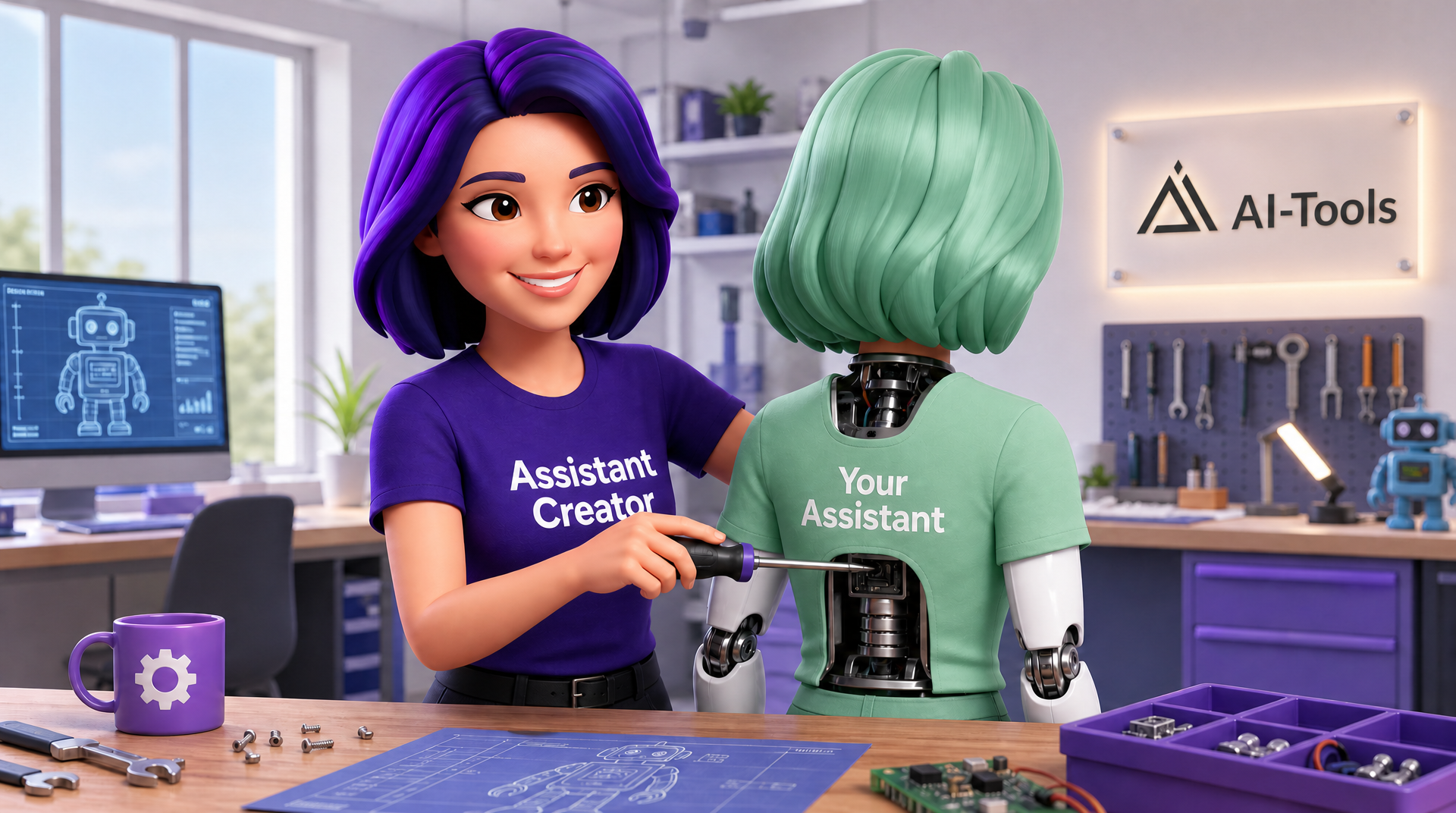
The easiest way is to have your new assistant created for you right in the chat. Assistant Creator helps you with that.
It is an AI assistant that guides you step by step through creating your new assistant - no technical background required. You simply describe in the chat what your assistant should be able to do, and Assistant Creator takes care of the rest: it suggests a name, writes the system prompt, selects the right AI model, and configures the tools.
Open Assistant Creator from the assistant selector at the top of the chat.
Step by step to your new assistant#
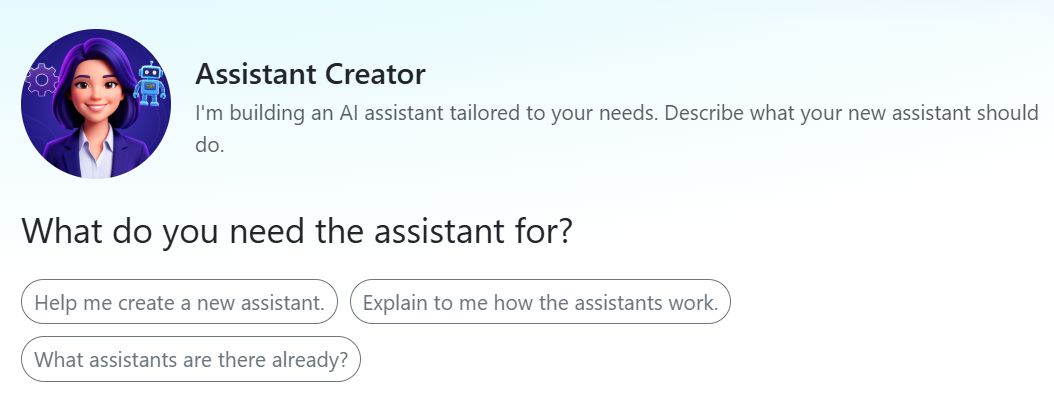
Assistant Creator guides you through a structured workflow. You do not need to memorize the steps - it asks you for everything it needs.
Step 1 - Describe the task
Explain to Assistant Creator what your new assistant should do and who it is intended for. The more details you provide, the better the result will be. If your assistant should write in a specific style, you can insert 3-5 sample texts - Assistant Creator will analyze them and take the style into account in the system prompt.
Step 2 - Name and basic details
Assistant Creator suggests a name and automatically checks whether that name is already in use in your organization. It also defines a short description and a welcome message that your users will see when they open the assistant.
Step 3 - System prompt
The system prompt defines the assistant’s role, behavior, and style. It works invisibly in the background and is not visible to your users. Assistant Creator drafts it together with you - you can suggest changes or approve it right away.
Step 4 - AI model
Assistant Creator retrieves all available AI models and recommends the most suitable one for your task. It takes performance, speed, and cost into account and explains the differences if you are unsure.
Step 5 - Tools
Only the tools your assistant actually needs are enabled. Assistant Creator selects them deliberately - too many tools can reduce response quality and increase token usage.
Step 6 - Example prompts
You will be given 3-5 ready-made example prompts that show typical tasks for your new assistant. They will later appear as clickable suggestions when someone opens the assistant.
Step 7 - Create
Assistant Creator summarizes all settings and automatically creates the assistant after your confirmation.
Note
Newly created assistants are initially private - only you can see and use them. You can find out how to make an assistant visible to all users in your organization in the Visibility section.
After it has been created, you can find your new assistant by clicking Choose assistants at the top and searching for it in the assistant overview.
Practical examples#
Assistants can support you in almost any area of work. Think about which routine tasks you could use help with.
A good strategy is to create an initial version of your new assistant in dialogue with Assistant Creator.
As you use the assistant, you will notice what it still cannot do well. Each time, add to the system prompt and you will see how the assistant keeps getting better. Assistant Creator can help you edit and improve it.
To get started, try the following instructions:
Build an assistant that writes exactly in my style.

We need the panel of a focus group.
Several different personas should evaluate our content.

I need an assistant
to help me research and write my intros.
It should follow our station format exactly.

The assistant should support me in new client business:
research, outreach, reporting.
Edit an assistant#
Assistant Creator can customize and improve existing assistants for you. Tell it which assistant you want to edit and what should be changed - it retrieves the current settings and updates only the fields you want.
Note
Editing is only possible for your own private assistants. Public assistants from other users and marketplace assistants cannot be edited directly. However, you can use them as a template: ask Assistant Creator to use an existing assistant as the starting point for a new one.
Deleting assistants is not possible through Assistant Creator. To do this, open the assistant collection, hover over the assistant you want, and click the trash can icon.