

Workflow: Writing Articles#
With workflows, you can create and publish an online article very quickly from all kinds of materials used in radio production. Use agency reports, press releases, police reports, conversations with colleagues, scripts, PDF or Word files, and audio or voice recordings as sources of information.
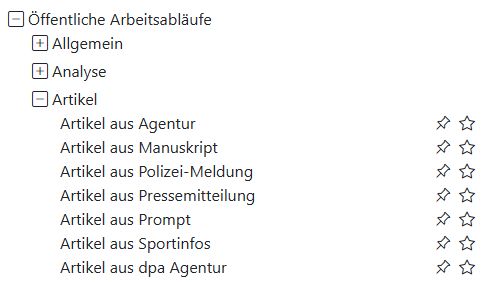
There is a range of workflows you can choose from for this. You can find them in the workflow collection under Public Workflows -> Articles.
Input Text#
Depending on the selected workflow, different input fields are available. For example, for scripts or a press release. This is where you enter the text from which the news item is to be created.
Select Files#
Upload one or more files for the language model to process. The AI-Tools can open these file types:
Word (.docx), Text (.txt, .text), CSV (.csv), Excel (.xls, .xlsx), Markdown (.md, .markdown), PDF (.pdf), PowerPoint (.pptx), Code (.xml, .json, .jsonl, .ipynb), e-books (.epub), feed files (.rss, .atom), and Outlook emails (.msg).
Tip
What you can do with them:
Provide additional information from a PDF.
Add a press release as a Word or PDF file.
Use tables from an Excel file as additional information.
Voice Recording#
Expand the voice recording section by clicking the plus icon next to it. You can now use the AI-Tools like a dictation device.
Tip
What you can do with it:
Dictate information that will be turned into an article.
Add information to a text in the input window or to an uploaded file.
Once the recording is finished, you can listen to it again and send it for transcription using the green button. Use the toggle to specify whether the transcript is intended only for you or whether it should be made public so everyone can use the text.
Useful: If you dictate information as a reporter and make it public, others can build on it and continue developing the article. They can listen to and download the audio.
Result#
The AI suggests stock images, headlines, and texts. Use the blue button in front of each element to choose which suggestion should be included in the finished article. You can edit the texts directly in all input fields. Use the checkmarks to select which tags should be transferred to the article in Typo3.
Source Comparison#
Directly below the generated article, you will find the Source Comparison box. Here, the AI compares all sources with the finished article. Are names, contexts, quotes, and place references correct? If something is wrong, the AI makes correction suggestions, and you can edit the text directly in the “Article” box.
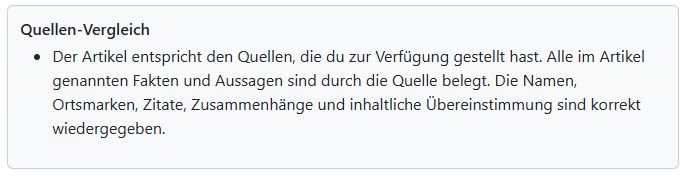
Important: This does not verify your sources - it is not a fact check. The AI merely compares the source material it received from you with the finished article text.
Create Typo3 Topic#
If you are satisfied with the result, click the Create Typo3 Topic button. All information is transferred immediately. Then refresh the list of items in the News module in Typo3. You will find your item in the “AI” category. There, you can finish editing it, assign it to a news category, and publish it.