
Voice Recording & Transcription#
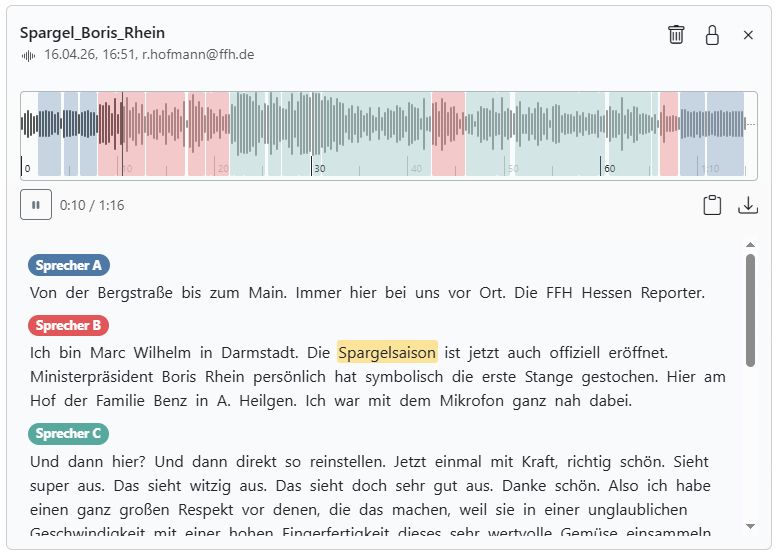
With assistants or workflows, you can create transcripts from audio files. The transcript shows the individual speakers and timestamps.
There are two ways to do this: voice recording or transcription of uploaded audio files.
Voice Recording#
Expand the voice recording section by clicking the plus icon next to it. You can now use the AI-Tools like a dictation device.
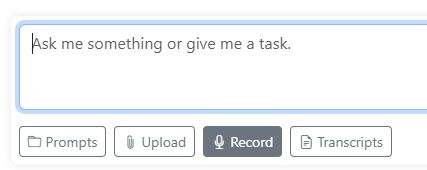
In the assistant chat, click the Record button.
Tip
What you can do with it:
Instead of typing, simply dictate the prompt.
Record a voice memo and correct the spelling.
Dictate a research log and have it automatically formatted in a clear and structured way.
Dictate a letter or an email. A mail icon appears next to the result. You can use it to copy the text into your email program.
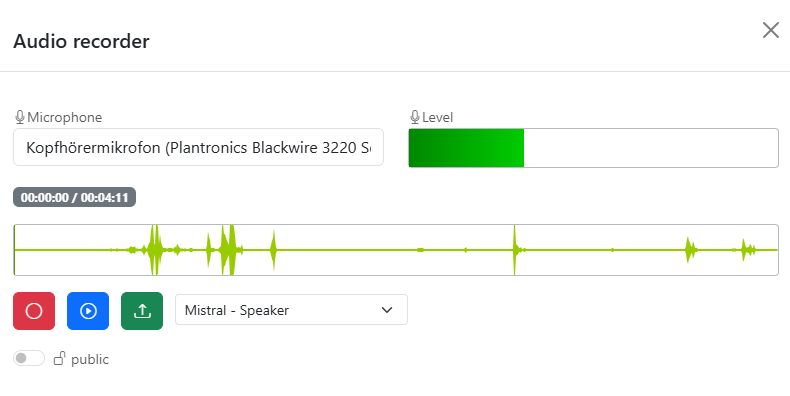
Once the recording is finished, you can listen to it again.
Choose a provider for the transcription: Mistral, OpenAI, or AssemblyAI. OpenAI is the fastest, while Mistral is the most accurate. Mistral and AssemblyAI can also distinguish between speakers; OpenAI cannot.
Use the toggle to specify whether the transcript is for your eyes only or public so that everyone is allowed to use the text.
Finally, you can send your recording for transcription using the green button.
Practical: If you dictate information as a reporter and make it public, others can build on it, turn it into an article, or apply a prompt to it. They can listen to and download the audio.
Transcription#
Expand the transcription section by clicking the plus icon next to it. In assistants, this is the Transcripts button. You can now upload any audio or video files and have them transcribed. Especially useful: if you transcribe videos, the audio track is automatically separated from the video. You can then download the audio track from the AI-Tools and reuse it.
Here, too, there is a private/public toggle that determines who can see the transcripts. You can start the transcription with the green button.
Providers#
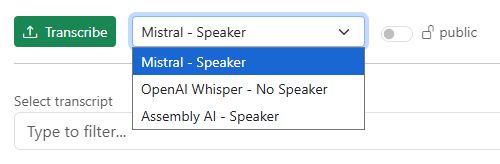
You can choose from different providers for transcription:
Mistral: The most accurate and includes speaker recognition. Processes audio recordings up to three hours long. Supports 13 languages: German, English, Chinese, Hindi, Spanish, Arabic, French, Portuguese, Russian, Japanese, Korean, Italian, and Dutch. Servers in Europe.
OpenAI: The fastest, without speaker recognition. Recordings can be up to 50 minutes long. 99 languages. Servers in the USA.
AssemblyAI: Accurate, with speaker recognition, but slower than the other two services. Transcribes recordings up to 10 hours long. 99 languages. Servers in Europe.
Audio Formats#
The following audio formats are supported: .mp3, .mp2, .wav, .mp4, .mov, .m4a, .opus, .ogg
WhatsApp saves voice recordings in the “opus” or “ogg” format. With the AI-Tools, you can transcribe a voice recording from WhatsApp.
Choose from Existing Transcripts#
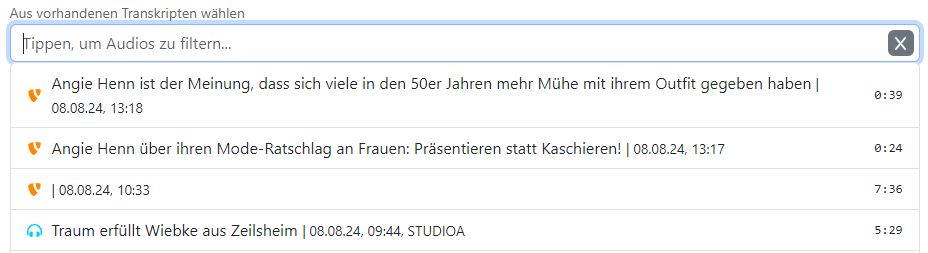
Click on “Type to filter audio files…” and enter a search term. The list of all available transcripts will be filtered. Select a transcript to edit or use it.
Transcript Cards#
Whenever you select or create a transcript, a card with the most important information is displayed.
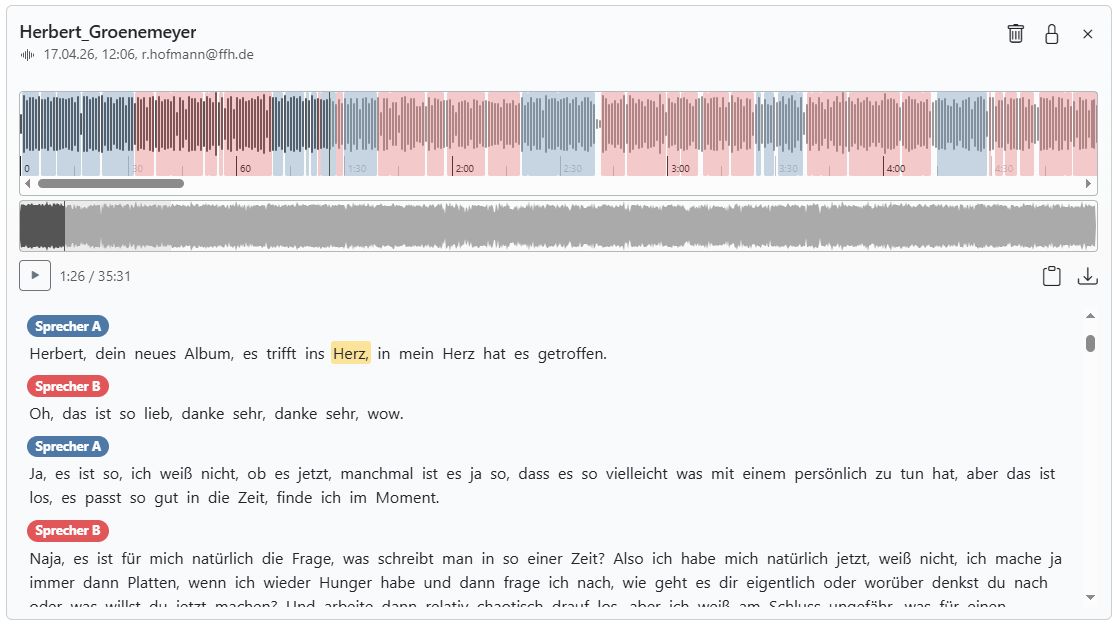
Let’s take a look at the individual buttons:
Lock icon: Use this to switch the transcript from public to private. Private transcripts can only be seen and used by you.
Trash icon: Use this to delete the transcript from the server completely. Caution: This is permanent and cannot be undone.
Download icon: Use this to download the audio file.
Clipboard icon: Use this to copy the transcript text to the clipboard and use it in other tools.
Storage Duration and File Sizes#
A file that you upload for transcription is stored on the server for a maximum of 14 days. The file size must not exceed 600 MB.
Please note: Video files are very large. The 600 MB upload limit can already be reached after just 5 minutes.
The maximum recording length for transcription depends on the provider you choose. Mistral allows up to 3 hours, AssemblyAI up to 10 hours, and OpenAI up to 50 minutes.
If your recordings are longer, it still works. The AI-Tools automatically split the recordings into multiple parts and transcribe them one after another. However, the transcription may be less accurate at the split points because the AI may no longer capture the context correctly.
Your organization can store a total of 50 hours of audio. If the storage limit is reached, the oldest files will be deleted. On the server, we store the files in MP3 format to save storage space.