

Changelog 2025#
Update on 18 December 2025#

Eyes are lighting up everywhere: Sales is excited about new advertising clients from Google Maps searches, editorial teams love the fast research with Google Search and the reliable facts from the DPA archive. And for designers, there are new AI image generators.
Everything on Santa’s sleigh:
Google Search: Research the web comprehensively with the Google Search tool. Ideal for editorial teams, marketing, and sales.
Google Maps: Find places, businesses, and services near you with the Google Maps tool. Perfect for event planning, location scouting, and client acquisition.
DPA archive: Access the extensive DPA archive and quickly find reliable facts, figures, and background information for your articles and reports.
FLUX.2 Max, FLUX.2 Flex, GPT Image 1.5: The new image generators from Black Forest Labs create stunning images in top quality. OpenAI is also raising the bar with an update to its existing image generator.
GPT-5.2: OpenAI is responding to the competition from Google and Anthropic with its most powerful language model to date.
Credit check: Keep an eye on your AI-Tools balance with the credit check in the three-dot menu.
Find regional clients: Use the workflow to create lists of potential clients in your area.
Note: To use the Google tools, your organization needs a Google account. Alternatively, you can also use these tools with the new token credit.
A subscription to Deutsche Presse-Agentur is required for the DPA archive.
Google Search & Maps#
In addition to Perplexity and the AI search engines from OpenAI and Anthropic, Google Search and Google Maps are now also available in the AI-Tools. That makes them a powerful boost for research and client acquisition.
Here are a few prompt examples showing how you can use Google Maps:
Client acquisition
Ask Google Maps for all car dealerships within a 50 km radius of Kassel.
Create a list with names, ratings, and contact details.
Expert research
Ask Google Maps for pediatricians in Freiburg with good ratings.
We are preparing a feature on pediatric medicine.
You can find more examples in the Google Maps guide.
DPA archive#
With the DPA archive tool, you get direct access to the extensive archive of Deutsche Presse-Agentur - one of the most reliable sources of verified news information in the German-speaking world. Perfect for fast research, fact-checking, and enriching your articles with verified information.
What you can do with it:
Find quotes
Ask the DPA archive for quotes from Chancellor Merz
on climate policy from the last 3 months. Create a
list with the quote, date, and context.
Topic research for features
Ask the DPA archive for reports on the skilled labor shortage
in healthcare. Summarize the key figures, facts, and
developments.
Create a Q&A article
Ask the DPA archive for information about the EU AI Act.
Turn it into a Q&A article with 8 important questions and
answers for our readers.
The DPA archive can also be integrated into automated workflows. This lets you build multi-step research and writing processes in which the AI first searches the DPA archive, analyzes the results, and then creates a finished article - fully automatically!
Check out the full guide to the DPA archive.
Credit check#
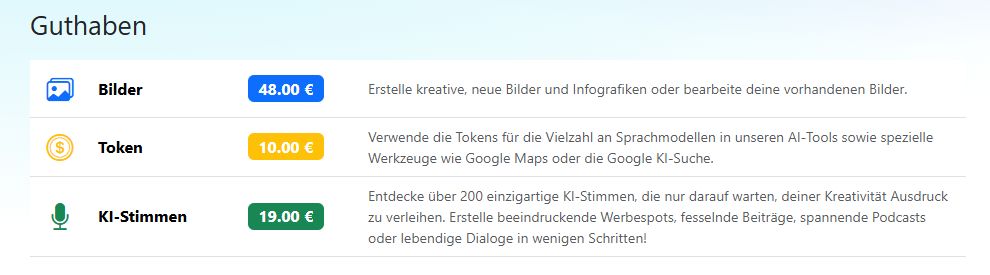
With the credit check in the three-dot menu, you can always keep track of your AI usage.
In addition to credits for images and AI voices, there is now also token credit. It is used whenever your organization does not have its own account with an AI provider.
That means you can use Google Search or Google Maps, for example, even without your own account.
How this works is explained on the Credit page.
Find regional clients#
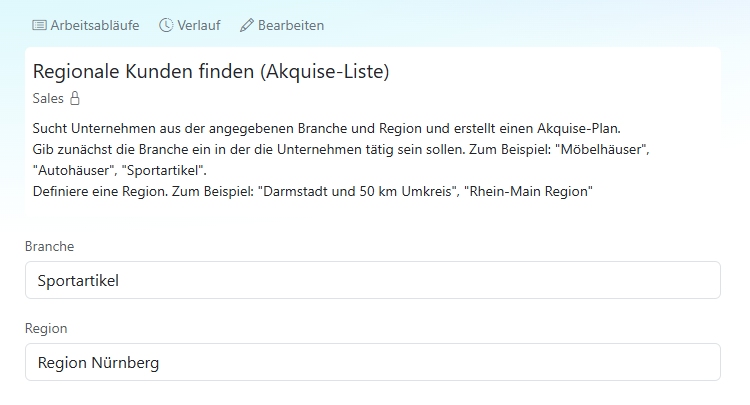
With the new Find regional clients workflow, you can create lists of potential clients in your area. It first uses Google Maps to find businesses in the industry and region you want.
For the top results, the AI then retrieves additional information and creates a clear list with contact details, ratings, and other useful data.
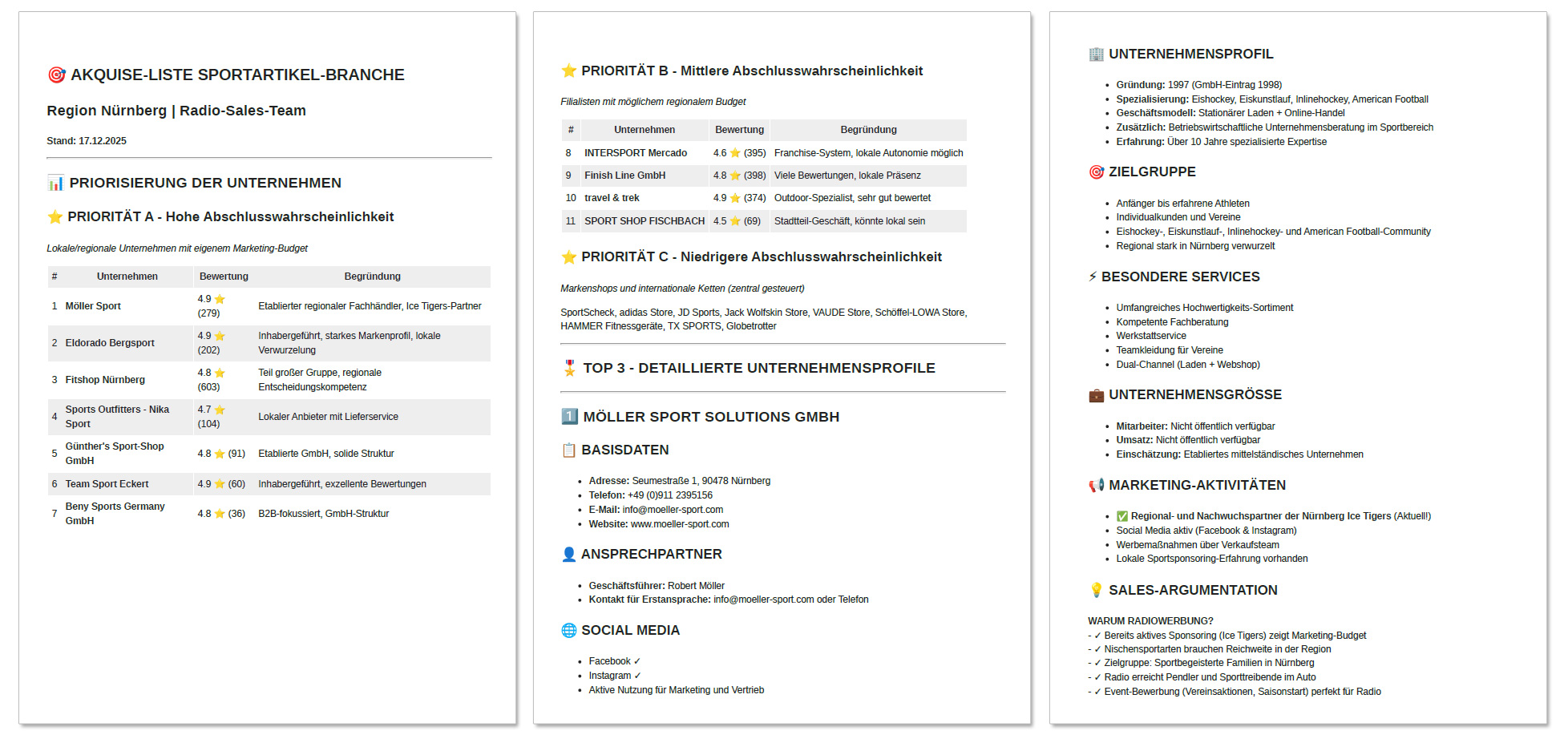
You can find the template in the Workflows module under Marketplace - Sales - Find regional clients. Adapt it to your needs.
Note: A Google account is required to use this feature. Alternatively, you can also use the workflow with the new token credit. And one more thing: the workflow works best with Anthropic’s language model Claude 4.5 Sonnet.
New image generators#
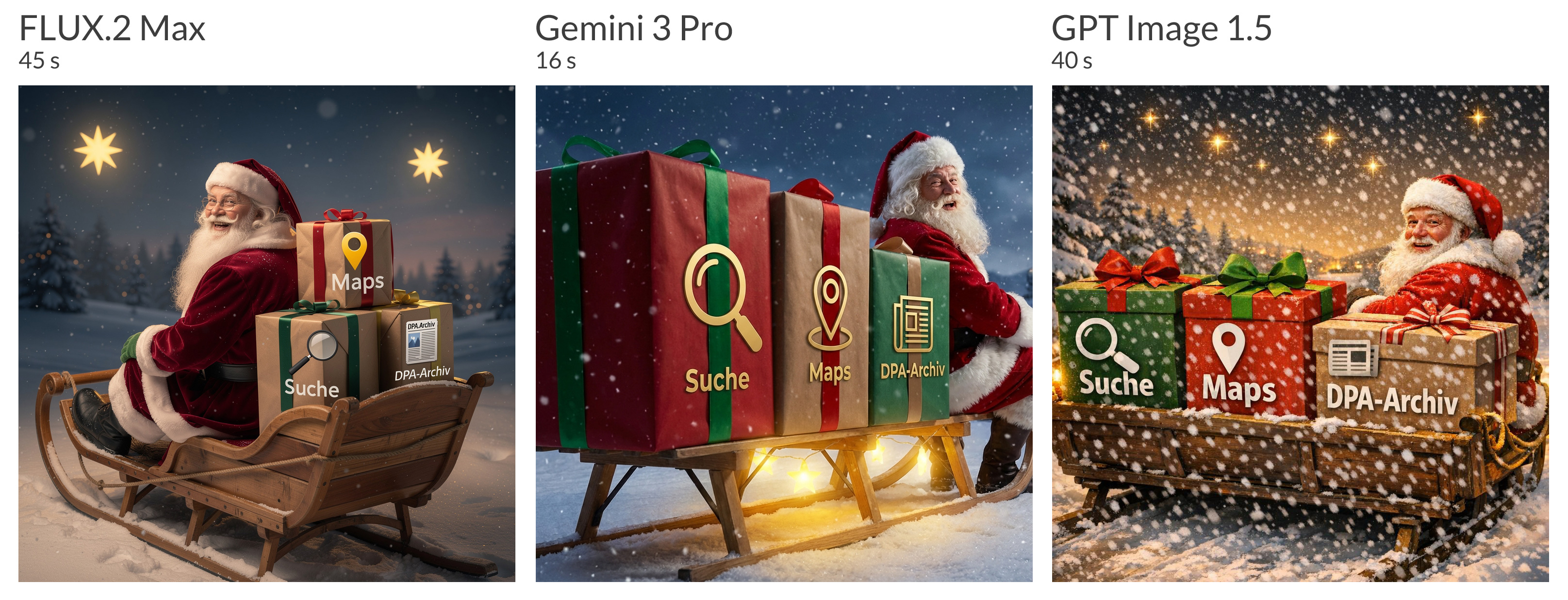
Google has set a new benchmark in image generation with Gemini 3 Pro Image. It is currently unbeatable when it comes to displaying text in images.
FLUX.2 is excellent for realistic product photography and is popular in the design industry.
OpenAI has also stepped up with an update to its existing image generator. But compared with the other two providers, GPT Image 1.5 only comes in third place.
We used the same prompt for the three images above:
Santa Claus with a long white beard on his sleigh. There are three very large gift boxes on the sleigh: on the first box, a large magnifying glass icon and the word “Search”. On the second box, a location icon and the word “Maps”. On the third box, a newspaper icon and the text “DPA archive”. The camera shows the sleigh from behind at an angle so the boxes are clearly visible. Santa turns toward us and laughs. Evening winter landscape. It is snowing. Stars bathe the sleigh in a yellow glow. Christmas colors: red, green, brown. Photorealistic.
Update on 5 December 2025#

With this update, you’ll become a graphics pro and a social media meme expert:
FLUX.2 Pro: The new image generator from the Black Forest is fast, cost-effective, and creates images in up to 4K resolution. Together with Gemini 3 Pro, you now have the best image generators currently available in the AI-Tools.
Image magic wand: Improve your image prompts with the new image magic wand. It automatically optimizes your text input for image generators.
Guide to perfect AI images: In the new Guide to Perfect AI Images, you’ll learn how to create impressive images with the AI-Tools image generators and handle your daily graphics tasks in no time.
Meme generator: Create funny, high-performing memes for multiple social media channels at the same time. The new AI workflow Meme Generator (FB, Insta, LinkedIn) does it for you.
Image magic wand#

Whether an image turns out the way you imagine depends heavily on the prompt. And not everyone is an expert in camera settings, lighting, or image composition.
But that’s not a problem, because the new image magic wand automatically optimizes your text input for image generators. It also knows the strengths of each image generator and creates optimal prompts accordingly.
For the cat image, we entered: Cat on the hot tin roof.
The magic wand turns it into:
Cat walking on a hot tin roof, soft sunlight,
slightly steaming surface, modern realistic style,
urban setting with light blue and orange accents,
view from slightly below, warm atmosphere,
focus on the cat and the roof texture.
Battle of the image generators#
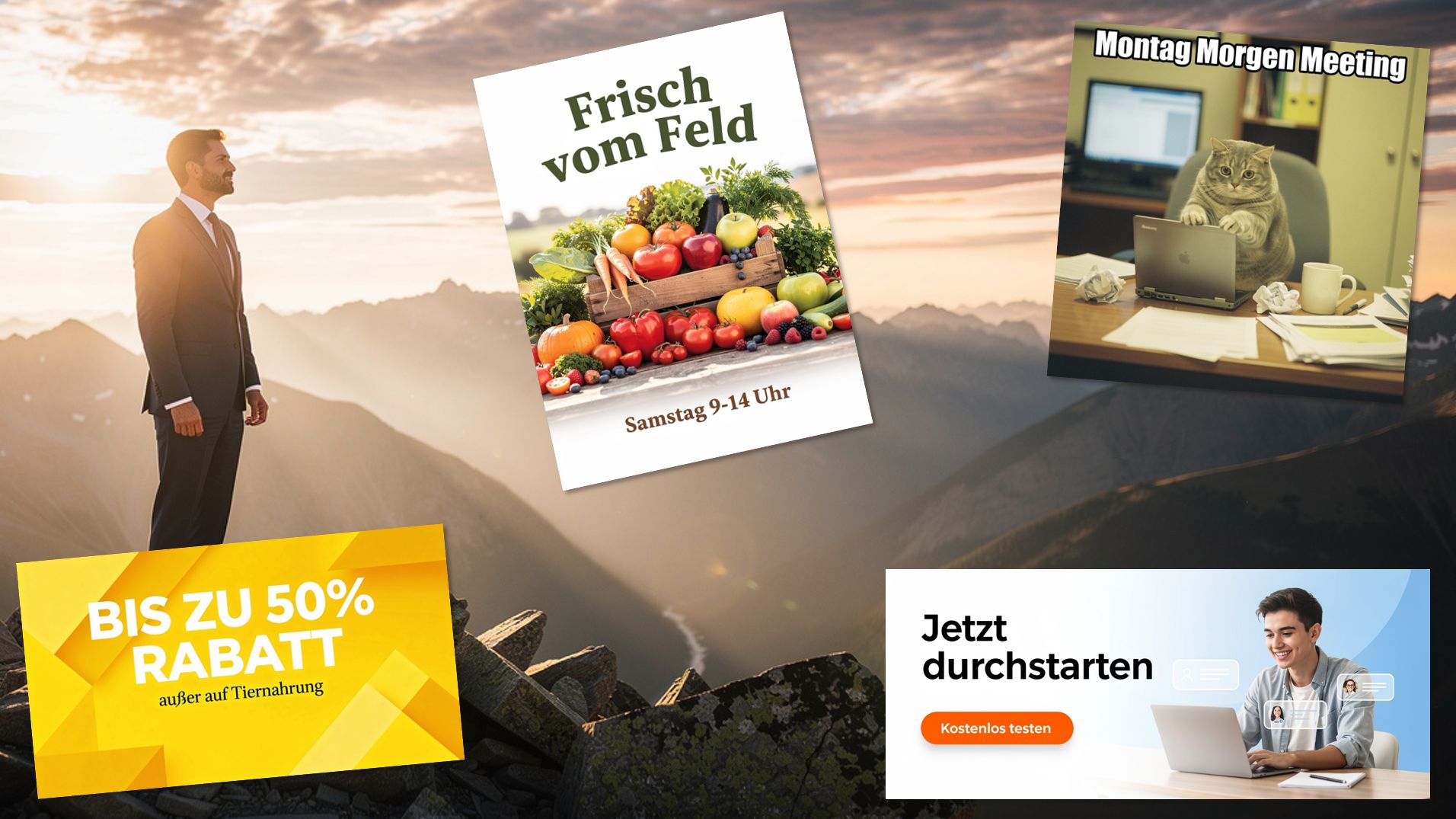
Right now, the biggest AI companies in the world are battling it out. Google is currently leading the language model race with Gemini 3 Pro. Anthropic is keeping up easily with Claude 4.5 Opus. OpenAI is no longer number one and seems to be in crisis mode.
And very good news: our German startup Black Forest Labs from the Black Forest has developed FLUX.2 Pro, an image generator that ranks among the best in terms of quality and speed. At the same time, FLUX.2 Pro is significantly cheaper and faster than the competition. Only Gemini 3 Pro is still better at generating text inside images.
We benefit from this development because it gives us even better tools for our media work.
However, you also need to know how to use these tools properly to get good results and save time. Investing in learning the right prompting techniques definitely pays off.
Be sure to read our guide to perfect AI images. It contains lots of practical day-to-day examples and image prompts you can start using right away: memes, social media graphics, infographics, ad banners, flyers, illustrations, product photos, portraits, landscapes, and much more.
It is also a reference guide for camera settings, image composition, lighting, and styles.
Meme generator#
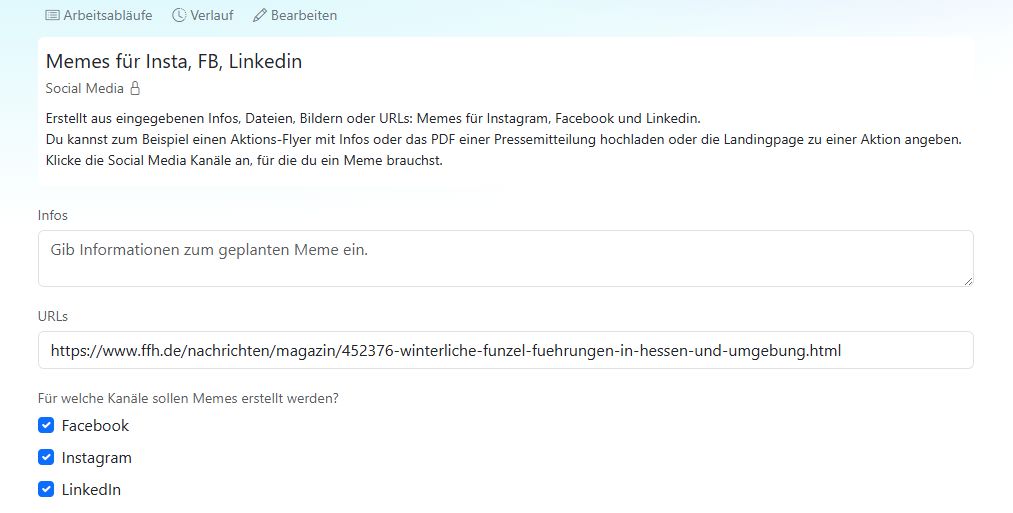
Imagine only having to click once and the AI automatically creates memes for several social media channels at once.
That is exactly what the new AI workflow does. You can find it in the Marketplace under Social Media -> Meme Generator (FB, Insta, LinkedIn).
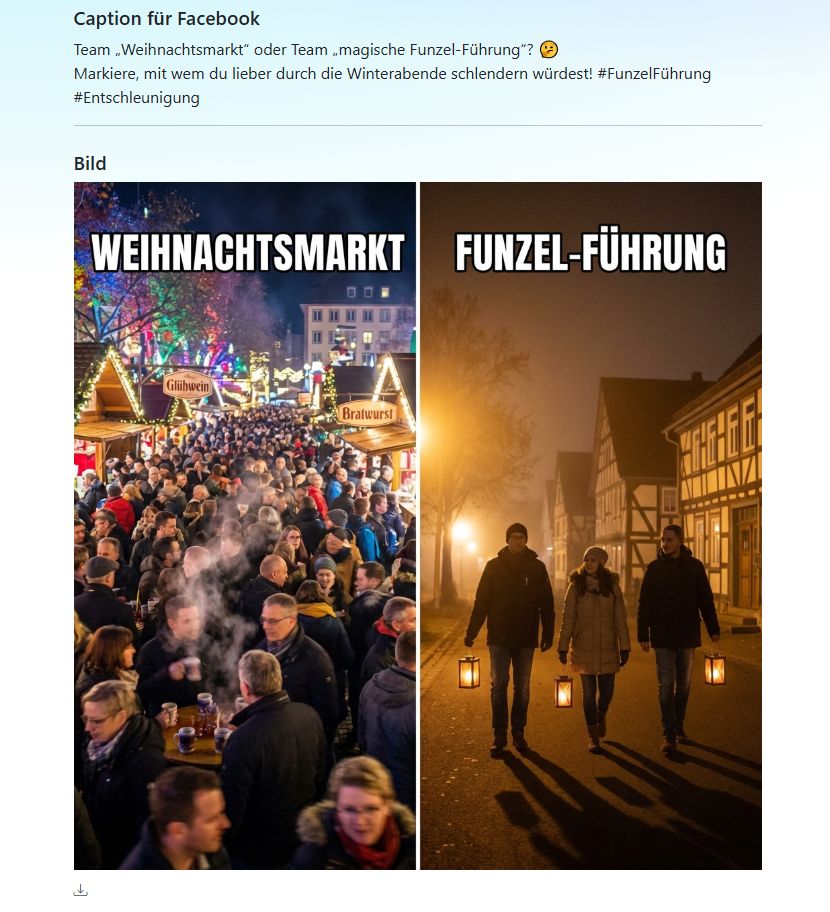
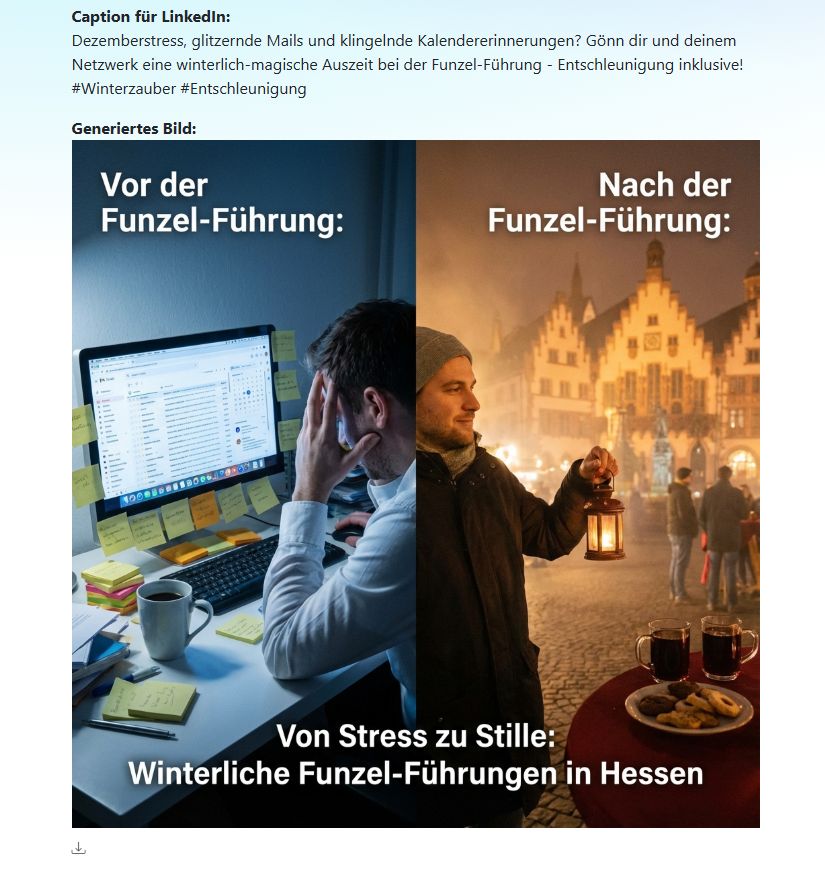
Just enter the URL of an article, blog post, or website. Or upload an info flyer or a PDF document. The workflow analyzes the content. Three agents then create a meme for Instagram, Facebook, and LinkedIn at the same time. They are optimized for the best practices of each platform.
Update on 27 November 2025#
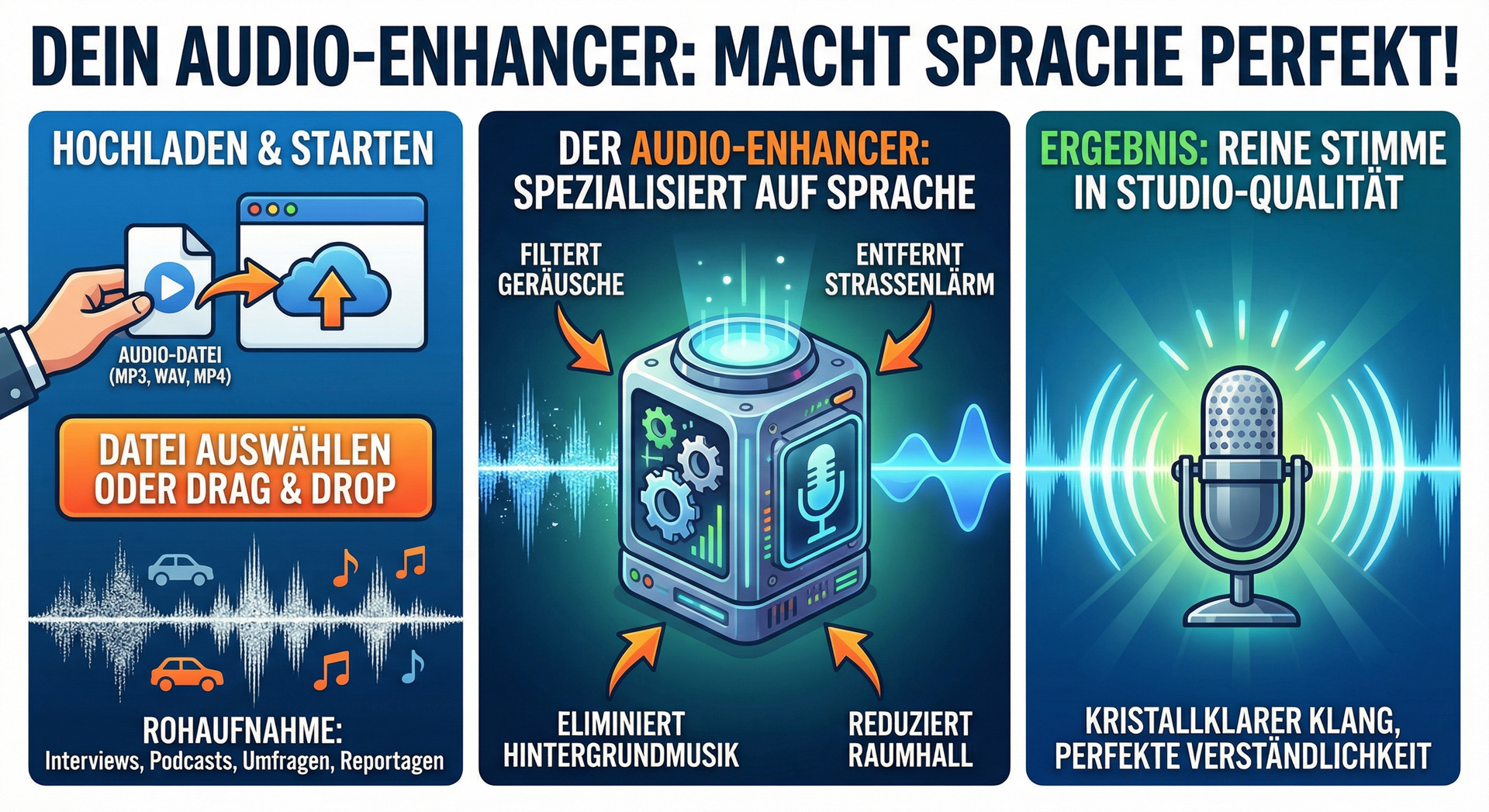
Background music or street noise in voice recordings - the new Audio Enhancer in the AI-Tools filters it out.
What’s new:
Audio Enhancer: Improves voice recordings by removing unwanted noise and optimizing speech intelligibility. Ideal for interviews, features, surveys, or podcasts.
Gemini 3 image generator: It has never been easier to create infographics. For example, we used it to create the graphic for the Audio Enhancer. Gemini 3 can generate high-resolution images in 4K.
Improved file importers: Excel spreadsheets with formatting and Word documents with links are now processed properly. And new file types have been added: e-books (.epub), feed files (.rss, .atom), and Outlook emails (.msg).
Audio Enhancer#
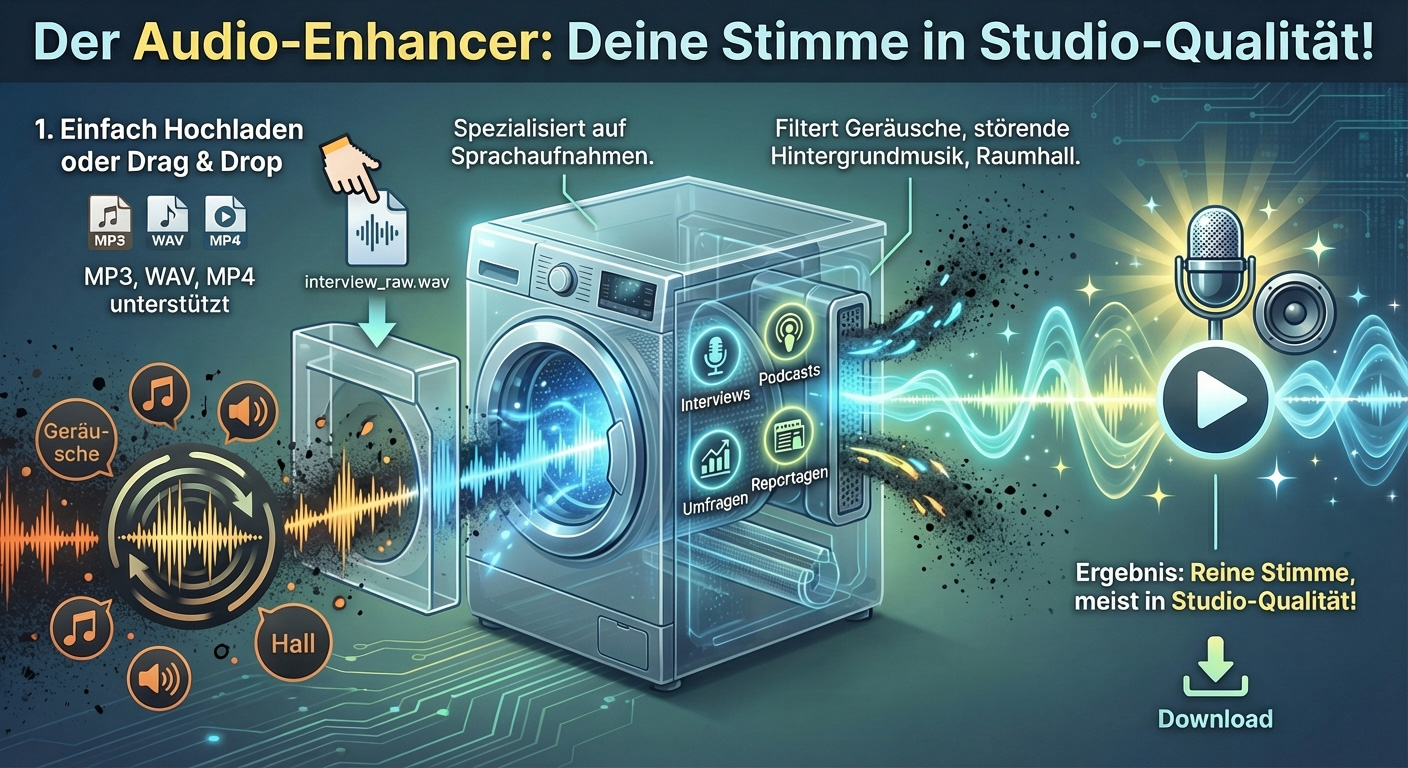
Podcasts, interviews, surveys, features, or other voice recordings sometimes suffer from background noise or room reverb. Background music or street noise cannot always be avoided during recording.
This is where the Audio Enhancer helps. It can remove unwanted noise, improve speech intelligibility, and optimize the sound. The tool cannot work magic, but it often delivers surprisingly good results.
Using it is very easy:
Upload the audio file or drag and drop it into the browser.
Give the AI the instruction: Improve the voice recording.
Audio examples
Typical interview at an event with lots of background noise.
Commercial with very loud music.
You can use these audio tools.
Gemini 3 image generator#
It has never been easier to create infographics on any topic. Google’s new image generator Gemini 3 understands complex prompts and can render text in multiple languages.
On top of that, it offers outstanding image quality of up to 4K resolution.
Very practical: you can use Gemini 3 in prompts and AI workflows. For example, to summarize a website in an infographic.
Tip
How to use Gemini 3 with the assistants:
Visit the website sprit-spion.de and summarize what users can do there. Then generate a landscape infographic that clearly explains how sprit-spion works.
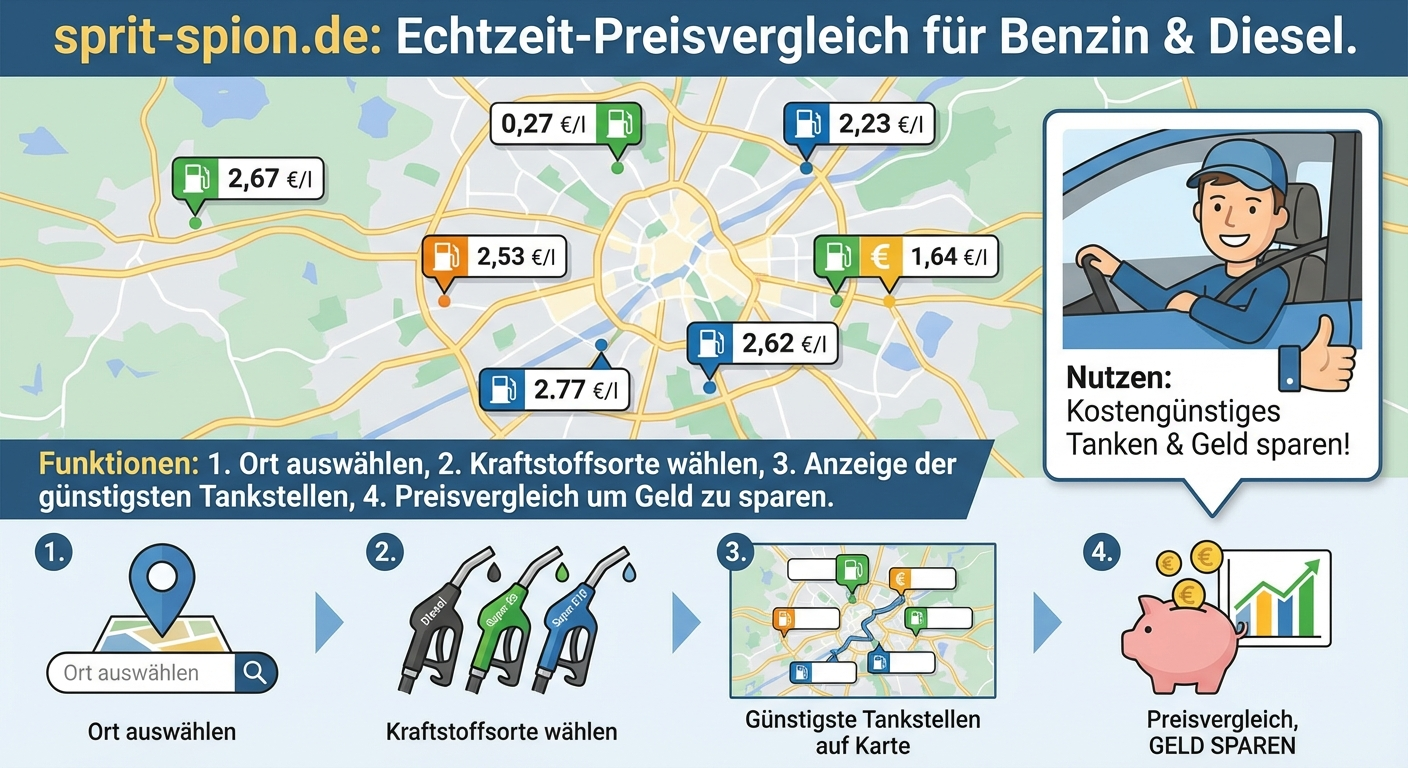
Whoa! Where can you get fuel for 27 cents?
Note: Gemini 3 uses significantly more tokens for high-resolution 4K images. These images can cost up to six times more than with Nano Banana.
Take a look at all image generators.
Update on 19 November 2025#

He is far too early and in entirely the wrong place: the Easter Bunny in Santa’s workshop.
You can now find all the images you created over the past two weeks in the new image history of your AI-Tools.
To test the feature, we had to generate a number of images. And we didn’t want to keep the philosophical masterpiece Easter Bunny in Santa’s workshop from you.
Here’s everything that’s new:
Image history: All images you created in the AI-Tools are now available in the new image history - together with the prompt used.
Workflow history: The Workflows module now has its own history as well. There you will find the results of all AI workflows you ran over the past two weeks.
Showprep - Entertainment briefing: A new workflow creates a complete entertainment briefing for presenters and the editorial team every morning.
Get found in AI search: With the new Write articles for AI search workflow, you can create articles that resonate with both your readers and AI search engines.
New top AI models: OpenAI (GPT-5.1) and Google (Gemini-3 Pro) have released their latest models. You can find them in the model picker.
Showprep - Entertainment briefing#
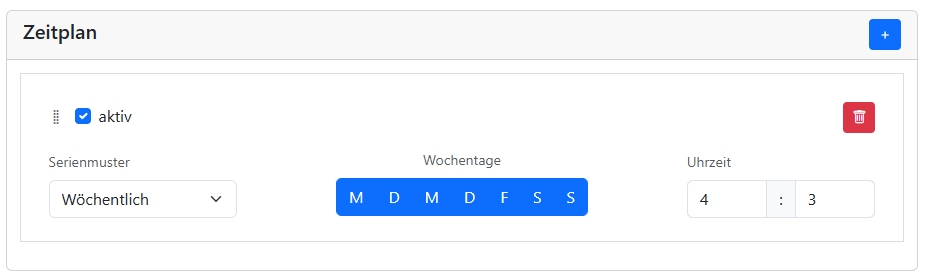
Every morning at 4 a.m., the Entertainment briefing lands in your inbox - as text and PDF. This practical workflow gives presenters and the editorial team a quick overview of all the important information for the day. The AI scans sources covering celebrity news, current events, and entertainment.
Customize the workflow to fit your needs. Here’s how:
Go to the Workflows module and open the workflow collection.
Click Marketplace - Editorial - Showprep: Entertainment briefing.
Click the Edit button.
Scroll down to the steps and expand the properties of the AI generator Briefing.
Under Prompt, you can adjust the sources. For example, you can change the sources or add more.
Open the properties under Distribute - Send email. In the To field, enter the email addresses of all recipients, separated by commas.
At the very bottom, enable the schedule and enter the time when the briefing should be sent.
Save and done!
Get found in AI search#
It is becoming increasingly difficult to attract new visitors to your website. It is no longer enough to optimize articles for search engines. They also need to include everything AI search engines like.
The good news: An article that perfectly addresses the needs of your readers will also be rated highly by AI search.
To do that, it is important to understand how AI search works.
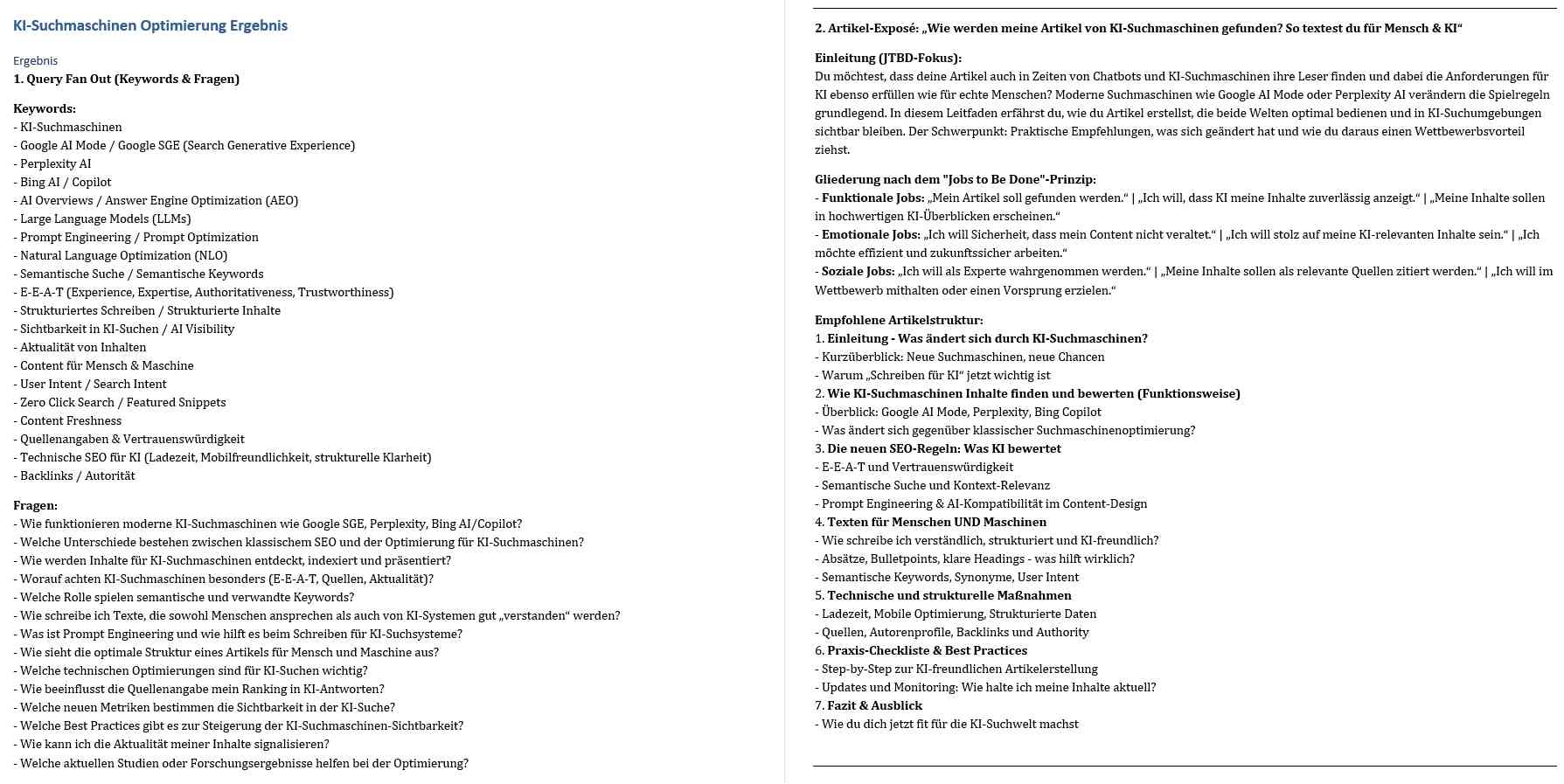
For every topic you enter into an AI search engine, it creates multiple search queries that cover different aspects of the topic. That can mean dozens of questions and keywords. This process is called query fan out.
The more aspects your article covers, the better it will be rated by AI search.
The Write articles for AI search workflow helps you create articles optimized for this purpose. You can find the workflow in the Workflows module under Marketplace - Articles - Write articles for AI search.
Enter a topic or a few keywords, and the AI will create:
A list of questions and keywords your article should address.
An outline for the article based on the Jobs to be done (JTBD) principle.
A list of similar articles that already exist.
Writing articles according to the Jobs to be done (JTBD) principle means focusing on which tasks and problems your readers want to solve with the article. First you explain the problem, then describe the solution and highlight the benefits.
Update on 11 November 2025#

Make your own voice sound like a news anchor, ad pro, or podcaster. You can do that with the new Voice Changer in the AI-Tools. Also included in this update: 10 new professional German AI voices.
Voice Changer: Control the delivery of AI voices precisely with your own voice: timing, pauses, emotions, emphasis, and intonation. Or turn a male voice into a female one.
New voices: 10 new professional German AI voices are now available. Try them out!
Voice Changer#
Sometimes it is not enough to control AI voices with voice direction alone. If you need more control over emphasis, pauses, and emotions, the Voice Changer is the right tool. You can modify any voice with the Voice Changer. For example, you can make it sound younger or older, or change the gender. Or you can use your own voice to guide the AI voice.
Voice Changer is a feature that works with Elevenlabs voices.
Here’s how:
Upload a recording of your voice or use the voice recording feature.
Choose the AI voice you want to use.
The Voice Changer analyzes your recording and transfers emphasis, pauses, intonation, and emotions to the AI voice
Original voice: Fenrir (Gemini voice) explains how it works.
Voice Changer result: With Voice Changer, Ramona (Elevenlabs voice) speaks the same text using Fenrir’s emphasis and timing.
You can find the Voice Changer in the AI voices module.
But you can also use Voice Changer as a standalone tool in prompts.
Tip
Try out Voice Changer:
Use the voice recording feature in the assistants to record a text in your own voice. Speak clearly and loudly.
Ask the AI to modify your voice. For example:
Change my voice so it sounds like a news anchor.
New AI voices#
In the AI voices module, you will find 10 new professional German AI voices from Elevenlabs. For example:
Alexander: A pleasant middle-aged narrator voice.
Ramona: A soft, romantic voice for videos, podcasts, and audiobooks.
Carla: A confident, warm voice for explainer videos and e-learning.
Leo: A deep, calm voice for advertising and documentaries.
Clemens: Powerful, dynamic, middle-aged voice for advertising or trailers.
Sabrina: Warm, expressive, and pleasant. Ideal for social media and storytelling.
Discover the new voices in the AI voices module and select the Elevenlabs filter.
Update on 29 September 2025#
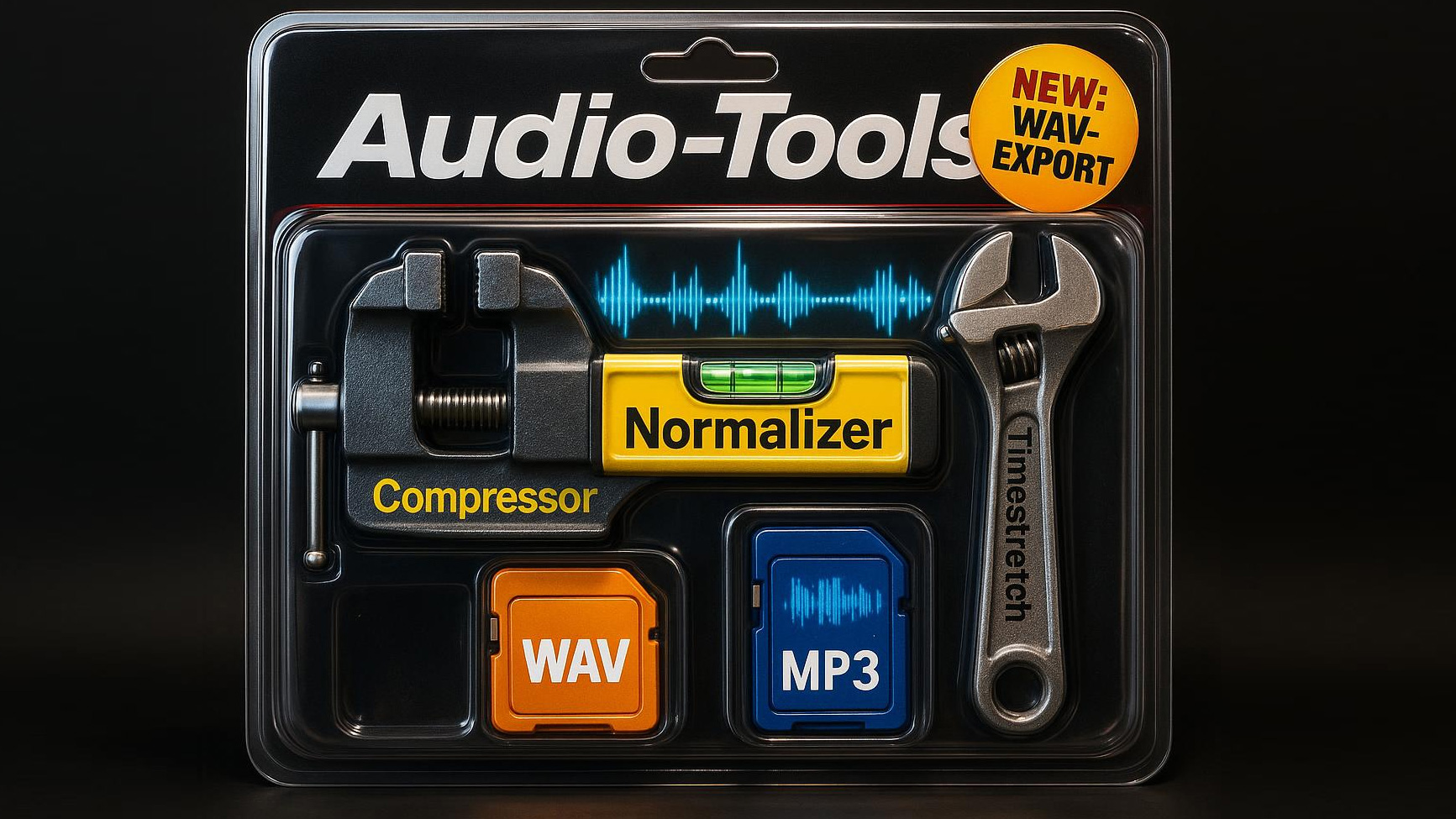
Combine multiple commercials into one ad break and automatically make it the right length. That’s what the new audio tools can do.
You now have a complete AI audio workstation in your browser. Here’s what you can do with it:
Merge audio: Combine multiple audio files into a single file, with optional pauses in between.
Normalize audio: Bring the volume of an audio file to a specific level.
Compress audio: Improve quiet recordings.
Time stretch: Adjust audio files to a specific length or change the speech speed while preserving the pitch.
Export: Download audio files as WAV or MP3.
Analysis: The audio tools determine length, format, sample rate, channels, file size, peak amplitude, RMS level, dynamic range, loudness (LUFS), and crest factor. This helps you assess audio quality.
With this toolkit, the AI can help you produce audio content.
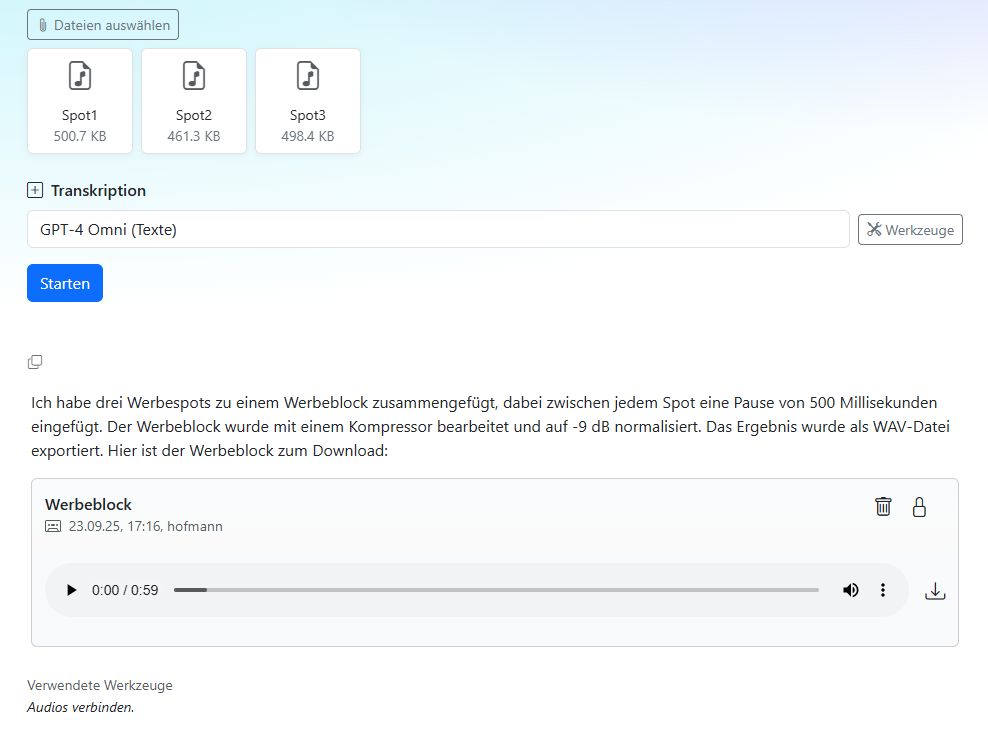
Take a look at this example:
We create an ad break from several individual commercials and bring it to the desired length.
There is also a workflow that automatically combines commercials and adjusts the ad break to a specific length.
The AI uses several strategies for this: first it checks whether the break needs to be shortened or lengthened. If it needs to be shortened, it uses time stretching.
If the spots are too short, the AI first tries to insert short pauses between them. If that is not enough, time stretching is used to lengthen the spots slightly.
The spots are normalized individually so they all have the same volume.
You can find the workflow in the Workflows module under Marketplace - Production - Chain audio files.
Tip
Try these prompts:
Normalize the audio file to -10 dB and export it as WAV.
Combine the three audio files into a single file. Insert a 0.5-second pause between each file and compress the audio.
Stretch the audio file to a length of 30 seconds. Compress it and export it as MP3.
How long is the audio file and what does it contain?
Make the audio 5% faster.
Analyze the commercial technically and in terms of content. Write a comprehensive report.
Merge the two audio files and normalize them individually.
Merge the audio files and then normalize the entire audio to -9 dB.
Go to the audio tools guide.
Update on 19 September 2025#

Next-level image editing: Nano Banana joins the image generators in the AI-Tools. You can use it to enhance images or combine several images into one.
Gemini 2.5 Flash Image is Google’s official name for the image generator - better known as Nano Banana.
Multiple input images: You can upload several images and instruct the AI to combine them into one. This now also works with GPT Image and FLUX Kontext.
Reorder input images: You can reorder uploaded input images via drag and drop. This matters because Nano Banana uses the aspect ratio of the last image in the sequence.
Nano Banana#
Before the release, Google tested its new image generator on a rating platform. Users noticed that these AI images were marked with a tiny banana at the edge. And that is how Nano Banana was born. It also sounds much better than Gemini 2.5 Flash Image preview.
Nano Banana, alongside FLUX, is one of the fast image generators.
With Nano Banana, you can combine several images into a new one. In the following example, we dressed the presenter from the studio in rubber boots and a raincoat. We also put an umbrella in her hand.
For this, we uploaded the following four images:
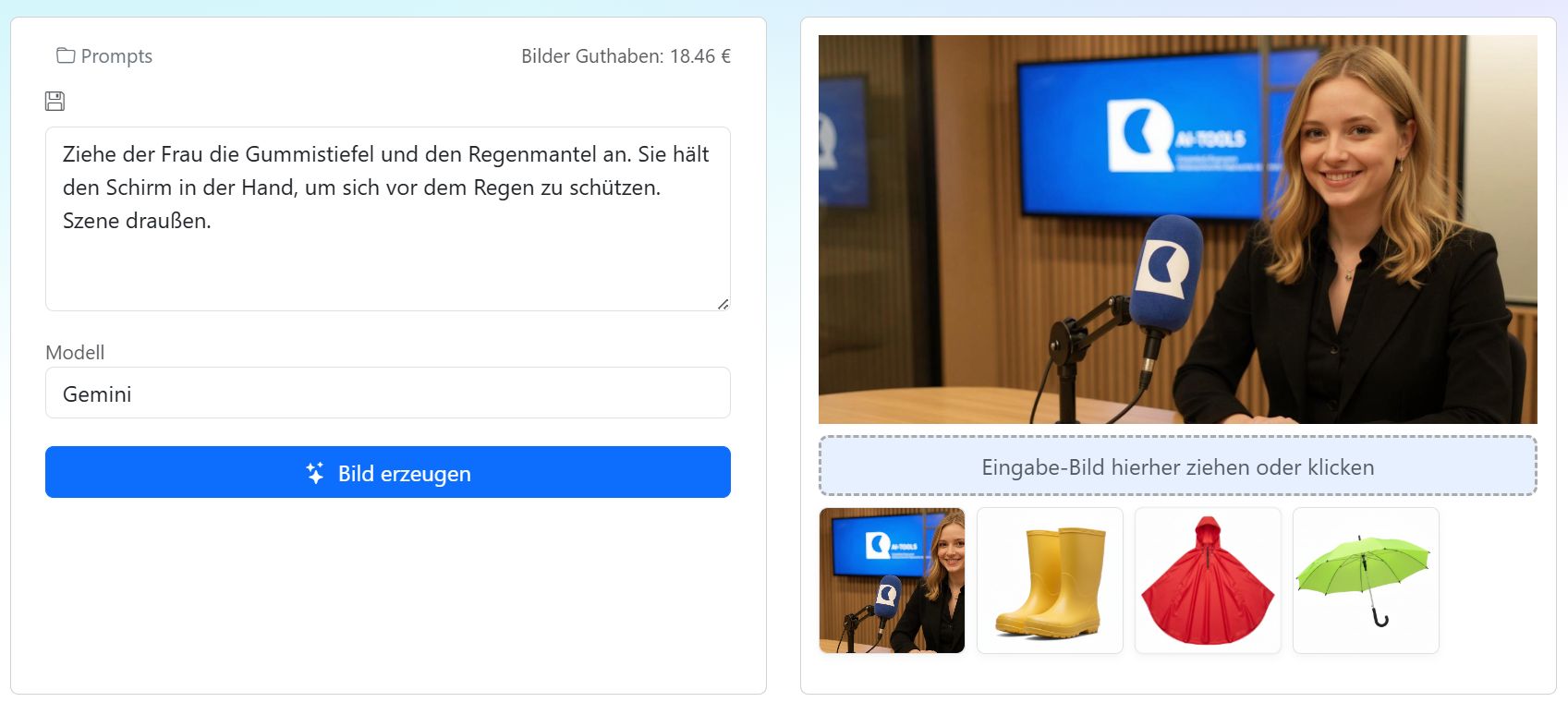
The prompt used:
Put the rubber boots and raincoat on the woman. She is holding the umbrella in her hand to protect herself from the rain. Outdoor scene.
Gemini would now generate the image in a square format. But we want it in landscape. So we reorder the images via drag and drop so that the studio shot in 16:9 format is placed last. Gemini uses the aspect ratio of the last image.
The result:

Content filter#
To curb misuse of AI images, Google uses a strict content filter. This means that many prompts - and especially input images - are blocked. In such cases, the only solution is to rephrase the prompt.
Take a look at the guide to the image generators.
Update on 28 August 2025#
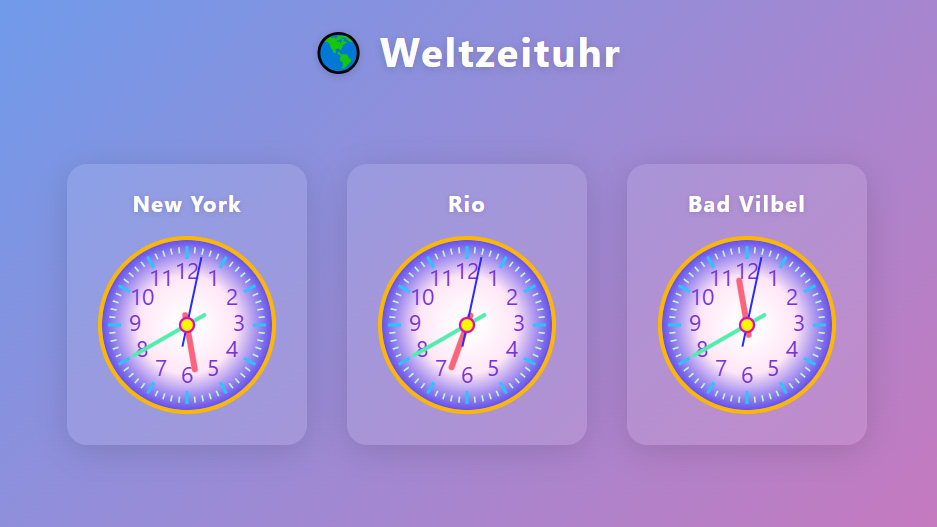
The AI-Tools can now create websites for you or transcribe WhatsApp voice messages. Here’s what’s new:
Transcribe WhatsApp voice messages - for example in audience communication.
Create websites: You can create and download HTML files. Or Python, PHP, or batch scripts.
Write better prompts by drafting them in Markdown. This is especially important for GPT-5.
Checkboxes for AI workflows: You can now use checkboxes in your workflows to improve interaction.
WhatsApp voice messages#
If you use WhatsApp for communication, the AI-Tools can transcribe voice messages. WhatsApp stores voice recordings in opus or ogg format.
Here’s how:
In WhatsApp Web, download and save the voice message you want via the three-dot menu. Then drag and drop the ogg or opus file into the AI-Tools window.
Better prompts#
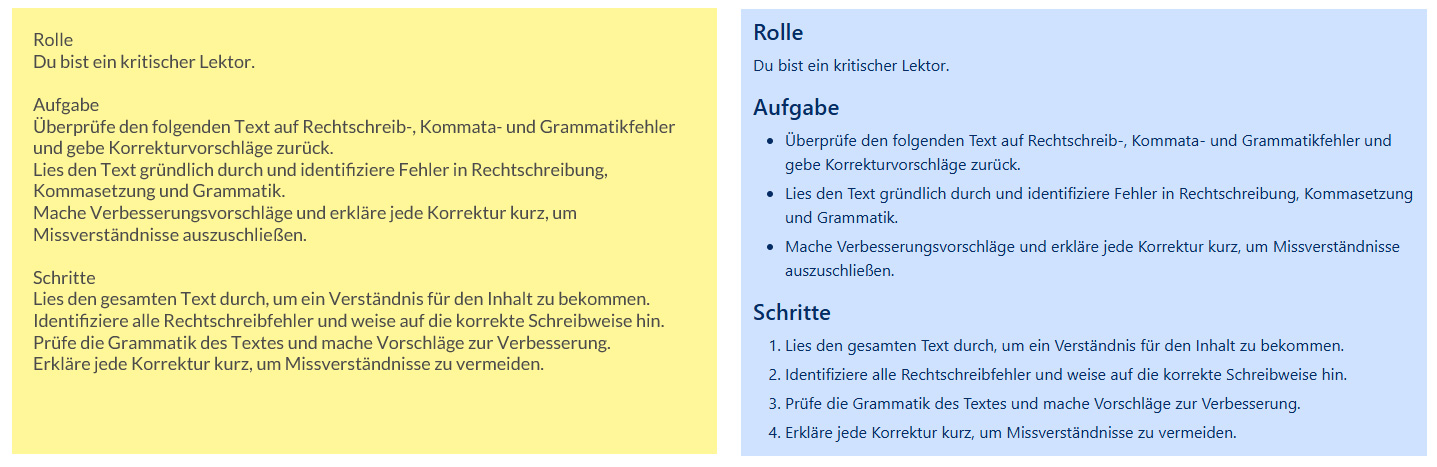
Which of the two prompts in the image do you find clearer? The AI feels the same way.
Give your prompt headings, bullet points, and other formatting to improve the structure. Highlight important instructions in bold.
You can use Markdown for this, which language models understand very well.
It’s very simple: a hash symbol marks headings # Heading 1, two asterisks make words bold **bold**, and hyphens create lists.
You always have a Markdown guide at hand in the AI-Tools. Click the three-dot menu in the top right and choose Prompting tricks.
Or write a prompt and then click the magic wand. It structures your prompt and rewrites it in Markdown. Advanced models such as GPT-5, GPT-4.1, or Claude 4 Sonnet handle structured prompts much better.
Create websites and scripts#
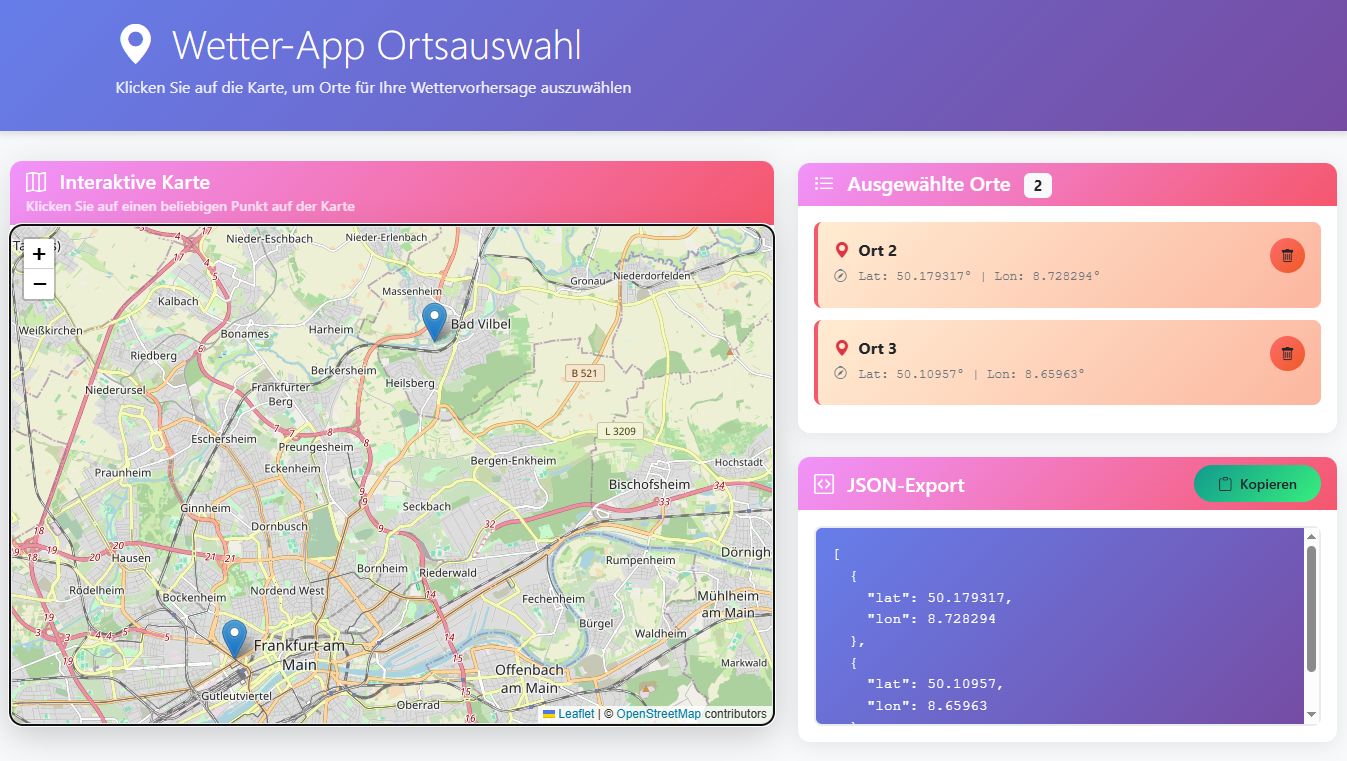
This will appeal to IT teams and developers: the AI-Tools can create websites (HTML) and other scripts (Python, PHP, batch, JSON, YML…) and offer them for download.
Sometimes you quickly need a shell script, a batch or configuration file, or a small web application. Write a well-structured prompt, use a model like GPT-4.1 or Claude 4 Sonnet, and ask the AI to provide the script as a download.
Here you can find a guide and the list of supported file formats.
Workflows with checkboxes#

One practical thing about AI workflows in the AI-Tools: you can create very user-friendly applications.
Until now, you could already use input fields such as text, numbers, or a dropdown menu.
With the new checkboxes, you can now also integrate selection options into your workflows.
The section Workflow checkboxes explains how it works.
Update on 8 August 2025#

GPT-5, OpenAI’s new flagship model - just launched with great fanfare - is now available in your AI-Tools.
Can the model live up to the hype? Try it out! Here are GPT-5’s key features:
Internally, GPT-5 consists of multiple models that are selected depending on the task. GPT-5 can activate “reasoning” when needed to solve complex tasks.
Hallucination, meaning the invention of information, has been reduced.
It can handle large texts and lots of code: up to 400,000 tokens.
GPT-5 is said to be capable of creating complete software projects.
It is not the new Artificial General Intelligence (AGI). It is more an improvement of existing models.
GPT-5 works well with multiple tools (search, creating graphics and images, retrieving information, and more).
Its internal knowledge extends through October 2024.
Token costs are roughly on the same level as GPT-4 Omni.
IMPORTANT: GPT-5 expects precise, well-structured prompts without contradictions. We therefore recommend using the AI-Tools magic wand to improve your prompt.
We are keeping GPT-4 Omni at the top of the model list because it is still the model that delivers good results even with loosely structured instructions.
Update on 29 July 2025#
You can now use the best AI voices currently available in the AI-Tools. They can be controlled with voice direction, and they can laugh and whisper. It’s best to watch this video right away. We tested the Gemini voices in different scenarios: news, podcast, commercial, radio play, and speaking with an accent.
A quick look at all the new features:
AI voices: Google’s new Gemini voices are here. They are highly versatile and can be directed.
Create a commercial in chat: The AI asks you for all important information and produces a commercial for you, including a matching music bed.
Workflows with AI voices: Six new workflows automate your work with AI voices: news, weather, company podcast, sponsor mention with audio previews, info podcast, and voicing articles.
Workflow marketplace: This is where you will constantly find new workflows, templates, and ideas for your own projects.
Query fan out: Write articles in a way that helps them get found by AI search engines.
How long is my text?: The AI calculates how long it will take to speak.
Own recordings in the AI voices module: You can now upload your own recordings to the AI voices module and mix them with music beds.
AI voices with emotion#
Google trained the Gemini voices to deliver natural-sounding dialogue. Ideal for podcasts, radio plays, and commercials.
With instructions such as laughs, enthusiastic, or emphasize, you can direct the voices and control emphasis.
You can find out exactly how it works in the guide to AI voices.
Create a commercial in chat#
You can now also use all AI voices in chat with Assistants. This is what the new AI voices and Audio production tools are for.
The language models have access to all voices and music beds. The video tutorial shows you how to use them to create a commercial in chat.
The AI asks you for all important information, writes the text, and creates the voices. It then selects a suitable music bed and adjusts it to the right length so that the final chord lands exactly on the last word of the text.
Tip
Try these prompts:
Group the available AI voices and list them with German descriptions.
Let me preview the available music beds.
Learn more about the AI voices tool.
Workflows with AI voices#
You can automate production with AI voices. For that, we developed six new workflows:
Radio news: Writes short radio news items from your sources and voices them.
Weather report: Create a weather report with AI voices for many regions in Germany.
Company podcast: Produce a podcast for your company.
Sponsor mention with audio previews: We expanded the existing workflow. Now you not only get text suggestions - you can also listen to them right away.
Info podcast: Are you diving into a new topic but overwhelmed by too much information and too many sources? This workflow writes a compact dossier and turns it into a podcast you can listen to on the go.
Voice articles: Turn online articles into audio with AI voices - in a casual podcast style.
These workflows are available for you in the new Marketplace.
Workflow marketplace#
You can find new workflows, templates, and ideas for your own projects in the AI-Tools Marketplace. Go to the Workflows module and open the workflow collection. The new Marketplace section is at the bottom.
There you can see, for example, the workflows for AI voices.
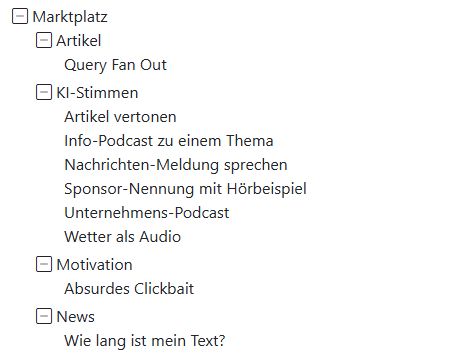
New workflows#
How long is my text? (News)
Copy a text into the input window - the AI calculates how long it will take to read aloud.
Query Fan Out (Articles)
When you ask an AI search engine something, it analyzes the topic and sends out several search queries that cover different aspects of the topic. This is called query fan out.
That is why articles written to cover as many aspects of a topic as possible are found more easily by AI search engines.
The Query Fan Out workflow helps you write articles that cover all the important questions around a topic.
Just enter your topic or a few keywords and the AI will create a list of questions your article should answer. The workflow also drafts an outline for the article and lists similar articles that already exist.
Absurd clickbait (Motivation)
This workflow is completely useless. But it is fun! :-)
Your own recordings in the AI voices module#
In the AI voices module, you can now also upload your own audio recordings. For example, a text recorded by you or by a voice artist.
The uploaded recording is automatically transcribed and labeled. You can then use the automatic mixer to place a music bed underneath it at the right length.
Edit AI voices#
All AI voice productions you created with Assistants or a workflow can be found in the AI voices module under Play production.
There, you can edit the texts afterward, change emphasis or emotion, add pronunciation rules to the dictionary, and restart the production.
In the AI voices module, you also define which music beds are available in your organization.
Update on 8 July 2025#
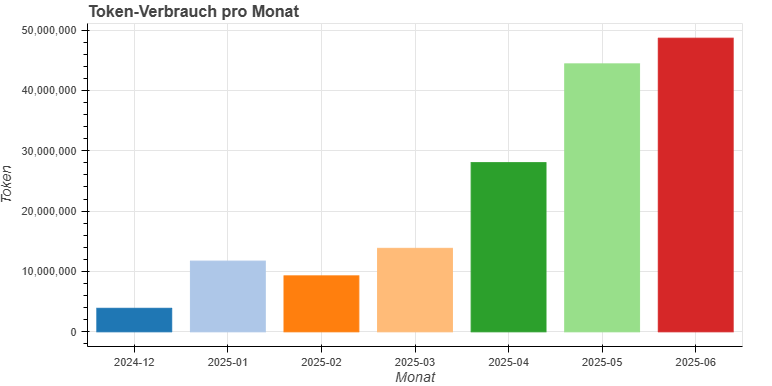
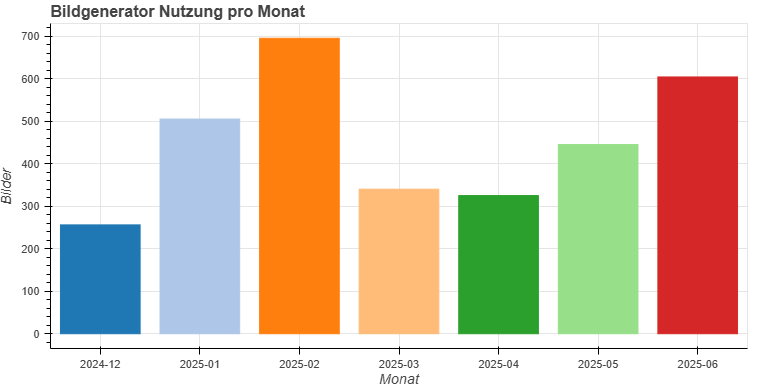
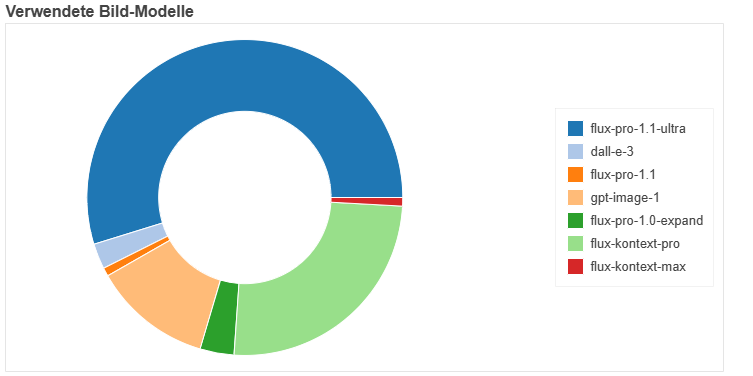
How is AI usage developing in your company? Which image generators and tools have you used most often in the AI-Tools?
You can now view the usage statistics of the AI-Tools. Also included in this update: Google’s powerful Gemini language models and Google AI Search.
Usage statistics#
Retrieve your token usage and your use of the image generator. Or create usage statistics for your company. You can do this directly in the assistant chat.
Only you can see your own usage. Usage across the entire company is visible to everyone.
Tip
Try this prompt:
What did my AI-Tools usage look like this year? Show my token consumption and image generator usage in charts. Also show which models I used.
Gemini language models#
The AI-Tools now support Google’s Gemini language models. They are among the most capable language models and are suitable for many tasks. Gemini also makes Google AI Search available.
Gemini can also analyze images. So you can extract text from images and have images analyzed and described.
You will find the Gemini language models in the list of available models in Assistants: Gemini 2.5 Flash Pro, Gemini 2.5 Flash, and Gemini 2.5 Flash Lite.
To use the Gemini language models, you need an API key: Set up a Google API key…
Fun fact
Google’s researchers translate Gemini’s thoughts in a very casual tone. Language models do not really think, but internally they do a kind of planning for the task at hand. Google calls this reasoning. And you can view these thoughts in the AI-Tools by clicking Show thoughts.
Prompt:
What’s new with Taylor Swift?
Thoughts:
Someone wants the latest on Taylor Swift. My initial instinct, given this request, is to leverage my Google AI Search capabilities. To get the best possible overview of recent news, I know I need to craft a really precise and detailed search prompt. I’ll need to feed the AI agent a focused query, something that will cut through any noise and get directly to the point: the most current and relevant information regarding Taylor Swift. I’m thinking about including specifics like timeframe, potential areas of interest (e.g., her music, personal life, upcoming events), and maybe even specifying a news source preference if applicable. A well-crafted prompt is key here to getting a high-quality summary.
Update on 11 June 2025#

This time, there is a lot that’s new:
The new image generator FLUX Kontext can improve existing images, remove objects, and modify people. And it does all this much faster than GPT Image.
With export templates, you can export AI-Tools results to PDF files in your company’s corporate design. (Logos, slogans, letterhead)
Create files is a new tool that lets the AI independently create Word, PDF, Excel, or CSV files.
Anthropic search: All Anthropic models can search the internet.
Claude 4 Sonnet is Anthropic’s newest and most powerful model. It is excellent at using tools and generating code.
In AI workflows, you can send Word files by email.
How long is my text? The AI-Tools can count words and characters in a text and calculate how long it will take to read aloud at your speaking speed.
Workflows enhanced: New “user” memory area. Easier work with placeholders.
FLUX Kontext#
With the image generators FLUX Kontext Pro and FLUX Kontext Max, you can create and edit images. For example, you can improve quality, remove objects from an image, or edit people.
In the process, FLUX Kontext largely preserves the character of the person. You can use prompts to change facial expressions, gestures, posture, clothing, or camera angle.
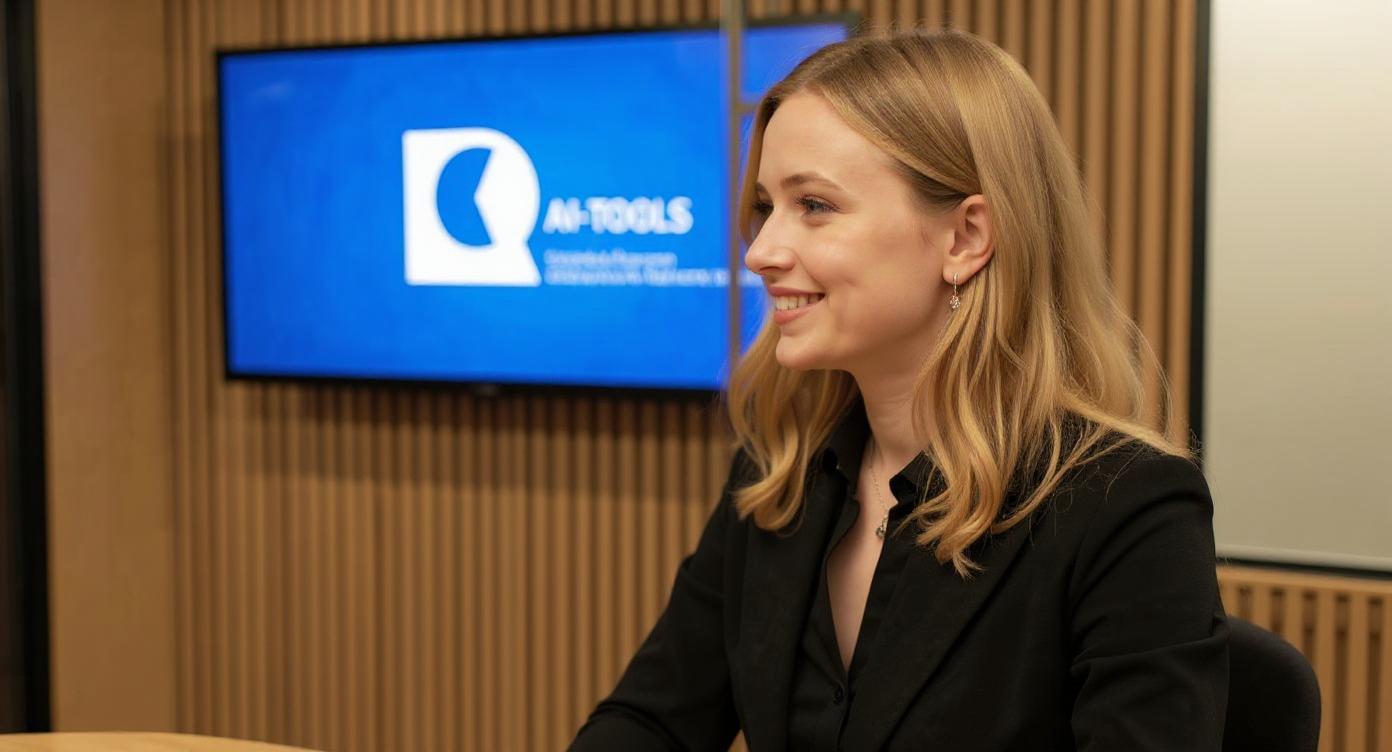
In the following example, we uploaded the Radio Creator visual mark as the input image and generated an image of a female radio presenter with a blue microphone.
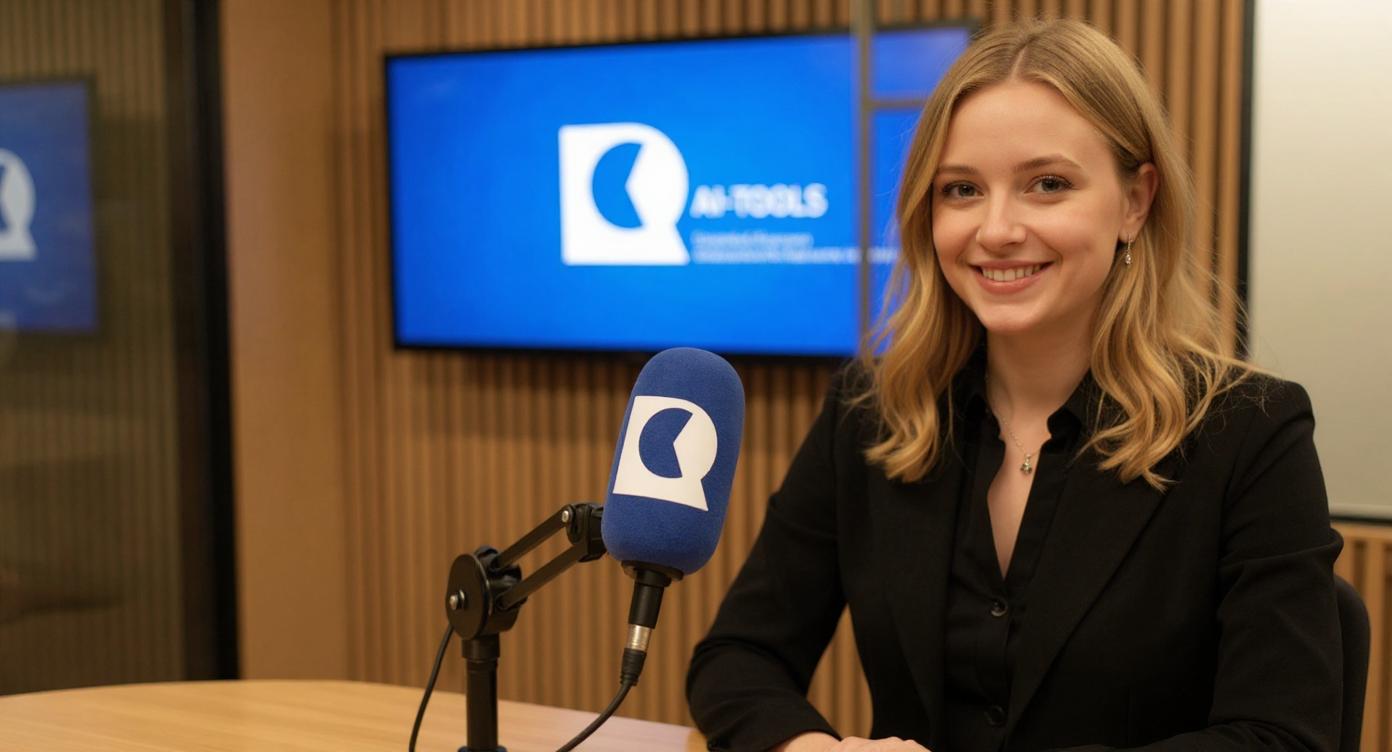
We then applied the following prompt to the resulting image:
Remove the microphone and show the woman in the image in half profile, so that she is looking to the left in the picture.
Export templates#
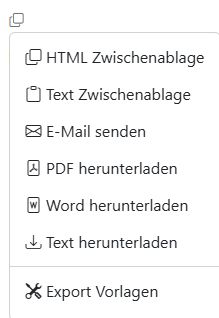
You probably know the context menu that appears for all AI results (copy icon). It now includes the new menu item Download Word. This is handy because you can continue working directly in Word.
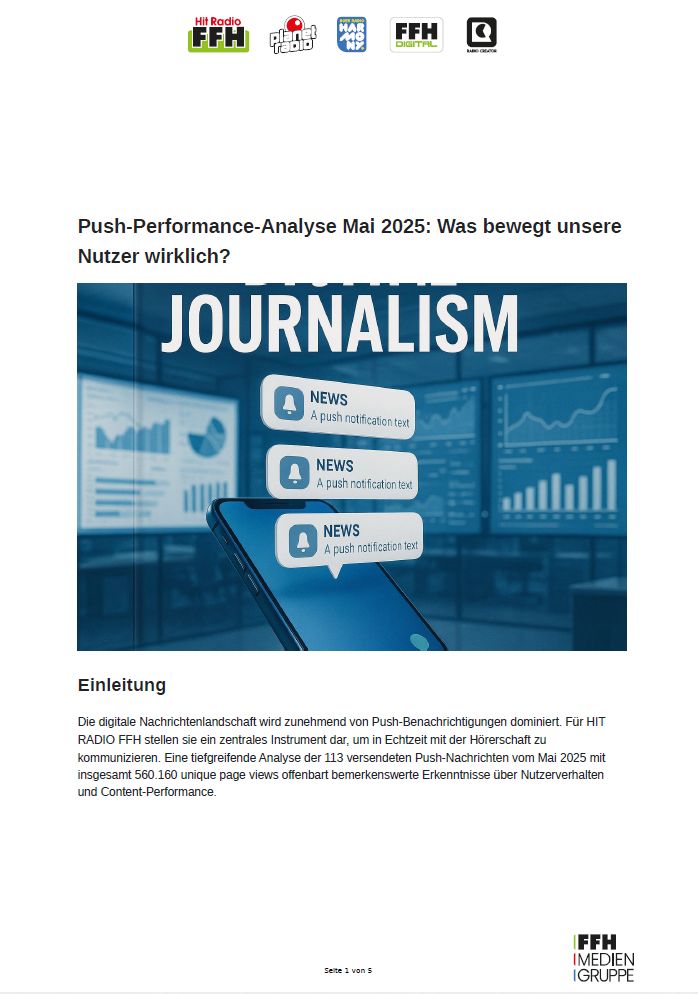
Also new is the Export templates option. It opens a window where you can choose from PDF templates for file export.
You can now create reports, analyses, letters, and texts on company letterhead with your logos and brand design.
Create files#
You can ask the language model to write the output directly into a file that you can download. The AI-Tools can create the following file types: Word (docx), PDF (pdf), Excel (xlsx), and CSV (csv).
Tip
Try this prompt:
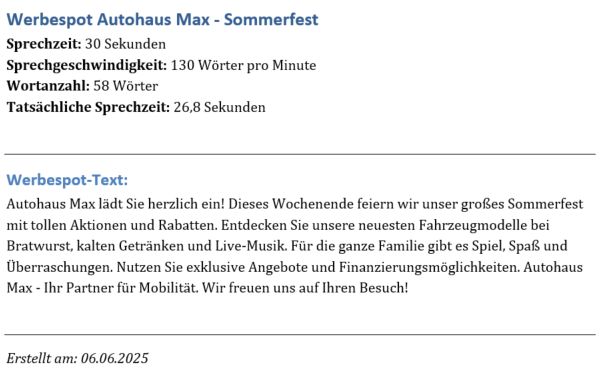
Write a commercial for Autohaus Max, which is celebrating its summer festival this weekend. The commercial should be 30 seconds long. Speaking speed 130 words per minute. Write the final text into a Word file.

Workflows module expanded#
Working with placeholders in AI workflows has become easier. You can now see which placeholders are available without having to expand the properties.
And placeholders are now case-insensitive. That avoids typos and makes work easier.

The new user memory area contains three properties of the logged-in user:
[user.username][user.displayname][user.mail]
The email address is especially useful. It lets you build AI workflows that automatically send an email to the logged-in user.
Update on 20 May 2025#
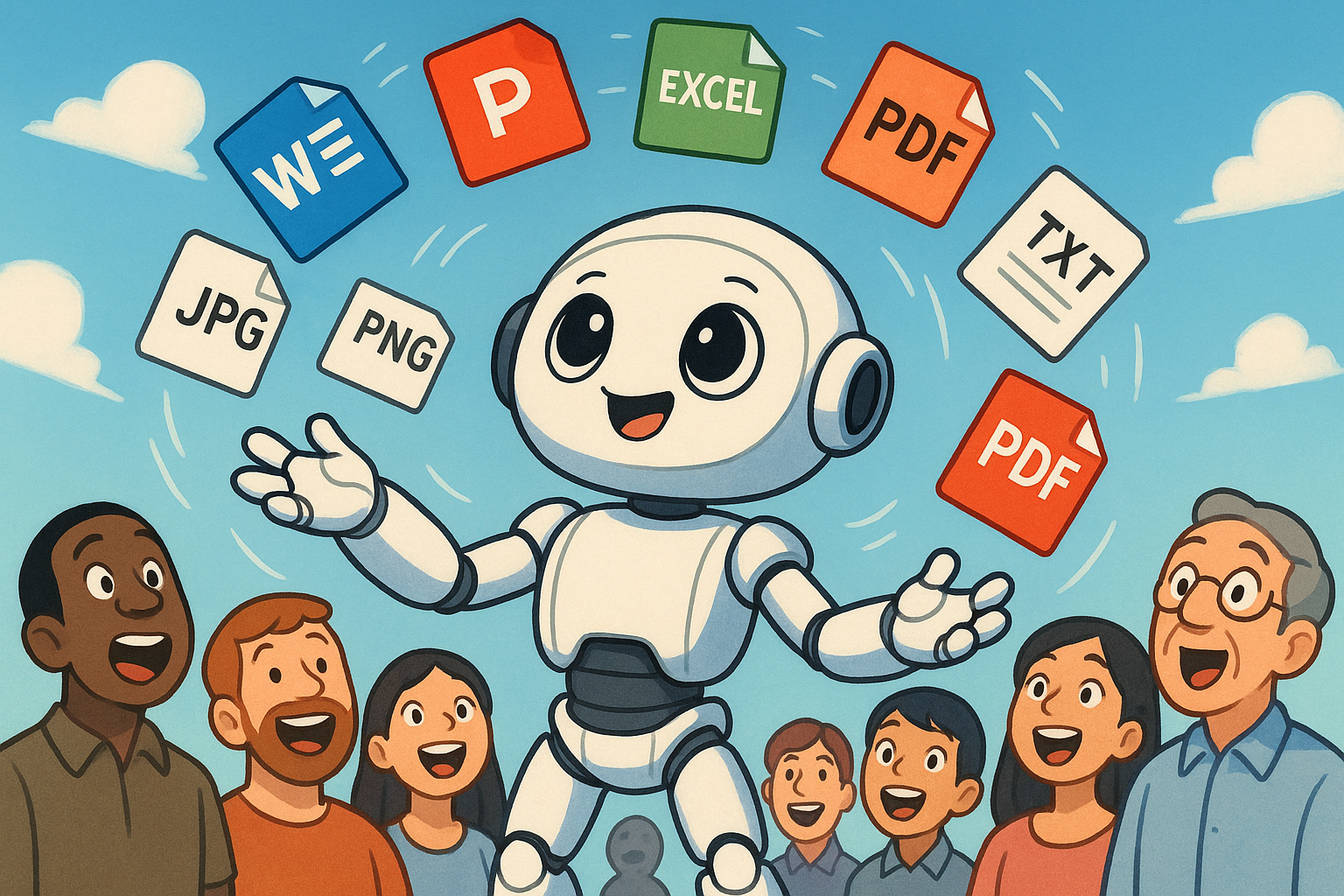
PowerPoint, Excel, Word, PDF, Markdown … The AI-Tools can now handle even more file formats. Also new is the RSS feed reader. It lets you import news feeds into the AI-Tools and use their content for your purposes. And the AI-Tools now analyze your task and automatically select the right tools.
RSS feed reader#
Many websites provide their latest updates in a machine-readable format as a so-called RSS feed or XML feed. The format is also widely used for podcasts to inform podcast apps about the latest episodes.
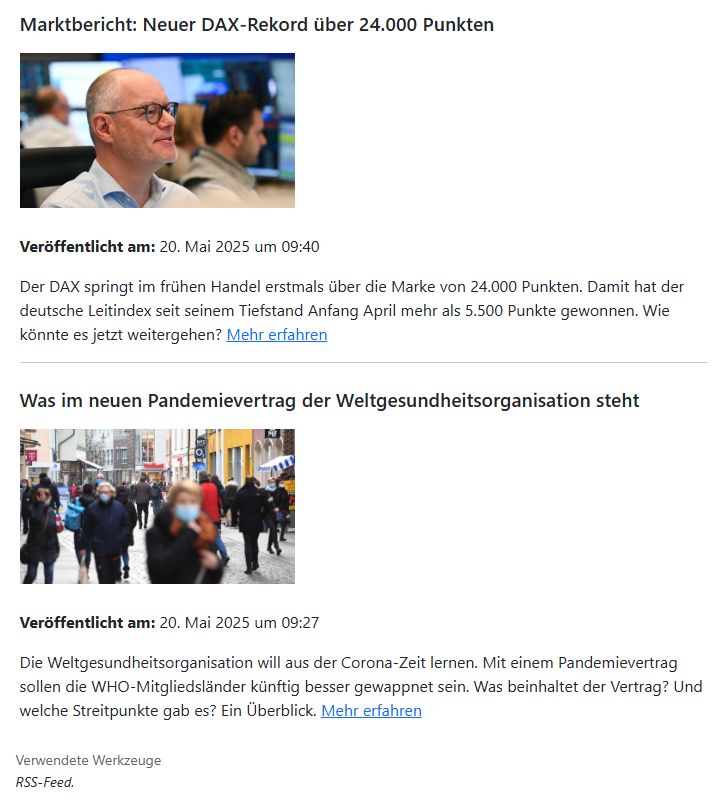
The new RSS feed reader in the AI-Tools can read these feeds, filter them according to criteria, and prepare the content for you. For example:
Retrieve the 10 most recent items from the last 10 hours.
The feed reader then reads the entire feed with all items, but only passes on the items that match the criterion to the AI. So the language model only receives relevant information.
Retrieving a feed is much faster than loading a webpage, and it uses significantly fewer tokens. Depending on the task, token usage and time can be reduced by a factor of two to three.
Tip
Try this prompt:
Retrieve the two most recent items from the Tagesschau RSS feed. Display the items with images like in a newspaper, including the publication time.
Automatically select tools#
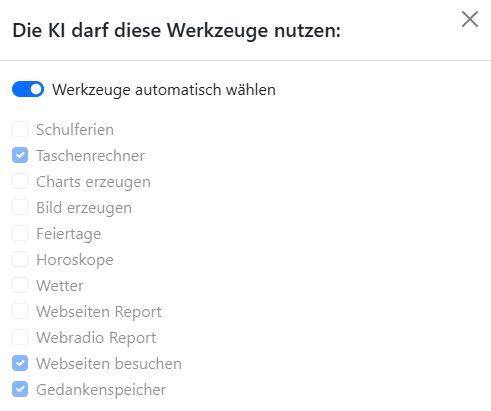
The number of tools in the AI-Tools is constantly growing. Whether a task is solved optimally often depends on whether the right tools are selected. You can now leave tool selection to the AI.
Click the Tools button.

This opens the tool settings. You can enable individual tools or switch on Automatically select tools.
Read PowerPoint#
The AI-Tools can now also read PowerPoint presentations. For example, you can have a PowerPoint presentation summarized and analyzed. And even more file formats have been added.
You can now work with these file formats:
Word (.docx), Text (.txt, .text), CSV (.csv), Excel (.xls, .xlsx), Markdown (.md, .markdown), PDF (.pdf), PowerPoint (.pptx), and code (.xml, .json, .jsonl, .ipynb).
PNG (.png), JPEG (.jpg, .jpeg), GIF (.gif), and WEBP (.webp).
Audio (.mp3, .mp2, .wav, .mp4, .mov, .m4a)
Update on 12 May 2025#

The AI-Tools can now see, uploading files with drag and drop has become even easier, and - as many requested - history is here.
What’s new:
Vision: The AI can analyze and understand images. For example, you can extract text from images or turn hand-drawn sketches into concepts.
Drag & drop: Simply upload files into the browser via drag and drop. This works with images, documents, and audio files.
History: History is here. All your chats are stored for two weeks. This is especially useful if you are working on a project and need the results again and again.
Event tip workflow: The new workflow helps you create event tips for radio or your website. As input, you can upload an event flyer, PDFs, text, or simply provide a website.
Vision#
The AI-Tools can open these image types: PNG (.png), JPEG (.jpg, .jpeg), non-animated GIF (.gif), and WEBP (.webp). Models with vision capabilities can process these images. For example, GPT-4.1 or Claude 3.7 Sonnet.
Tip
What you can do with it:
Have the image content described.
Analyze images and extract text and information.
Create an event tip from a flyer.
Turn hand-drawn sketches into concepts.
Drag & drop#
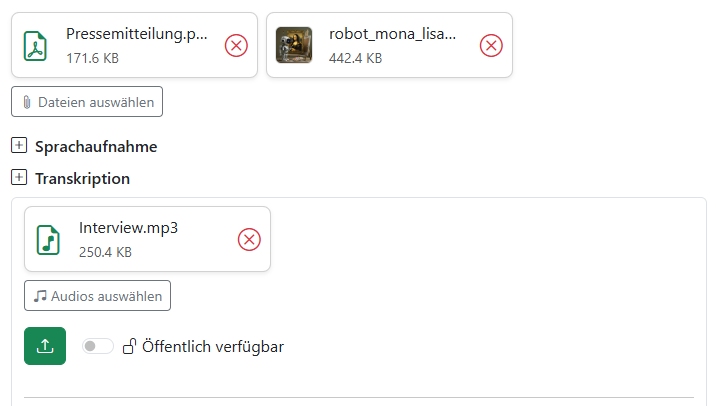
You can now conveniently drag and drop files such as PDFs, images, or audio into the AI-Tools browser window.
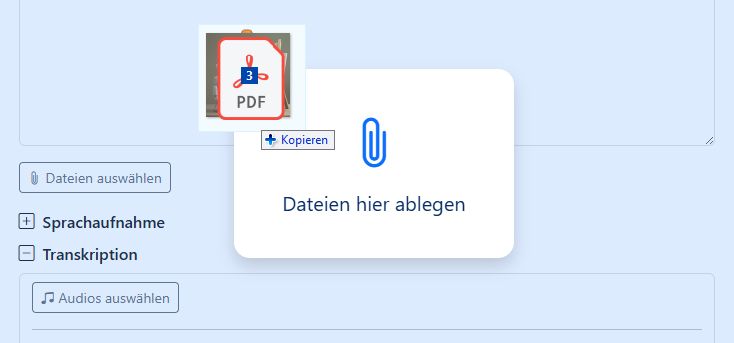
Especially practical: audio files are automatically placed in the transcription area. You can deselect the file again using the red X.
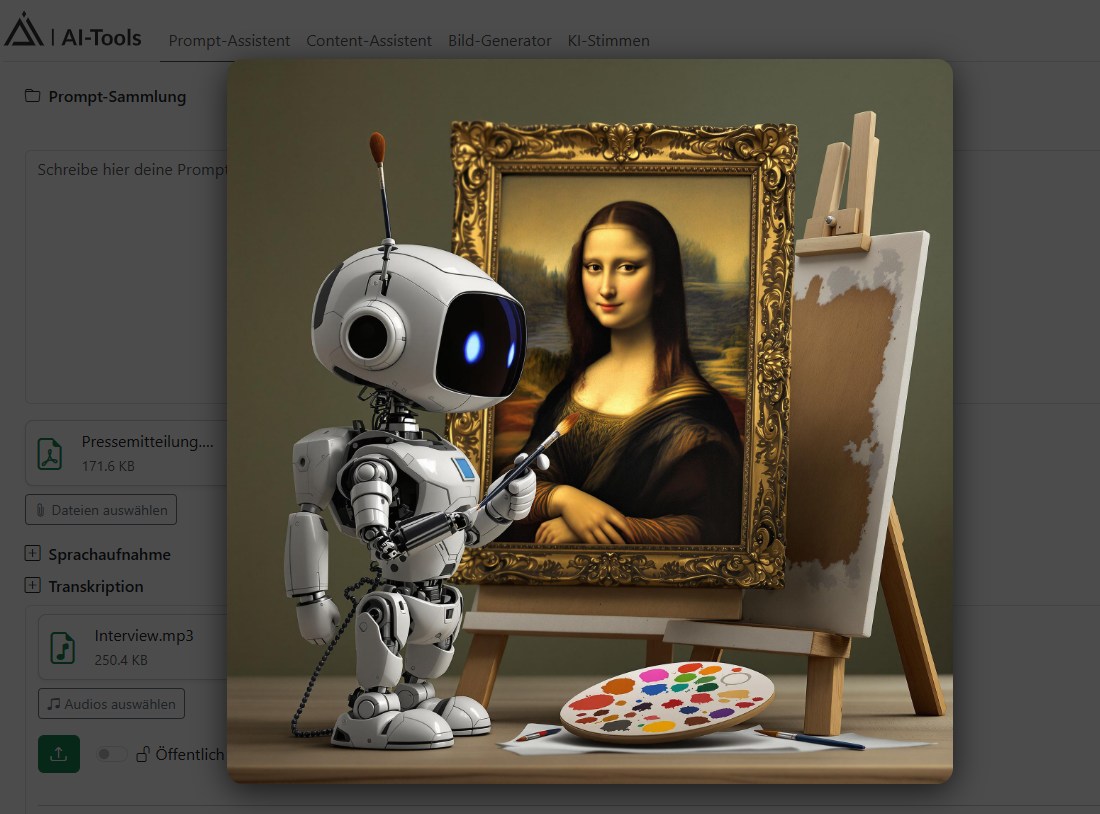
You can enlarge images by clicking the preview image.
History#
History shows all prompts and chats you have used in the past 14 days. Click the History button to open the chat history.
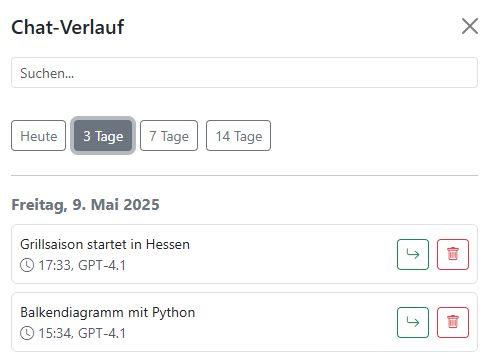
You can continue or delete individual chats.
Use search to look through the history for specific terms.
The Today, 3 days, 7 days, and 14 days buttons help you filter chats. In addition to the chat content, the language model used and the allowed tools are also saved so you can continue exactly where you left off.
Chats you have not used for more than 14 days are deleted automatically.
Event tip#
This workflow uses the new vision features. Upload everything you have about an event: a flyer or poster, PDFs, Word documents, website URLs, or an audio file.
The AI turns it into an event tip. You can find the workflow in the Workflows module under Public workflows - Editorial - Event tip. Simply adapt the workflow to your needs.
Update on 29 April 2025#
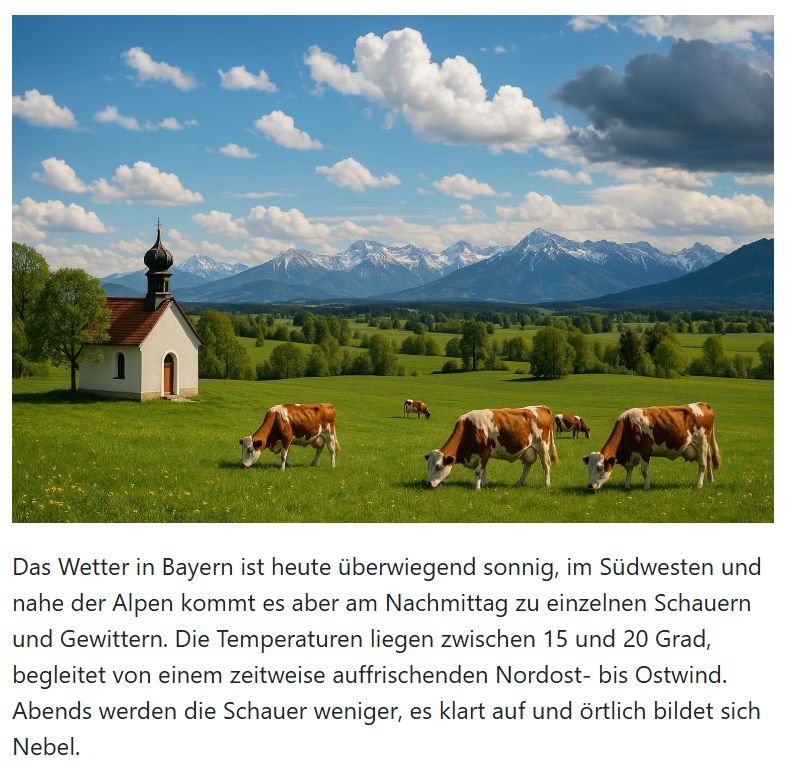
The topics in this update are Bavarian weather with cows in the meadow, school holidays, public holidays, horoscopes, and the currently best image generators.
Here are the new features one by one:
External APIs: You can now connect any external API and integrate the AI-Tools into your existing systems. You can also use any information available via a software interface for analyses or content creation.
GPT Image image generator: The latest image generator from OpenAI is now available in the AI-Tools. It can place text in images or modify input images. (Yes, this is the Ghibli and action figure generator.)
Generate images in chat: With GPT Image and FLUX, you have the best image generators currently available and can use them directly in chat.
Public holidays, weather, horoscopes - new tools: Every external API you connect automatically becomes a tool that you can use in prompts.
External APIs#
Imagine being able to use the AI-Tools to access any information from databases, public interfaces, or your company data. You can use it to create content, perform analyses, and send reports. That means much more can now be automated. You can fully integrate the AI-Tools into your systems.
This is what the new external APIs are for. You can use them in AI workflows or turn them into tools that you can use in prompts.
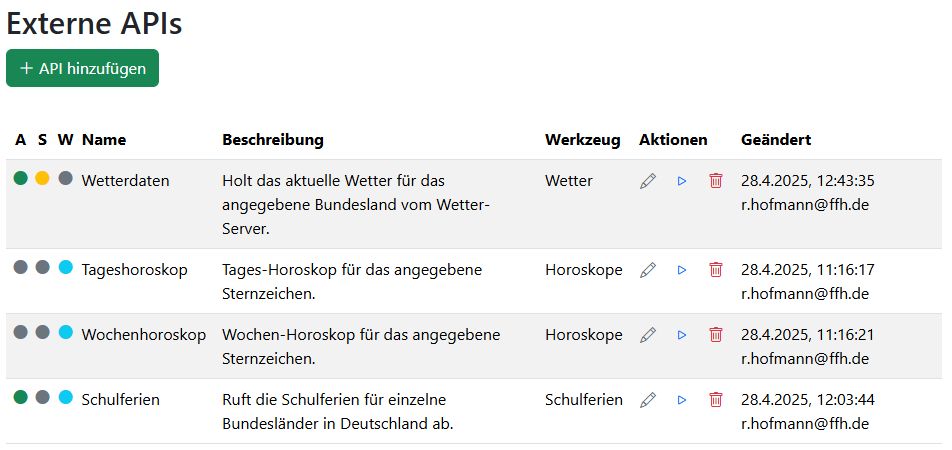
How to set up external APIs is explained in the guide to external APIs.
Tip
What you can do with it:
Retrieve weather data.
Query stock prices.
Get school holiday dates for different regions.
Connect the AI-Tools to your own CMS.
Use internal databases or analytics data.
To help you get started right away, we have already set up a few external APIs for you. You can find them in the tool selection of the Assistants:
School holidays: For all federal states in Germany and Austria (openholidaysapi.org).
Weather: Current weather data for German federal states and regions (Radio Creator Weather / DWD).
Horoscopes: Daily, weekly, monthly, and yearly horoscopes for all zodiac signs in informal, formal, or plural address forms (Radio Creator Astro).
You can try out weather and horoscopes from the Radio Creator server during May.
GPT Image#
The image generator that caused a stir worldwide in April with its viral Ghibli and action figure images is now available in the AI-Tools. But you can also use it for genuinely useful things 😃.
GPT Image is quite good at placing text inside images. However, you may need to experiment a little with prompts. You can also upload images and have them modified.
Here’s an example: on the image of the man with the paintbrush, we marked the pocket square and prompted: Replace the pocket square with a duck.

Take a look at the detailed guides for the new image generators: Guide to generating images.
Image generator as a tool#
You can use image generators as tools both in the Assistants module and in Workflows. On the one hand, this is practical because it lets you create images in chat.
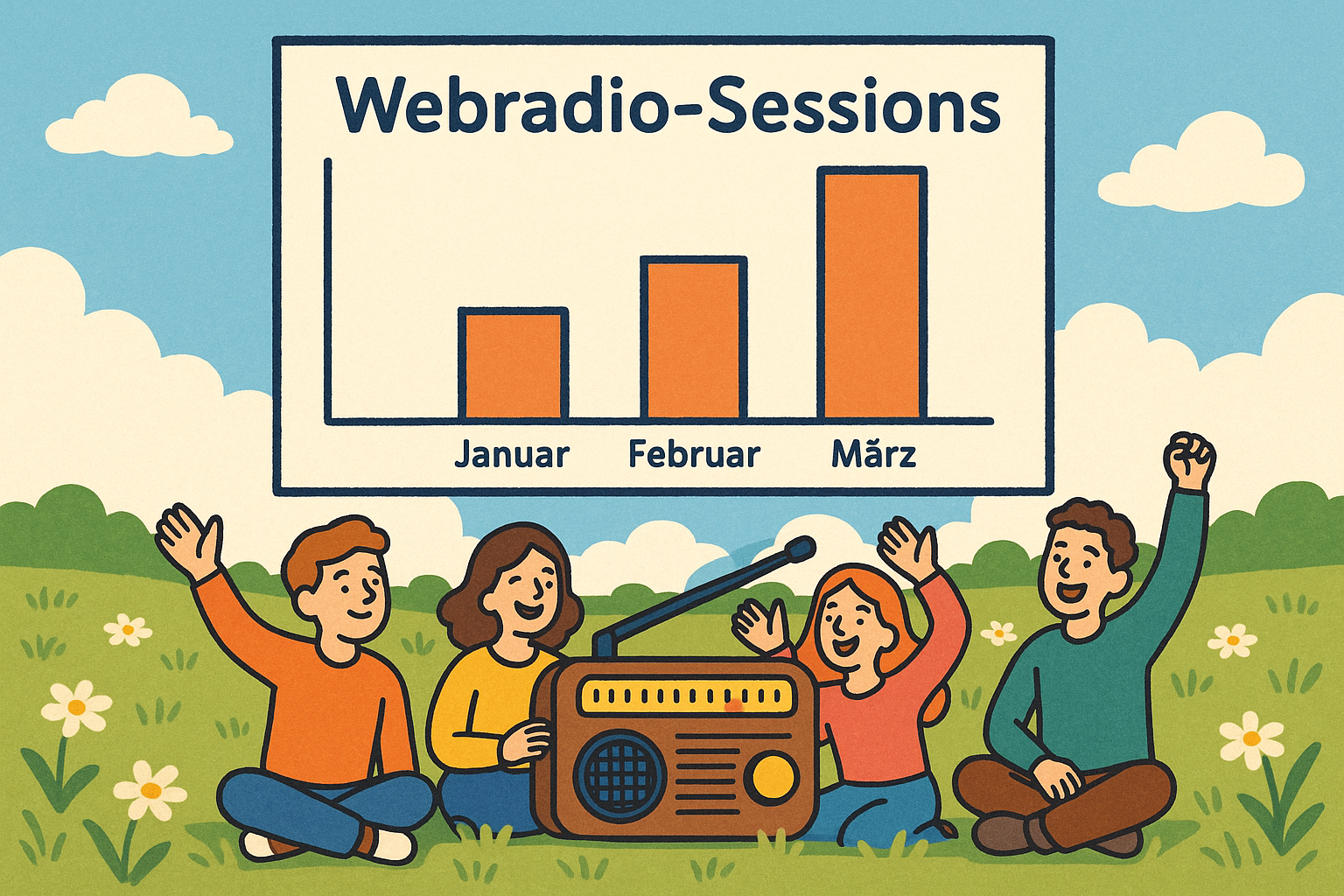
But above all, you can combine multiple tools. The weather forecast at the very top of this update is one example of that.
This was the prompt:
Retrieve the weather report for Bavaria and summarize it in three sentences. Generate an image that matches both the weather and Bavaria and display it above the weather report.
The AI used the Weather tool to retrieve the weather data and then used the GPT Image tool to generate a matching image.
This is also a great way to enhance reports with images.
New tools#
Public holidays is a new tool that you can use in prompts. It calculates movable and fixed public holidays for all German federal states. Example: When does Easter fall next year?
For some tasks, it is important to know the public holidays. For example, when planning campaigns or events, creating editorial schedules, or putting statistics into context during analysis.
All external APIs you define in the AI-Tools automatically become tools. We have already set up school holidays for Germany and Austria for you. Example: When are the school holidays this year in Styria?
You also have access to the weather data and horoscopes APIs of the Radio Creator Content System.
Update on 16 April 2025#

How did the AI-Tools logo end up with the Easter Bunny? We’ll explain that in a moment.
But first, here’s a quick overview of all the new features.
Many new tools in the image generator: upload and modify images, expand images, replace parts of images.
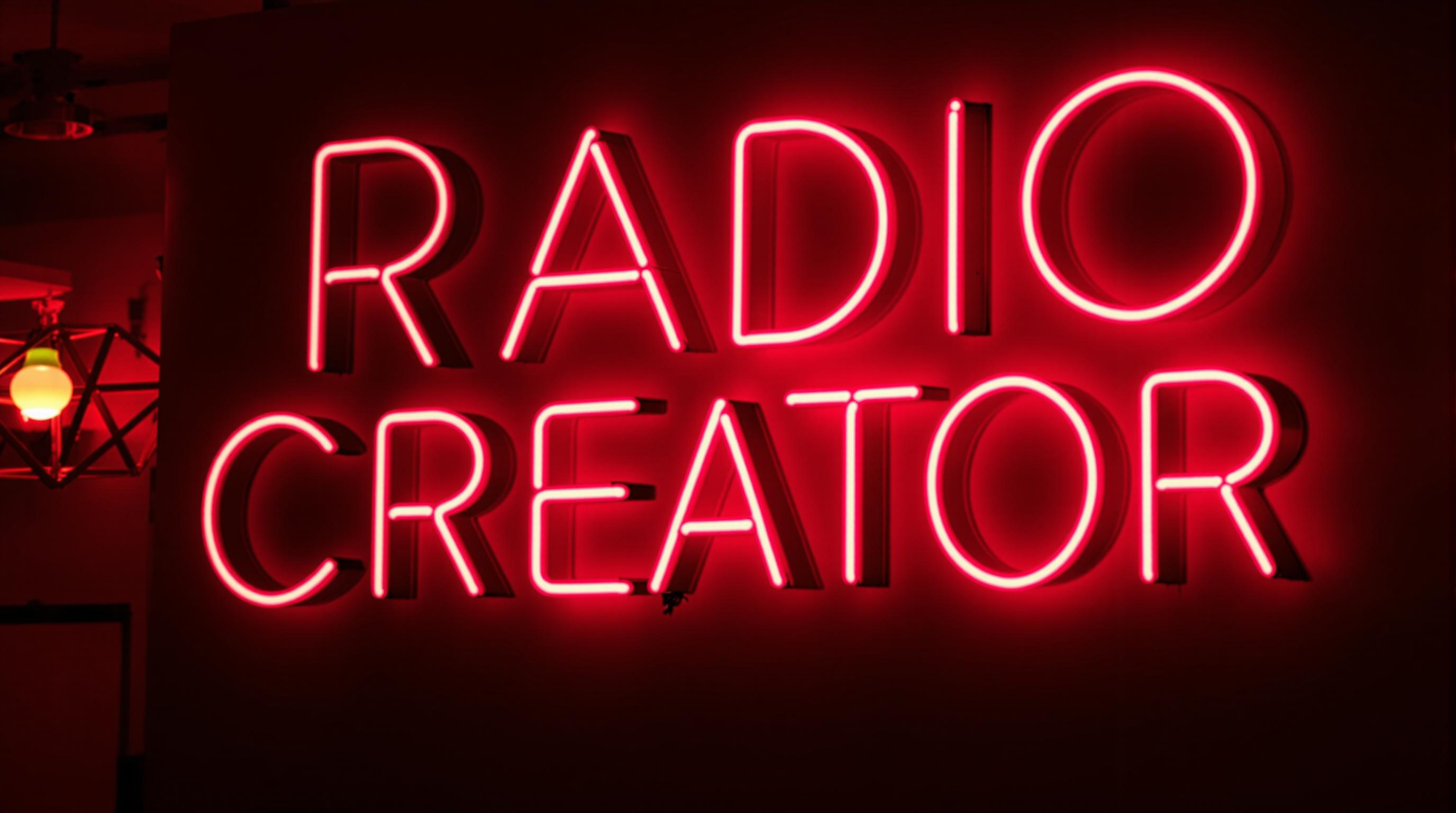
What you can do with it: turn a logo into a neon sign, change image format (square to portrait), place a cover inside a laptop, alter the texture of clothing, swap text on an object, age a person, display an image in a different style…
GPT-4.1: OpenAI’s latest language model is more powerful and more affordable, and is now available in the AI-Tools.
New AI image tools#
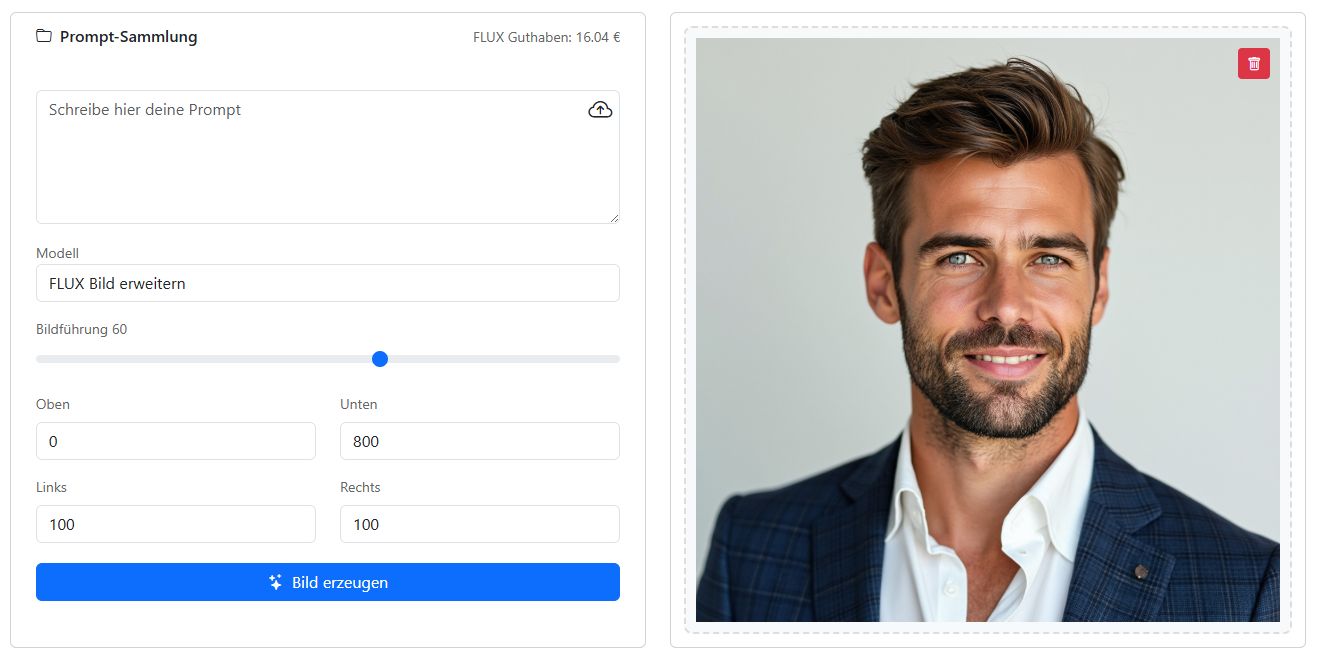
Pictures say more than 1,000 words - so here are a few examples. The exact steps are explained in the AI image generator guide.
Neon sign from a logo generated with FLUX Ultra:

Portrait format from a square image with FLUX image expansion:

Place a cover inside a laptop with FLUX image expansion:


Replace text on an object with FLUX replace image parts:
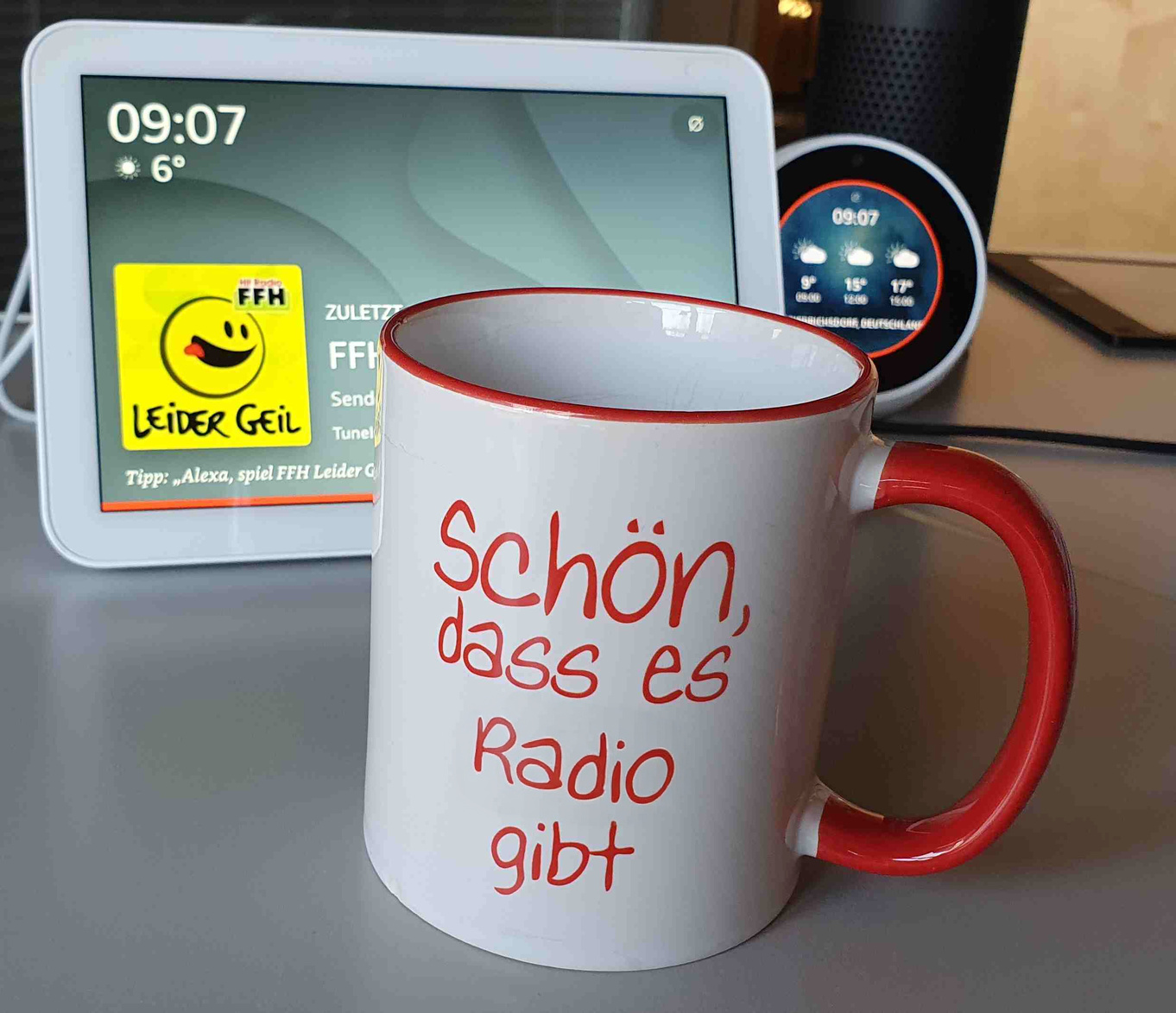
Photo in different styles with FLUX Canny:

From logo to composite image with FLUX Canny and FLUX image expansion:


New language model GPT-4.1#
OpenAI is stepping on the gas and releasing three variants of the new language model GPT-4.1 this week: in addition to the powerful flagship model, there are also the two smaller versions GPT-4.1 mini and GPT-4.1 nano.
A striking feature is the very large context window of one million tokens. Previously, the limit was 128,000 tokens. This means you can process very long texts or upload entire software libraries for analysis.
Prompt adherence has also been improved, so GPT-4.1 follows instructions more reliably and formats output the way you want it. Instructions like “do this, but absolutely don’t do that” are now followed more faithfully.
The training data now extends through June 2024.
GPT-4.1 is about 20% cheaper than GPT-4 Omni.
We only integrated the new flagship model into the AI-Tools. For most use cases, we do not need the smaller models. And too many models make the model selection cluttered.
If GPT-4.1 proves itself sufficiently in practice, we will remove its predecessor GPT-4 Omni from the AI-Tools.
Update on 10 April 2025#

A sponsor mention of exactly 9 seconds - that is what the new Sponsor mention workflow writes for you.
Also in this update:
Workflows for terms and conditions of participation and press releases.
The thought memory: the AI can take notes and becomes even more powerful.
Mistral AI - Europe’s leading startup for large language models - is now available in the AI-Tools.
Sponsor mentions#
For a 9-second sponsor mention, we often get information that would not even fit into a 30-second spot. The production team is losing its mind.
This is exactly where the new Sponsor mention workflow helps. It lets sales colleagues generate text suggestions of the right length right at the client’s office, on a laptop or iPad.
Here is an example with the fictional client “Demo Furniture”:
Select from the dropdown: type of sponsorship (weather, traffic…)
Client name
existing slogan, if any
Information or the client’s website, from which the AI can gather details.
Select the number of words from the dropdown.
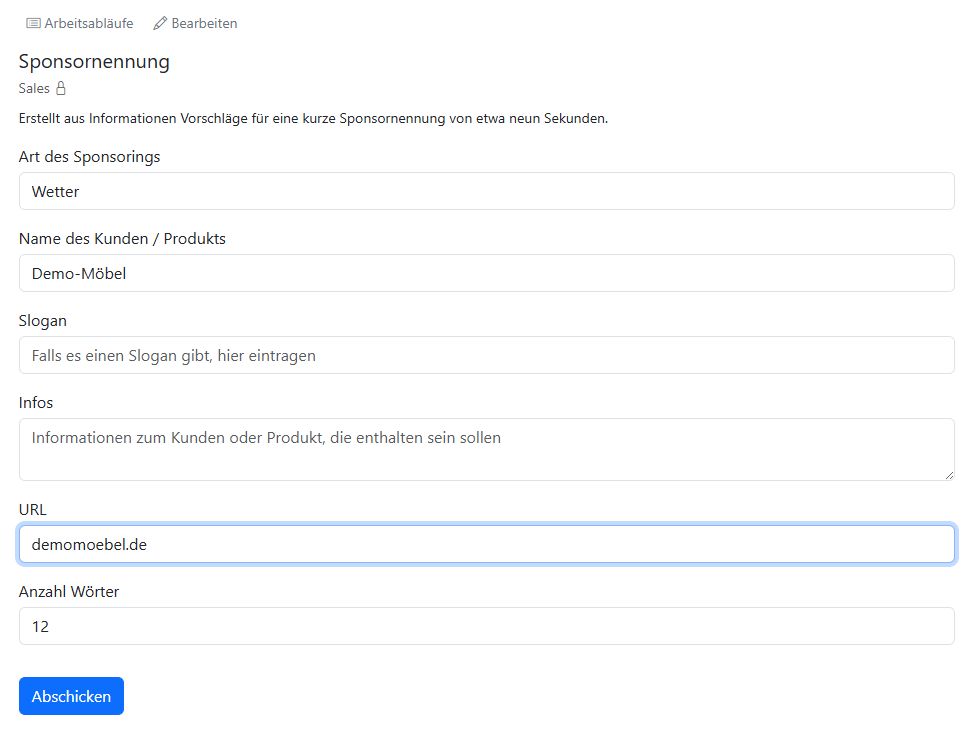
The AI searches the client’s website for information that helps craft an image slogan.
Another language model then uses the information found to write the text. It knows exactly which no-gos are not permitted in a sponsor mention. For example: buy, cheap, inexpensive, discount…
The language model then produces five suggestions for the sponsor mentions.
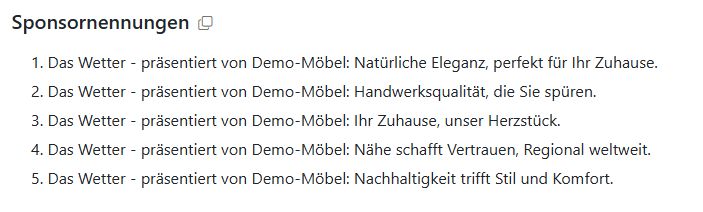
You can find the sponsor text generator under Public workflows - Sales - Sponsor mentions
We have also created practical workflows for two other recurring tasks in everyday radio work:
Terms and conditions of participation#
Standard terms and conditions of participation are already stored. You just enter the name of the campaign or contest, provide a few details or the URL of the campaign page - and the AI writes the terms and conditions. As always with AI-generated text, make sure to review everything critically.
You can find the workflow in the collection under Public workflows - Marketing - Terms and conditions of participation
Press release#
Here you have the input fields “Topic”, “Information”, and “Quotes”. You can also upload files and use audio transcriptions.
The workflow is saved under Public workflows - Communication - Write press release
Thought memory performance booster#
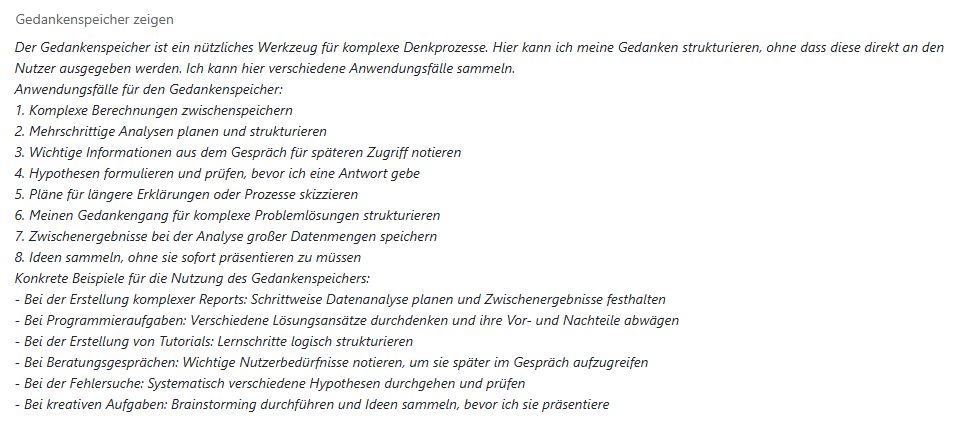
With this tool, you give the AI a real performance booster. The language model gets a kind of notebook where it can record information, thoughts, and plans. This is especially helpful for more complex tasks, such as retrieving data, analyzing it, creating charts, evaluating results, making recommendations, and turning everything into a report.
If the AI has used the thought memory, you can expand it by clicking the Show thought memory link:
Tip
Always turn on thought memory.
This makes models with reasoning capabilities particularly even more powerful. For example, GPT-4 Omni or Claude 3.7 Sonnet.
European language models from Mistral AI#

You can now run the AI-Tools entirely on European servers. With this update, we have integrated Mistral AI.
The founders of Mistral AI from Paris previously worked as researchers at Meta and Google. In addition to open-source models like Mistral Small, Mistral also offers commercial models. Codestral is a model trained specifically for programming tasks. The large model Mistral Large is suited to complex tasks.
You can see how to set up Mistral AI on our info page available language models.
Update on 7 April 2025#

Website and web radio report#
AI becomes especially powerful when it can retrieve data itself. We have connected the AI-Tools to Radio Creator’s website analytics (OnLineTools) and web radio session data (onRtools).
This makes queries like the following possible, for example:
Show the session history of the FFH simulcast last Sunday in a bar chart from 5 a.m. to 10 p.m.
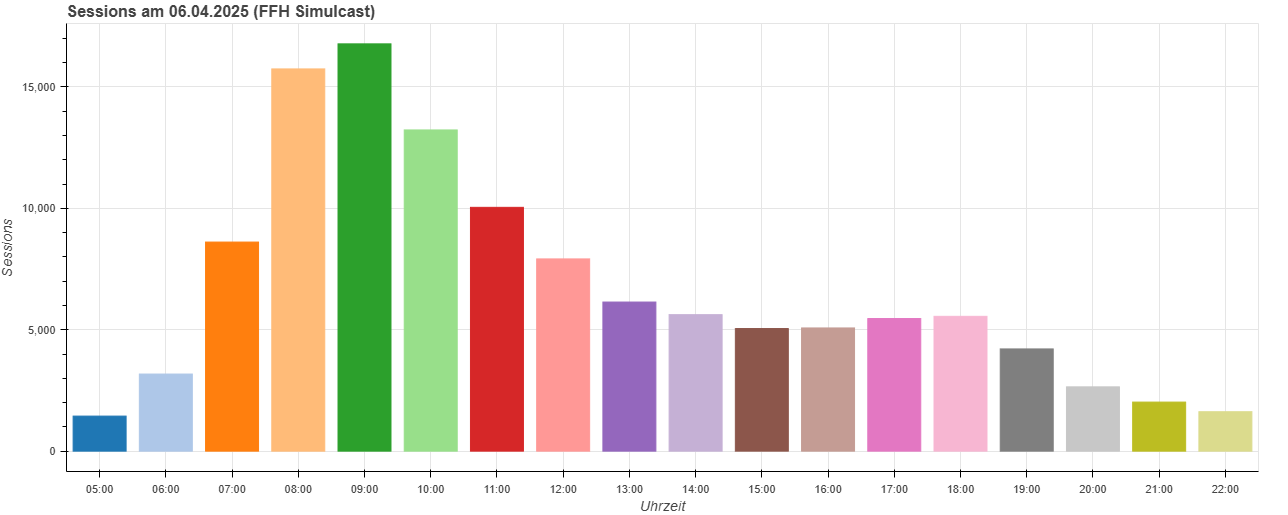
Besides quick queries, the AI can also independently create extensive monthly or quarterly reports with charts, analyses, and recommendations, and send them automatically by email.
By using AI tools in workflows, you can solve very complex tasks.
Update on 17 March 2025#

Create charts#
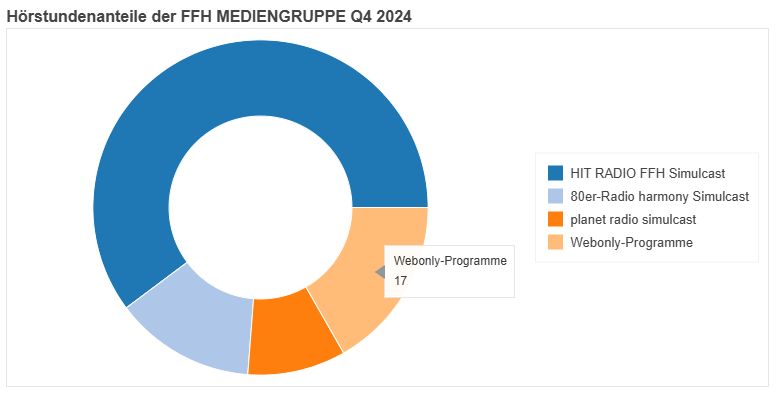
The AI-Tools can now create charts. This is especially useful if you want to visualize data and write reports. With the new Generate charts tool, you can create bar, line, pie, and donut charts.
You can also combine multiple tools. For the following chart, the AI processed an Excel spreadsheet, calculated percentages with the calculator, and then drew the donut chart.
Tip
What you can do with it:
Analyze Excel spreadsheets and visualize KPIs.
Display statistics from a table in a chart.
Retrieve data from a website and display it as a chart.
Create reports and send them as PDFs.
Save result as PDF#
You can now download your AI results as a PDF. This is practical if, for example, you have created a report with tables, lists, and charts. The new Share context menu is there for this.
Open the menu using the copy icon. You can now save, share, or further process the result.
With the Workflows module, you can attach the results as a PDF to an email and send them automatically at specific times. That way, the latest report lands in the inbox right on time.
Select AI tools#
Specify which tools the language model is allowed to use. Only use the tools needed for the current task. Too many tools increase token consumption and can confuse the language model with too much information.
For example, if an uploaded PDF document contains many internet links, the AI might decide to visit them. You can prevent this by disabling the “Visit webpages” tool.
Click the tools button next to the model selection:
This opens the settings for the AI tools.
New language models#
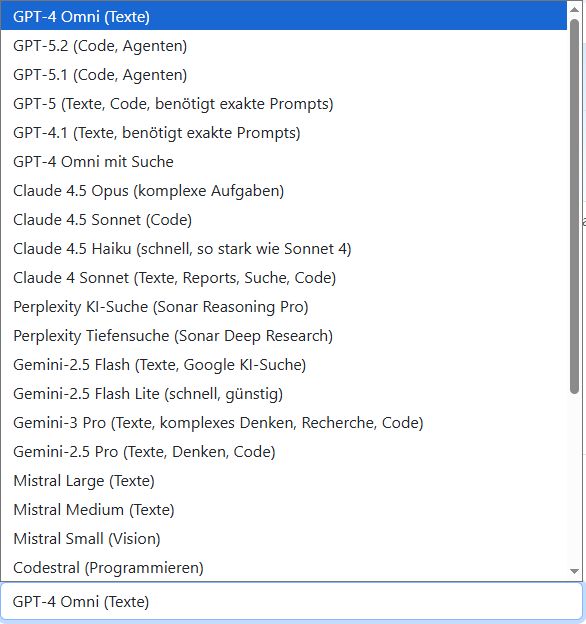
You can now choose from many AI models suited to different tasks. New among them is OpenAI’s GPT-4 Omni Search. This version of GPT-4 Omni always performs an internet search to find information relevant to the task.
To keep things clear, we added notes in parentheses for some models in the dropdown selection to show what they are particularly suited for.
Update on 3 March 2025#

Watch the AI think#
You can now use new, very powerful language models in the AI-Tools. Some of them have reasoning capabilities. That means they not only understand text, but can also think about it and plan how to solve a task in the best way.
These models include OpenAI’s o3 mini and o1 mini. They are fast and powerful. Also new in the AI-Tools is Anthropic’s Claude 3.7 Sonnet - one of the strongest LLMs currently available.
Research with Perplexity#
Perplexity AI is a startup from San Francisco that combines a search engine and a language model. That is why Perplexity’s models are particularly well suited to research. In the AI-Tools, you can now use Sonar and Sonar Reasoning Pro. In the output, you can display how the AI thought through the task and arrived at its results.
To do this, expand the reasoning by clicking the Show thoughts button.
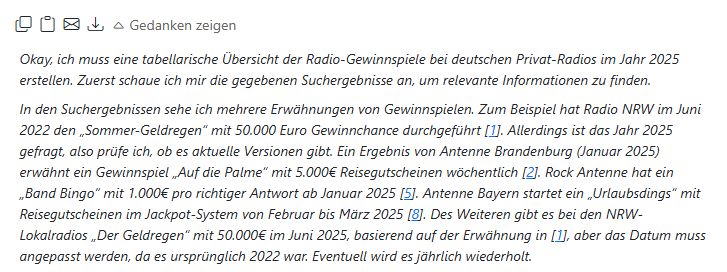
Sonar Deep Research from Perplexity is especially powerful when it comes to compiling an extensive topic collection. That makes it suitable, for example, as the first step in a research workflow. A deep research run can take five to ten minutes.
Take a look at the list of all language models available in the AI-Tools: Available language models. There you will also find a short description of the models and how to obtain the API key.
Download all results#
This small new button is especially useful for complex workflows in the Workflows module. If many intermediate results are generated, you can now download them all at once. That saves time and makes work clearer. You will find Download all results at the end of every workflow.

Update on 12 February 2025#

Workflows module#
Now it gets really cool: let multiple AI models work on a text at the same time. Or one after another. Build prompt chains for more complex tasks.
Workflows is a new module in the AI-Tools. It lets you automate any kind of workflow and run it at specific times.
Examples of workflows
Articles from any sources: write articles, create headlines, add tags, write social media posts, compare the article with the sources, search for symbolic images. All in one go.
Blog: Research a given topic, write the blog post, and create a LinkedIn post.
Briefing: Gather information on a topic from the internet, create a briefing, and send it to email recipients.
Prompt for a specific writing style: The AI analyzes sample texts and creates an optimized prompt to produce texts in that style.
Interview preparation: Research a topic, create an interview guide, and suggest questions.
AI proofreader: Have texts checked for spelling, grammar, and style.
Newsletter generator: Compile newsletter content from different sources and write newsletter texts.
Prepare a new client meeting: Gather information about a company and formulate questions for the meeting.
Posts for social media: Write texts for different platforms based on an online article and add hashtags.
We have configured many practical workflows for you in the new workflow collection. You can copy them and adapt them to your needs. Or create entirely new workflows. We are very curious to see your ideas for how you want to use this new tool.
Because you can do so much with it, the guide to Workflows is especially detailed.
Workflows as an API#
Every workflow you create becomes its own API. That is a software interface that lets you control the AI-Tools remotely and connect them with other programs and systems.
Let us know if you want us to set up the API function for you.
Permissions#
With workflows, we are introducing user permissions. This is intended to protect important workflows from being accidentally deleted or overwritten.
Your system administrator can define which user is allowed to do what. Take a look at the available permissions.
Workflows module replaces Article Assistant#
The new Workflows module can do everything the Article Assistant does - and much more. That is why we will soon remove the Article Assistant from the AI-Tools to make everything clearer.
Visit dynamic websites#
The AI-Tools can now also visit websites that require JavaScript. This feature is still experimental.
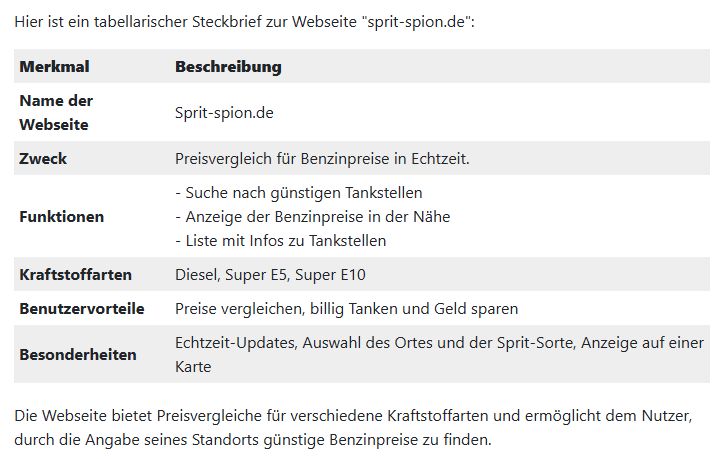
Display tables#
Many things become clearer in a tabular display. The AI-Tools can now do that.
Open links in a new window#
Links output by the AI are now opened in a new browser window. That way, your AI results remain available in the current window.