

Workflow: Writing Articles#
With workflows, you can quickly create and publish an online article from all kinds of material used in radio production. Use wire reports, press releases, police reports, conversations with colleagues, scripts, PDF or Word files, as well as audio or voice recordings as information sources.
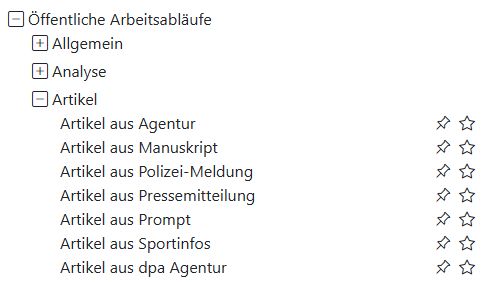
There are several workflows to choose from for this purpose. You can find them in the workflow collection under Public Workflows -> Articles.
Input Text#
Depending on the workflow you selected, different input fields are available, for example for scripts or a press release. Enter the text here that should be used to create the news item.
Select Files#
Upload one or more files for the language model to process. The AI-Tools can open these file types:
Word (.docx), Text (.txt, .text), CSV (.csv), Excel (.xls, .xlsx), Markdown (.md, .markdown), PDF (.pdf), PowerPoint (.pptx), Code (.xml, .json, .jsonl, .ipynb), e-books (.epub), feed files (.rss, .atom), and Outlook emails (.msg).
Tip
What you can do with them:
Provide additional information from a PDF.
Add a press release as a Word or PDF file.
Use tables from an Excel file as additional information.
Voice Recording#
Expand the voice recording section by clicking the plus icon next to it. You can now use the AI-Tools like a dictation device.
Tip
What you can do with it:
Dictate information that should be turned into an article.
Add information to a text in the input window or to an uploaded file.
Once the recording is finished, you can listen to it again and send it for transcription using the green button. Use the toggle to specify whether the transcript is only for you or whether it should be public so everyone can use the text.
Practical: If you dictate information as a reporter and make it public, others can build on it and continue developing the article. They can listen to and download the audio.
Result#
The AI suggests stock images, headlines, and text. Use the blue button in front of each element to choose which suggestion should be included in the final article. You can edit the text directly in all input fields. Use the checkboxes to select which tags should be transferred to the article in Typo3.
Source Comparison#
Directly below the generated article, you will find the Source Comparison box. Here, the AI compares all sources with the finished article. Are names, contexts, quotes, and place references correct? If something is wrong, the AI will suggest corrections, and you can edit the text directly in the “Article” box.
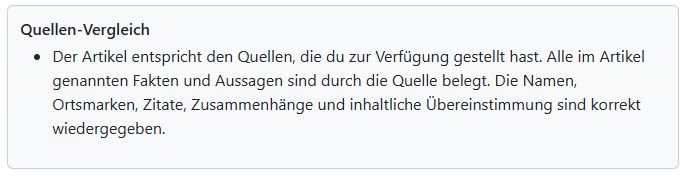
Important: This does not verify your sources - it is not a fact check. The AI only compares the source material it received from you with the finished article text.
Create Typo3 Topic#
If you are happy with the result, click the Create Typo3 Topic button. All information is transferred immediately. Then refresh the list of news items in the News module in Typo3. You will find your item in the “AI” category. There, you can finish editing it, assign it to a news category, and publish it.