

Changelog 2024#
Update on 27 November 2024#
AI voices#
Create podcasts, commercials, news, radio plays, audio segments and more with AI voices. The new module guides you from research all the way to production. Choose from dozens of voices, create scripts, and have multiple voices speak them in different roles. Finally, add music to your production.
This powerful tool gives you a fantastic AI voice playground. In the dictionary, you can define rules and control pronunciation.
For larger productions, the AI voices module automatically extends your music beds so they fit the spoken text exactly.
The best way to see how easy it is is to watch the video. You can read about all features in the manual.
Chat#
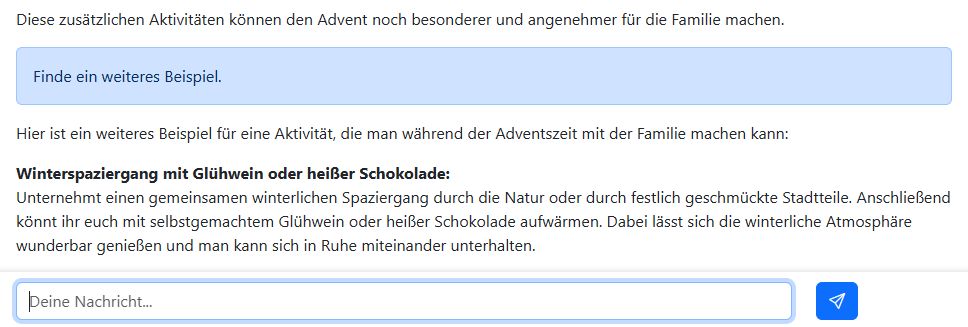
The Prompt Assistant now includes a chat feature. As soon as you run a prompt, the chat input appears at the bottom of the screen. You can then chat directly with the AI and ask for more information.
This is especially useful if you have a complex topic and the AI did not fully understand all the information right away.
Download result#

You could already copy the result to the clipboard or send it by email. Now there is also a download button. It downloads the result to your computer as a text file. If the AI visited websites, all sources are also saved in the file as links so you can review and verify them.
Update on 11 November 2024#

Widescreen format for images#
Our German startup Black Forest Labs has just released the new FLUX.1.1 pro Ultra model for image generation. It lets you create images in very high resolution. You can also choose from several aspect ratios: 1:1, 16:9, 4:3, 9:4, 21:9…
FLUX.1.1 pro Ultra is now available in the image generator of the AI-Tools. Take a look at all options here: Guide to generating images
Claude 3.5 Haiku#
AI provider Anthropic has also released a new model: Claude 3.5 Haiku. It is very fast and powerful - comparable to GPT-4 Omni mini.
See all AI-Tools models at a glance: Available language models
Update on 5 November 2024#

You now get support with prompting: the magic wand improves your prompts or writes the right prompt for your task from scratch. Also in this update: you can now use the prompt collection in the Article Assistant as well.
Magical prompts#
The prompt is crucial for what you can get out of the AI. So why not let the AI write the prompt itself? That is exactly what the new magic wand icon above the prompt input field is for:
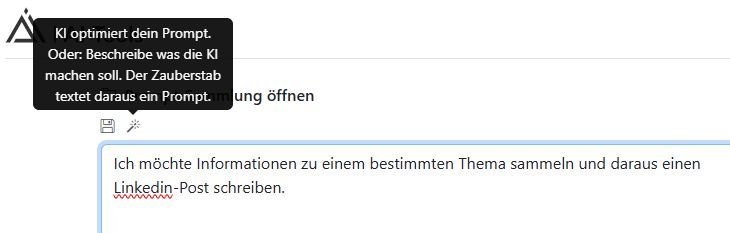
OpenAI has published instructions for writing optimal prompts. The new magic wand uses this technique. Just describe the task you want to solve.
For example: “I want to gather information on a specific topic and use it to write a LinkedIn post.” The magic wand turns that into a structured prompt with examples and precise instructions for the AI.
You can also use an existing prompt and have it improved by the magic wand.
Source comparison#
The Article Assistant summarizes the sources you provide and uses them to write an article. Mistakes can happen in the process. That is why we have now introduced a check that compares the finished article text with your sources again. In the Source comparison section - directly below the article - you can see where differences exist. AI checks AI.
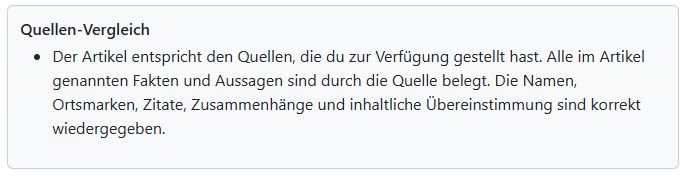
Important: This does not verify your sources - it is not a fact-check. The AI simply compares the source material you provided with the finished article text.
Prompt collection for the Article Assistant#
You can now use the prompt collection in the Article Assistant. This is useful if you do not want to use the default article prompts stored in the AI-Tools, or if you want the article to be created from the language model’s own knowledge.
If you use a prompt from the collection, the input type is automatically set to Article from prompt. This allows the AI to access the internet. You can let the language model research a topic online and create the article from that research.
Below the finished article, the AI-Tools show which websites the language model visited. Always check the sources.
Update on 30 September 2024#

Your AI-Tools now include another image generator that is better at depicting people. You can also choose from additional language models.
German AI startup from the Black Forest: Black Forest Labs#
We are now working with Black Forest Labs, which has developed one of the best image generators in the world: FLUX.
The founders are researchers who previously helped develop “Stable Diffusion” - one of the leading image models.
Watch this video. It shows you how to use FLUX, the new image generator: Guide to generating images
The prompt collection is now also available in the “Image Generator” module. There you will find the new “Images” category with some example prompts for generating images.
In the AI-Tools, you can choose between DALL-E 3 - our previous image generator from OpenAI - and the new FLUX. DALL-E is fast and can create very good illustrations. For images of people, FLUX is clearly better.
Claude by Anthropic#
While investors are currently putting millions into our German AI startup Black Forest Labs, Anthropic is attracting billions. Former OpenAI (ChatGPT) employees founded “Anthropic” in 2021 and now offer a large language model called “Claude”, which can compete with OpenAI’s ChatGPT and Google’s Gemini.
You can use Anthropic’s models in the AI-Tools. In the Model drop-down menu, you can select the large Claude 3.5 Sonnet model. It usually generates more detailed responses than GPT-4 Omni. Claude 3 Haiku is Anthropic’s smaller model. It is very fast and well suited for simpler tasks.
Update on 19 August 2024#

A really cool update with lots of new and useful features is here!
New prompt collection#
Search function: Find prompts faster
Favorites: Bookmark frequently used prompts
My prompts: Save your own prompts privately
Transcription#
Upload any audio files and have them transcribed
Audio files can remain private or be made available to everyone immediately
Use cases:
Create online articles from conversations with colleagues or from reports
Find strong quotes in interviews
Write show notes for podcasts
Voice recording#
A reporter records a report on location using a smartphone, the AI-Tools transcribe it and turn it into an article. The audio recording and transcript are immediately available to everyone at the station
Dictate a research log
Dictate an email or a letter
Use results#
Copy the AI text, including all formatting, to the clipboard and paste it into a Word document, for example.
Send the result by email with a single click.
Video tutorials & manual#
There are now video tutorials for the AI-Tools so everyone can get to know and use the tools even better.
Comprehensive manual for quick reference directly in the AI-Tools.
Update on 2 July 2024#
The AI-Tools can now read Word documents, PDFs, and Excel spreadsheets.
Upload and process documents#
What you can do with it:
Briefly summarize the content of long PDF files.
Compare texts (contracts, manuscript versions, etc.): what are the differences and what do they have in common?
Analyze Excel spreadsheets and display the most important points from them as text.
Translate documents.
Especially useful in the Article Assistant:
Sometimes information arrives as a PDF. The Article Assistant can now read it directly.
Combine information from different sources into one article: entered text, files, and transcripts.
The AI-Tools can work with these file types: Word (.docx), Text (.txt), CSV (.csv), Excel (.xls, .xlsx), Markdown (.md), and PDF (.pdf)
Update on 24 May 2024#

Use information from the internet#
The knowledge of AI models stops at the point in time when they were trained. With the latest update to our AI-Tools, the AI can now visit websites on its own and therefore access up-to-date information.
This lets you, for example:
Compile a news briefing with current information from various news websites.
Have the latest celebrity gossip from international websites summarized in German.
Create an info package with up-to-date information on a topic.
Summarize and analyze the content of a website.
Find and evaluate relevant articles, studies, or blog posts.