

Categories#
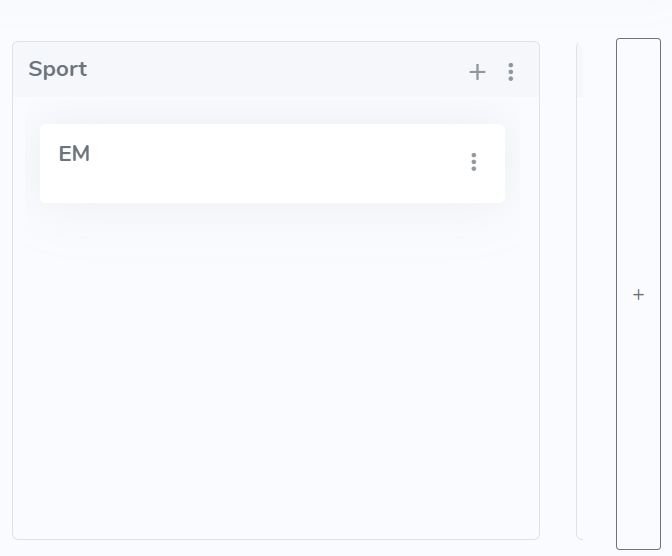
The category boxes appear in the upper half of the news overview. They are used to organize topics.
Create a New Category#
Use the elongated “+” button on the right edge of the screen to add a new category.
The category’s detail view slides out from the right edge of the screen for editing.
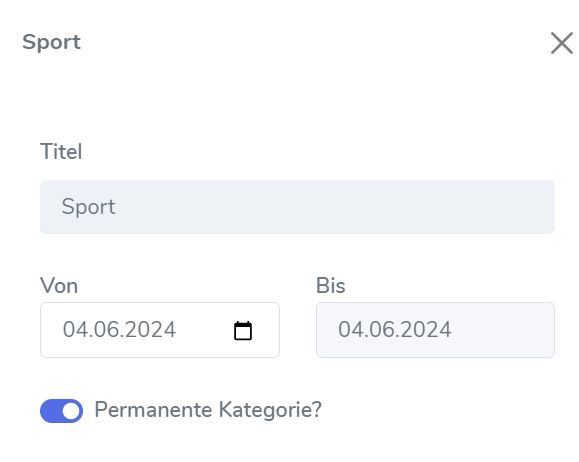
In the “Title” field, you can name the category.
If the category box should always be displayed every day, set the toggle to “Permanent Category”.
Sometimes a category is only needed for a specific period. In that case, define the time range using the date selection fields “from” and “to”. “Permanent Category” must not be enabled.
Edit a Category#
You can edit an existing category, for example to change the “Title” or define a different time range. To do this, click the three-dot menu in the top-right corner of the category box and select “Edit”. This opens the detail view.
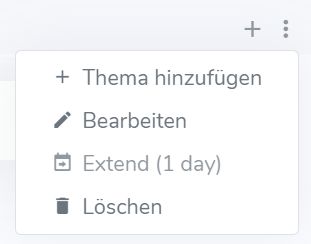
Additional menu options:
Add topic: However, this is faster using the “+” button in the top-right corner of the category box.
Extend (1 day): Extends the validity period by one day. This is helpful if you still need the category the next day. Extend (1 day) is a shortcut, so you don’t need to open the category detail view and adjust the date selection.
Delete: Removes the category.
Caution
If you delete a category, all topics and items in that category will also be deleted. They will disappear for all users. So be careful when deleting a category.