

Calendar#
In the Calendar, topics can be scheduled across multiple days. This includes creating topics, moving topics to different days, and assigning topics to specific categories. Topics can also be transferred directly to other rooms.
Create a topic#
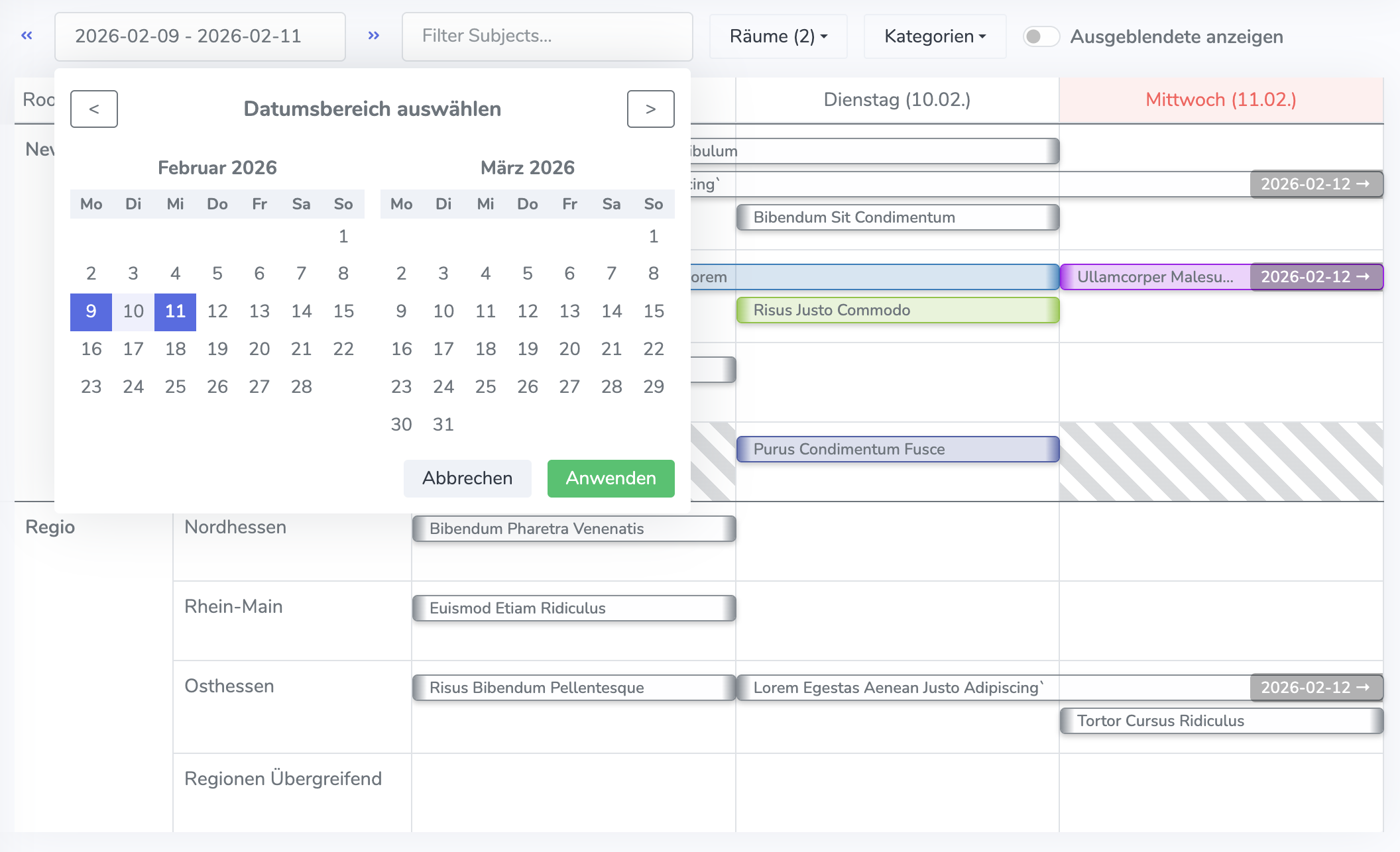
To create a new topic in the calendar, double-click the desired cell in the calendar. This lets you select the date, room, and category in a single step. As in the overview, a dialog opens for creating the topic with full functionality.
Move a topic#
Topics can be moved to a different date in the calendar using drag and drop. To do this, click and hold the topic, then drag it to the desired date. When you release the mouse button, the topic is moved to the new date. Topics can also be moved to a different day and category at the same time by dragging them to the desired cell.
Note
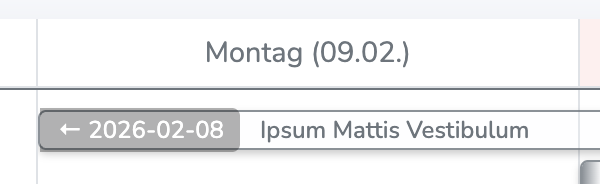
Topics whose active period lies outside the currently displayed calendar range are marked with a small arrow on the left or right edge of the topic. They can only be extended or shortened, but not moved. To move such a topic, the calendar must be set so that the topic’s entire active period is visible, or the Active Period tab in the topic detail view must be used.
Extend/shorten the active period#
A topic’s active period can be extended or shortened in the calendar by dragging the edges of the topic. Move the mouse pointer to the left or right edge of the topic until the resize cursor appears. Then click and hold, and drag the edge of the topic to the desired date. When you release the mouse button, the active period is adjusted.
Adjust colors#
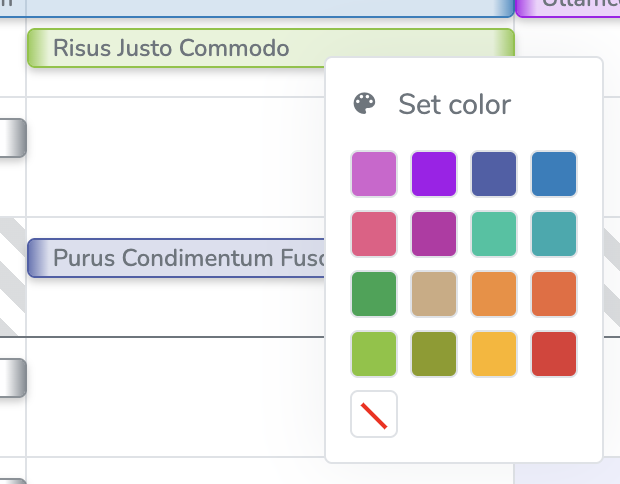
To change the color of a topic in the calendar, right-click the topic and select the desired color from the context menu.
Note
A topic’s color applies across rooms. This means that if a topic appears in multiple rooms, it will have the same color in all of them. It is not possible to assign a different color to a topic in one room than in another.
Filtering & search#
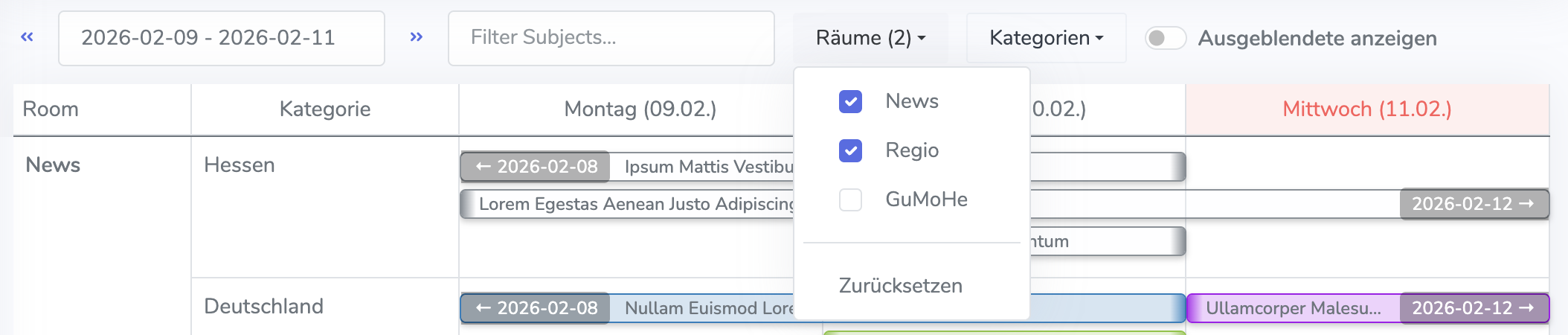
Different filters can be applied to narrow down the calendar view. On the one hand, you can choose which days should be displayed. The range can be set freely, so you can display an entire month or just a single day. On the other hand, you can filter by rooms and categories to show only the topics that are in the selected rooms and categories.
Note
The filter settings are stored in a cookie so that they are retained even after reloading the page.
There is also a search function for finding topics in the calendar. Simply enter a search term in the search field. The calendar view will then be limited to topics that contain the search term.
Note
The search function only searches topics that are within the currently displayed calendar range, and only their titles, not the topic content. To search through all topics, we recommend using the research function in the News module.