
Playlist#
In this section, you can view the playlists that have been played on a Replacer or playout channel. The playlists can be downloaded as JSON or CSV files. Downloads are also available via our API, so you can export the files automatically - for example, for GEMA reporting.
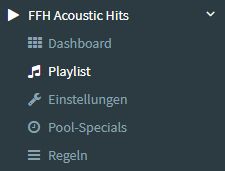
In the Radio Creator Manager, first select the channel you want to view from the menu on the left. Then click Playlist.
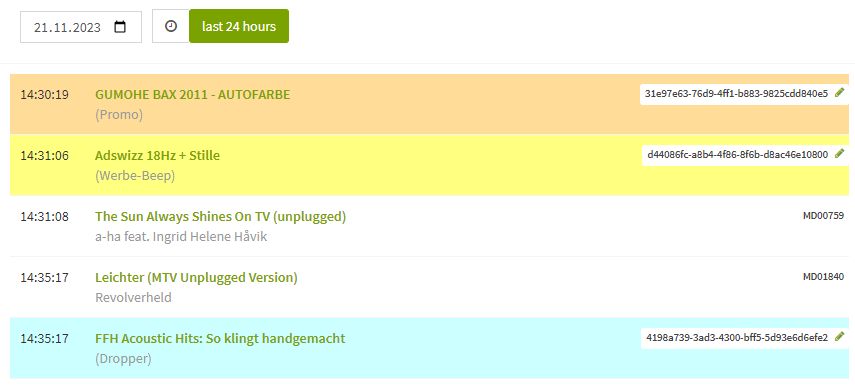
This displays the playlist for the past 24 hours.
Open the editor#
For all items in the playlist that you uploaded in the Radio Creator Manager, a pencil icon appears on the right-hand side. Click this icon to go directly to the audio editor and edit the item’s metadata.
View metadata#
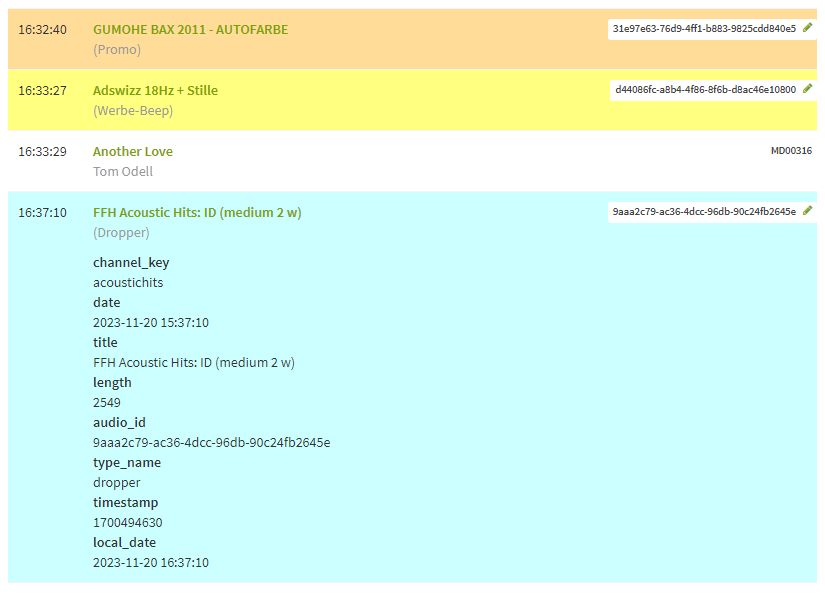
Click the title of an item in the playlist to expand it. All metadata will then be displayed.
Select a day#
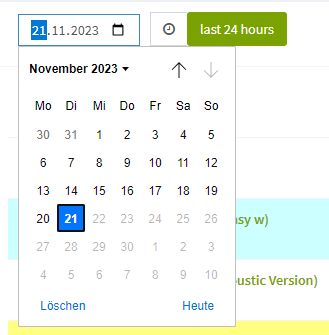
Use the calendar to select the playlist for a specific day in the past. The last 24 hours button takes you back to the view showing the past 24 hours.
Download#
You can also download the playlists as JSON or CSV files. Use the green buttons at the top of the screen to select the time period: yesterday, last week, last month.

API download#
Do you regularly need the playlists for your GEMA reporting or quality control? Then automate the process. The JSON and CSV data are also available via our API. The downloads include all metadata stored in the Radio Creator database. Internally, times are stored as UTC. In the download files, we also provide the local_date field with the local time.
Use the following URL to access the data. You can choose any time period for the download.
start_date, end_date: Format YYYY-MM-DD HH:MM:SS
orga_key: Your station’s organization key.
api_token: Token used as the API key.
channel_id: The ID of the channel whose playlist is to be loaded.
https://manager.radio-creator.com/<orga_key>/channels/playlist/<channel_id>?start_date=<start_date>&end_date=<end_date>&<json|csv>=true&api_key=<api_token>
The quickest way to build the request URL is as follows:
In the Administration section of the RCM, we create a user named playlist-download for you. Click on that user and copy the API token stored there.
Open the desired playlist: Select a channel in the channel menu and click Playlist.
For a CSV download of the last week: Right-click Last week next to csv and select Copy link address from the context menu.
Now just append “&api_key=” to this URL and paste the API token after it. Your request URL is ready.