

Zenon DBExport#
Zenon’s DBExport add-on module lets you search by planner_id (ID) or audio_id (NUM_ROTATION) and provide the corresponding metadata and audio files to Radio Creator.
Note
Radio Creator requires both methods to retrieve all information. You therefore need to configure and start two DBExport modules. Each module reads from and writes to its own upload/download folder. You can find the required folder structure in the Directories article.
Configuring planner_id#
Configure the first DBExport module instance so that the planner_id (ID) can be queried from the music scheduling system. This involves the following two folders:
dbexport/<db_key>/upload_planner_id
dbexport/<db_key>/download_planner_id
db_key is a string that represents your music database. For example, “ffh-onair”.
planner_id: General tab#
In the DBExport window, first configure the settings in the General tab:
In the Poll section, enter the path to the upload directory in the Folder field. In our example: “<server-path>\dbexport\ffh-onair\upload_planner_id\”
In the same section, make sure the Search by ID checkbox is selected. This defines that DBExport searches by planner_id (ID).
The following image shows all settings in the General tab
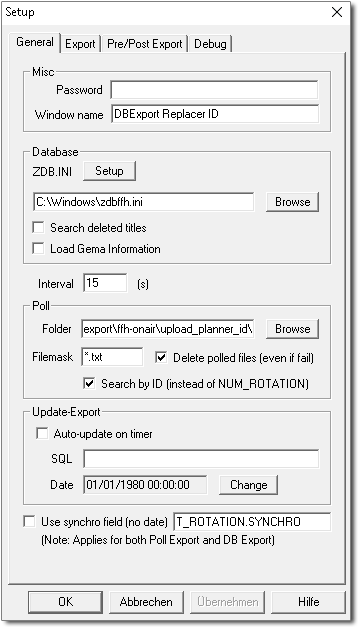
You can also configure these settings directly in the ini. file. To do so, look for the [Poll] section.
[Poll]
Interval=15
Path=<server-path>\dbexport\ffh-onair\upload_planner_id\
PollFilemask=*.txt
DeletePolled=True
SearchByID=TRUE
FileMask=*.txt
planner_id: Export tab#
Now configure the settings in the Export tab:
In the Main section, enter the path to the download directory in the Export Folder field. In our example: “<server-path>\dbexport\ffh-onair\download_planner_id\”
In the same section, enter %ID in the Filename field. This exports all data using the planner_id.
The remaining settings can be left at their default values.
The following image shows all settings in the Export tab
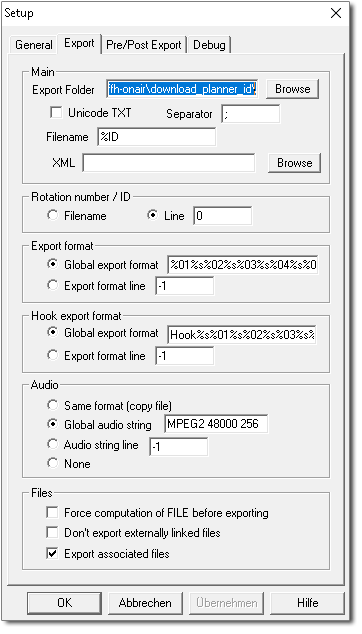
You can also configure these settings directly in the ini. file. To do so, look for the [Export] section.
[Export]
RotationLine=0
Path=<server-path>\dbexport\ffh-onair\download_planner_id\
TextFormatLine=-1
TextFormat=%01%s%02%s%03%s%04%s%05%s%06%s%07%s%08%s%09%s%10%s%11%s%12%s%13%s%14%s%15%s%16%s%17%s%18%s%19%s%20%s%21%s%22%s%23%s%24%s%25%s%26%s%27%s%28%s%29%s%30%s%31%n
TextFormaHookLine=-1
TextFormatHook=Hook%s%01%s%02%s%03%s%04%s%05%s%06%s%07%s%08%s%09%s%10%s%11%s%12%s%13%n
AudioFormatLine=-1
FormatDesc1=Include the following keywords, anywhere in the AudioFormat entry:
FormatDesc2=MPEG2 MPEG3 WAVE 48000 44100 128 192 256 384
AudioFormat=MPEG2 48000 256
UnicodeTxt=False
Separator=;
Filename=%ID
ExportAssociatedFiles=True
ForceFILECompute=False
DontExportExternalFiles=False
Configuring audio_id#
The second DBExport module instance is responsible for querying the audio_id (NUM_ROTATION). Compared to the first instance, the two paths change and the Search by ID checkbox must not be selected.
These are the two folders:
dbexport/<db_key>/upload_audio_id
dbexport/<db_key>/download_audio_id
audio_id: General tab#
In the DBExport window, first configure the settings in the General tab again:
In the Poll section, enter the path to the upload directory in the Folder field. In our example: “<server-path>\dbexport\ffh-onair\upload_audio_id\”
In the same section, make sure the Search by ID checkbox is cleared. This defines that DBExport searches by audio_id (NUM_ROTATION).
The following image shows all settings in the General tab
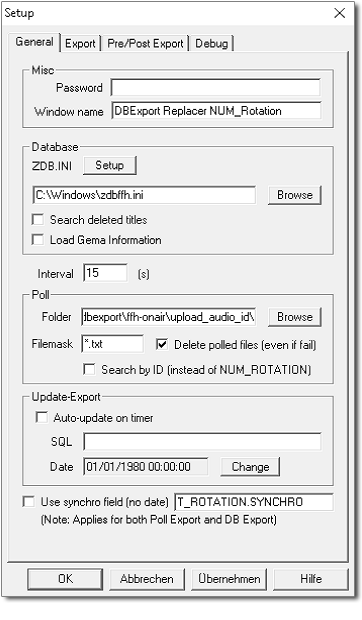
You can again configure these settings directly in the ini. file. To do so, look for the [Poll] section.
[Poll]
Interval=15
Path=<server-path>\dbexport\ffh-onair\upload_audio_id\
PollFilemask=*.txt
DeletePolled=True
SearchByID=FALSE
FileMask=*.txt
audio_id: Export tab#
Now configure the settings in the Export tab as well:
In the Main section, enter the path to the download directory in the Export Folder field. In our example: “<server-path>\dbexport\ffh-onair\download_audio_id\”
In the same section, enter %NUM_ROTATION in the Filename field. This exports all data using the audio_id.
The remaining settings can be left at their default values.
The following image shows all settings in the Export tab
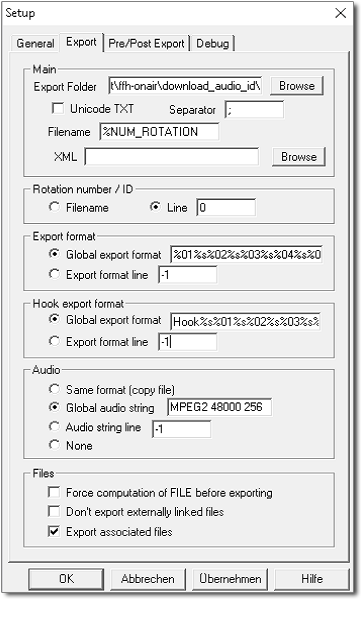
You can also configure these settings directly in the ini. file. To do so, look for the [Export] section.
[Export]
RotationLine=0
Path=<server-path>\dbexport\ffh-onair\download_audio_id\
TextFormatLine=-1
TextFormat=%01%s%02%s%03%s%04%s%05%s%06%s%07%s%08%s%09%s%10%s%11%s%12%s%13%s%14%s%15%s%16%s%17%s%18%s%19%s%20%s%21%s%22%s%23%s%24%s%25%s%26%s%27%s%28%s%29%s%30%s%31%n
TextFormaHookLine=-1
TextFormatHook=Hook%s%01%s%02%s%03%s%04%s%05%s%06%s%07%s%08%s%09%s%10%s%11%s%12%s%13%n
AudioFormatLine=-1
FormatDesc1=Include the following keywords, anywhere in the AudioFormat entry:
FormatDesc2=MPEG2 MPEG3 WAVE 48000 44100 128 192 256 384
AudioFormat=MPEG2 48000 256
UnicodeTxt=False
Separator=;
Filename=%NUM_ROTATION
ExportAssociatedFiles=True
ForceFILECompute=False
DontExportExternalFiles=False
SFTP sync with WinSCP#
To synchronize your data with your SFTP account for Radio Creator, you can use software of your choice. Here you will find an example configuration for the WinSCP program.
Please replace the value <db_key> with your database key (for example, “ffh-onair”).
open sftp://<USERNAME>:<PASSWORD>@ingest.radio-creator.com:22

# Sync planner and scheduler files
synchronize Remote D:\RadioCreator\data\planner /planner/
synchronize Remote D:\RadioCreator\data\scheduler /scheduler/

# Sync files to be uploaded
put -delete D:\RadioCreator\data\dbexport\download_audio_id\*.* /dbexport/<db_key>/download_audio_id/
put -delete D:\RadioCreator\data\dbexport\download_planner_id\*.* /dbexport/<db_key>/download_planner_id/

# Sync files to be downloaded
put -delete /dbexport/<db_key>/upload_audio_id/*.* D:\RadioCreator\data\dbexport\upload_audio_id\
put -delete /dbexport/<db_key>/upload_planner_id/*.* D:\RadioCreator\data\dbexport\upload_planner_id\

exit
# Execute the script using a command like:
# "C:\Programs\WinSCP\WinSCP.exe" /log="D:\RadioCreator\logs\WinSCP.log" /ini=nul /script="D:\RadioCreator\WinSCPSyncScript.txt"